




Topic
Botflows are not showing in RPA Central or, when a botflow is selected, either nothing happens or the right-hand pane opens and immediately closes, after an install or upgrade,
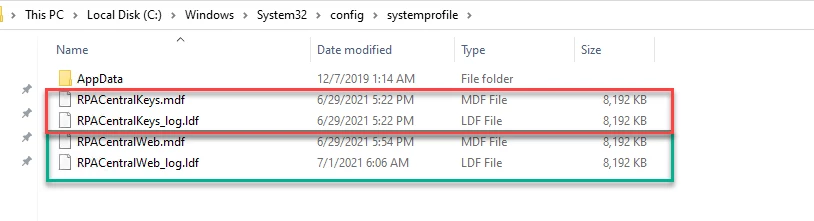
By design, RPA Central does not delete botflows even when a full uninstall is performed. They are kept in an encrypted database file located at C:\Windows\System32\config\systemprofile (by default) with three other database files that hold your license information and user information.
Instructions
If you can answer ‘Yes’ to either of these questions below, please see Additional Information at the bottom of this page:
- Was RPA Central installed on another drive than the one it is currently installed on?
- Do you or have you had more than one license key?
If your answer is 'No' to the above questions, the system may have created a windows.old folder and put the databases in this folder. This happens when the user installing or upgrading is not the user that originally installed or upgraded last time.
- Make a copy of the databases that are in C:\Windows\System32\config\systemprofile.
- Navigate to the root of the above path, then look for a new folder named, "Windows.old." There have been instances where the Windows.old folder is inside the Windows folder or any of the other folders in the above path.
- If you see the 4 databases inside any of these folders, copy and paste the four database files into the folder where RPA would look for them, which is by default at C:\Windows\System32\config\systemprofile and replace the newly created folders from the install.
- Close RPA Central and reboot the machine.
**If the old databases are not found, please try a search for this database: RPACentralWeb.mdf as this is the one containing your botflows.
Additional Information
You can usually tell by the size of the folders if they are new or not. The new ones will be approximately 8,192 KB.
If RPA Central was installed on another drive previously:
All botflows are saved in the four databases at C:\Windows\System32\config\systemprofile (by default). If the installation path of the upgrade version selected is different from the path previously selected in the prior version of RPA Central, then RPA Central will no longer be able to decrypt the botflow payload which includes all actions.
- We will need to recover the botflows from that drive. Try to search for this file: RPACentralWeb.mdf, as this is the file that contains your botflows.
- Also, try searching for any file that ends with one of the following extensions, in case a backup was created of the individual botflows in the past.
.RPA
.FOX
.FSF - this script would have to be manually re-created - please see this link below for information:
If you have more than one license key:
We may need to deactivate your current license key and reactivate the old one.
To do this:
- Make a backup copy of your RPA Central databases. This is just a precaution, so we don’t lose new botflows while retrieving old botflows.
- Make a copy of your botflows by opening the Bot and selecting Botflows in the top menu and then Bulk Export Botflows.
- Deactivate the current license key.
- Activate the old key. You may need help from Support to activate it.
- If the botflows are able to be accessed, make a copy of them from the Bot and then Bulk Import them into your current RPA Central. You will need to delete the ones in RPA Central that do not work first, or you will need to change the name of the ones you are importing.
If none of the above step help or you would like assistance in performing the above steps, send an email to Support@Nintex.com with details about what was done already.
Related Links
Exporting, Organizing, Backing up Botflows
Backing up RPA LE Databases and Botflows
Converting Foxtrot Legacy .FSF scripts to RPA LE Guide