




Topic
If converting an old Foxtrot Legacy script with the .FSF file extension, it will need to be re-created manually because the two user interfaces are so different than the actions do not convert easily.
Foxtrot LE was created to work with Emulators only and contains the applicable actions. There is no conversion tool from .FSF files to .FSP or .RPA extension files. Since Foxtrot LE (versions 15.1.13 and below) cannot be installed on the same machine as RPA LE Bot (versions 16.0.4 and higher), the best way to recreate the script is to use the 'Foxtrot Legacy Explorer' Tool that is installed with the Foxtrot Legacy app (using the 'Foxtrot Extras' installer for v15.x or older).
This way you can create a PDF file with all the actions in the Foxtrot Legacy script and use the FoxtrotRPA_MigratingFromLegacy PDF that is attached to this article for reference as you re-create the botflow (aka script) in the Foxtrot or RPA LE versions of the Bot.
The process of re-creating the script would be something like this:
- Create the Foxtrot Legacy Explorer PDF (instructions below).
- Have the FoxtrotRPA_MigratingFromLegacy PDF guide on hand for help in translating the Legacy actions to Bot actions.
- Open the .FSF script and use the Execution Stepper to run one action at a time so you can identify what Legacy is doing and then replicate it in the Bot version you are using.
- On page 2 of the MigratingFromLegacy guide, you will see the comparison of Foxtrot or RPA LE Bot on the left and Foxtrot Legacy on the right.
- On page 4 of the MigratingFromLegacy guide, you will see the beginning of the Action Thesaurus where you can look up the action name that you see in the Foxtrot Legacy script PDF that you created and match them up with the action name in Foxtrot or RPA LE Bot.
Instructions
To Create the Foxtrot Legacy Explorer PDF from your script with the .FSF extension:
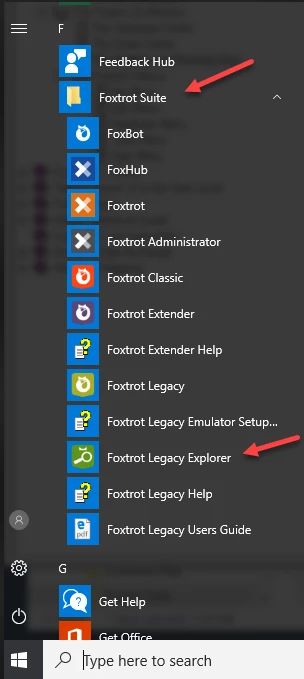
- Start 'Foxtrot Legacy Explorer' from the Windows Start Menu > 'Foxtrot Suite' folder.
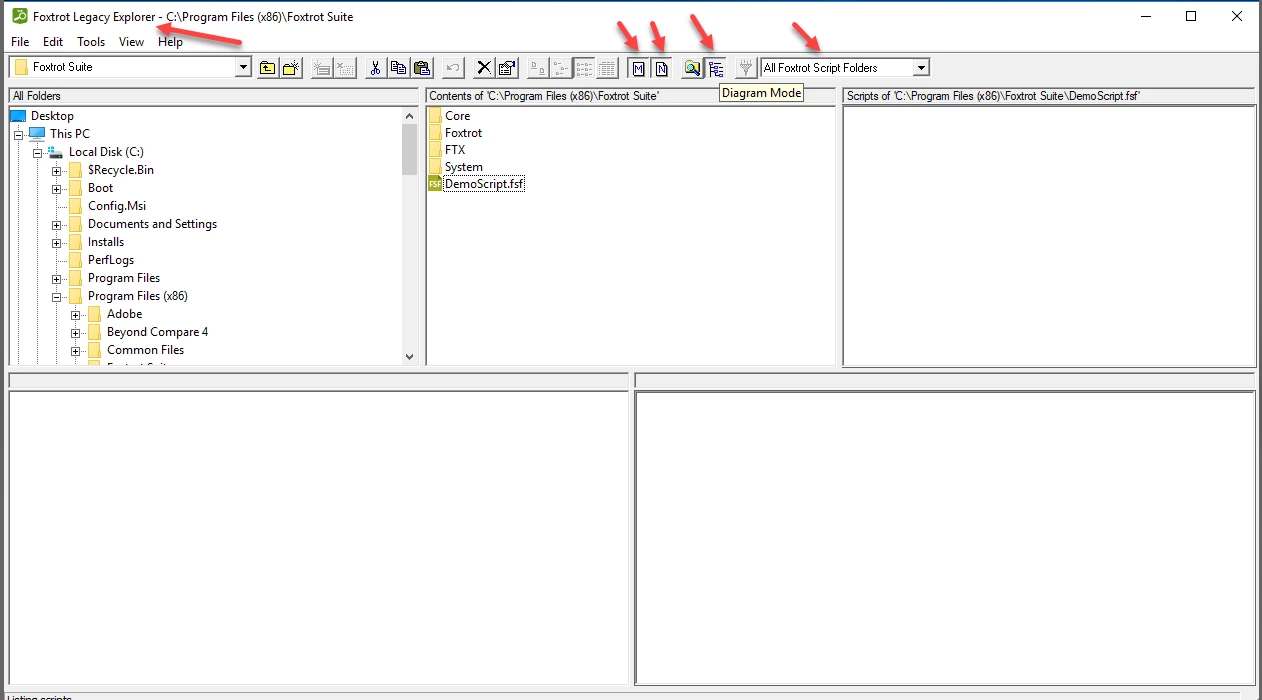
2) In Foxtrot Legacy Explorer' tool, be sure to click the toolbar buttons for 'View Main Scripts' (M), 'View Next Scripts' (N), 'Diagram Mode'.And combo box should show 'All Foxtrot Script Folders'.
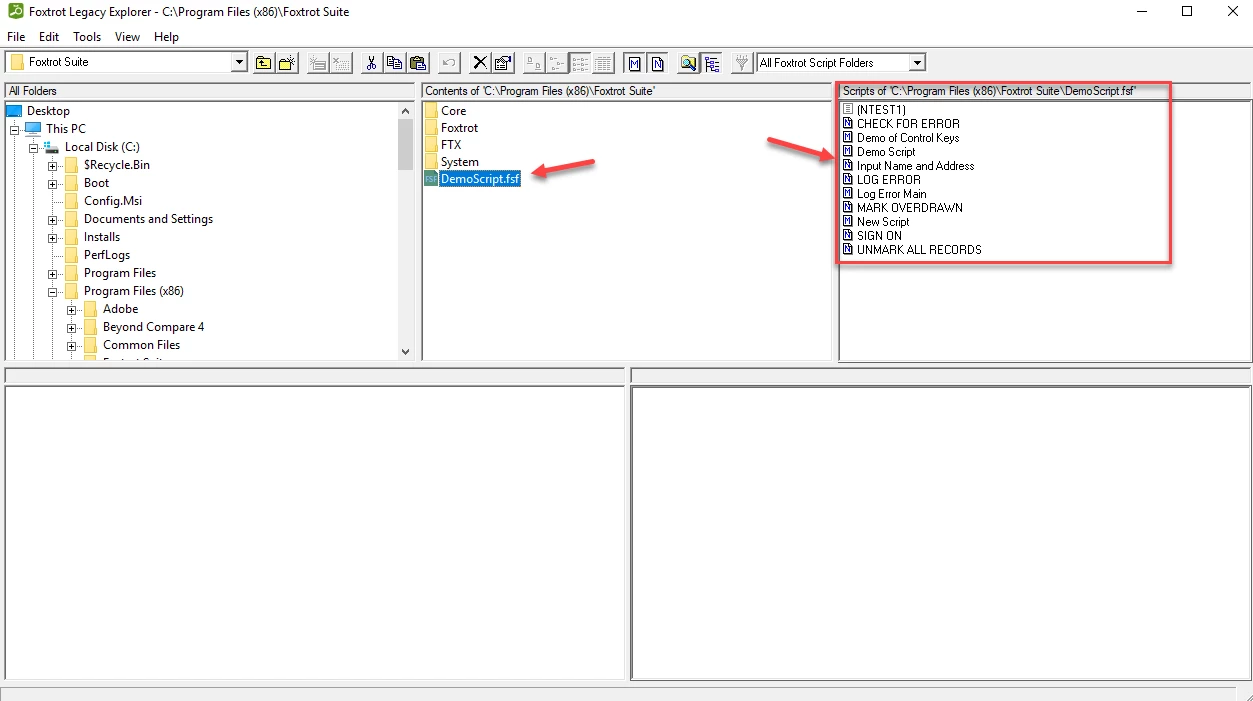
3) Navigate to the folder path that contains the .FSF file and select it. In the right pane, they will now see all of the 'Main' and 'Next' scripts (ie Tasks) in the selected .FSF file.
4) Click the 'Script' (ie Task) in the right pane and the Script Actions will be displayed in the lower pane.
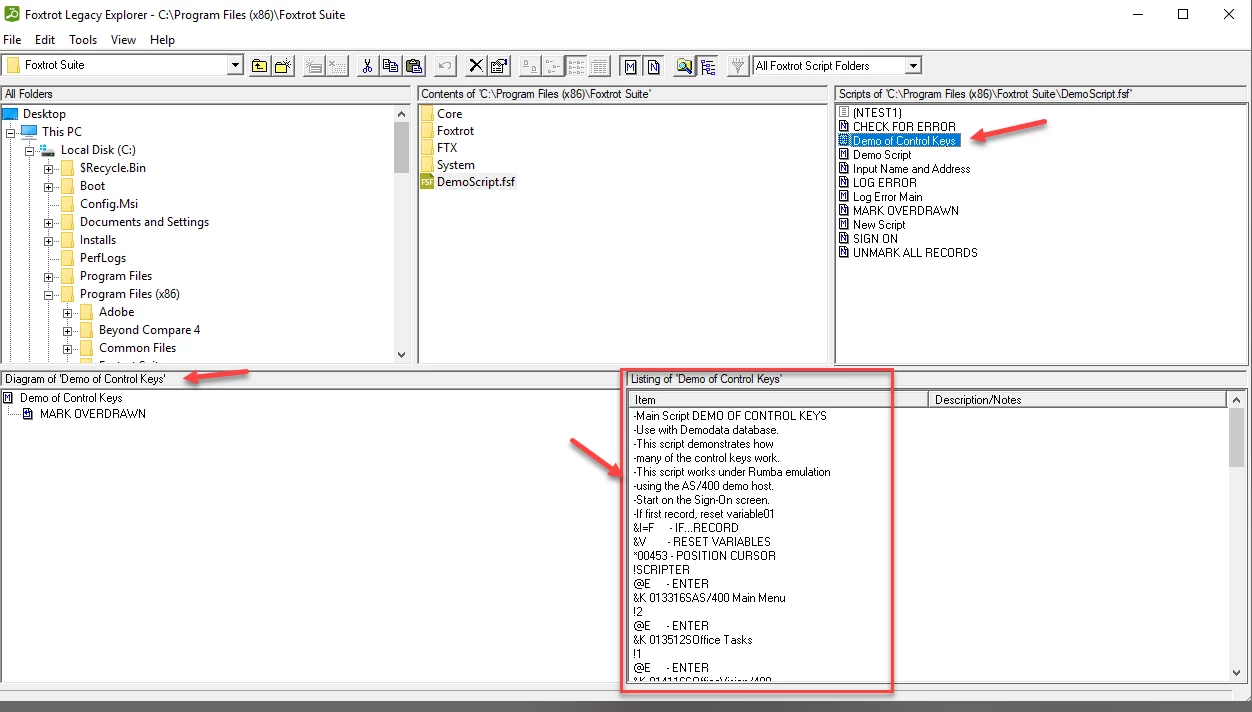
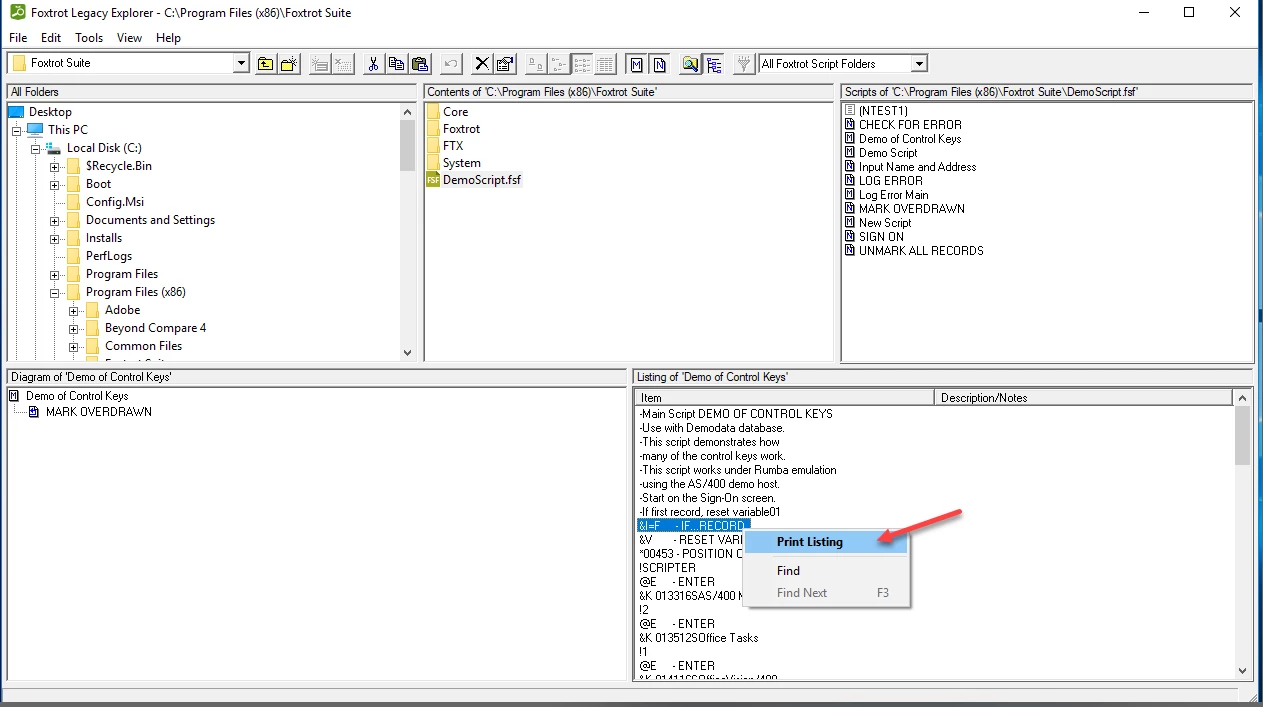
5) Right click anywhere in the lower-right pane and select 'Print Listing' from the context popup menu.
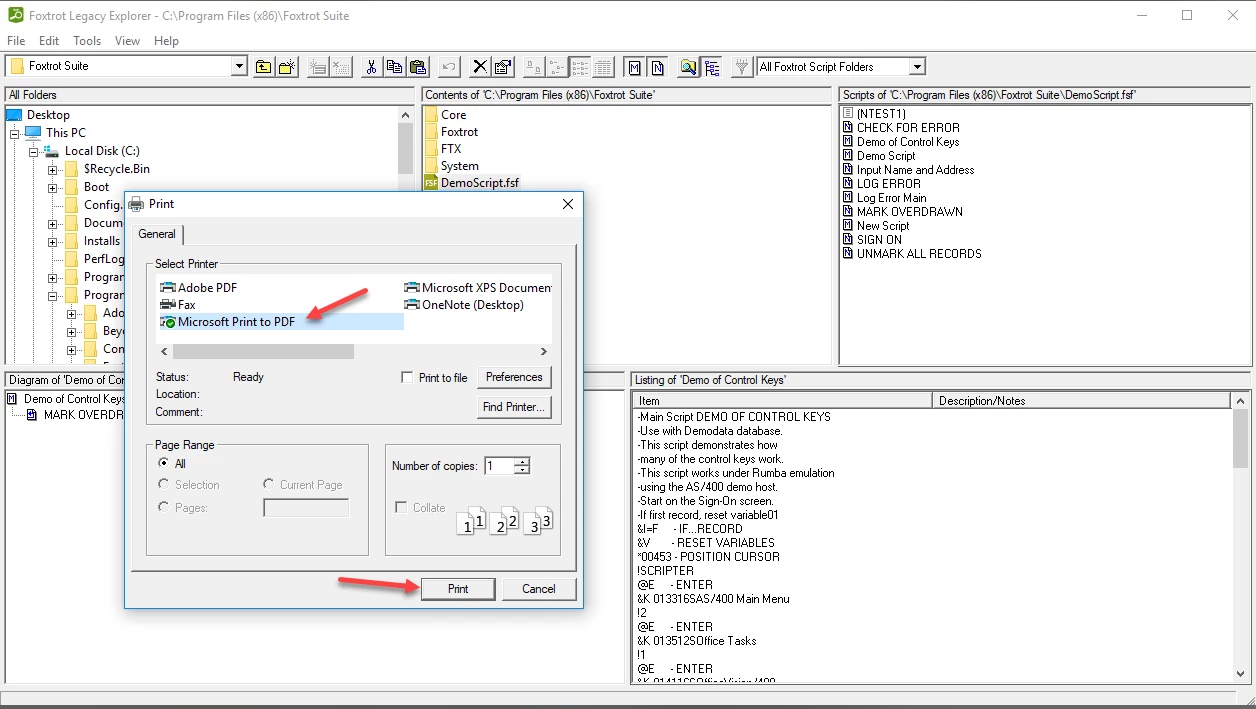
6) In the Print dialog, select 'Microsoft Print to PDF' from the Printers list and click 'Print'.
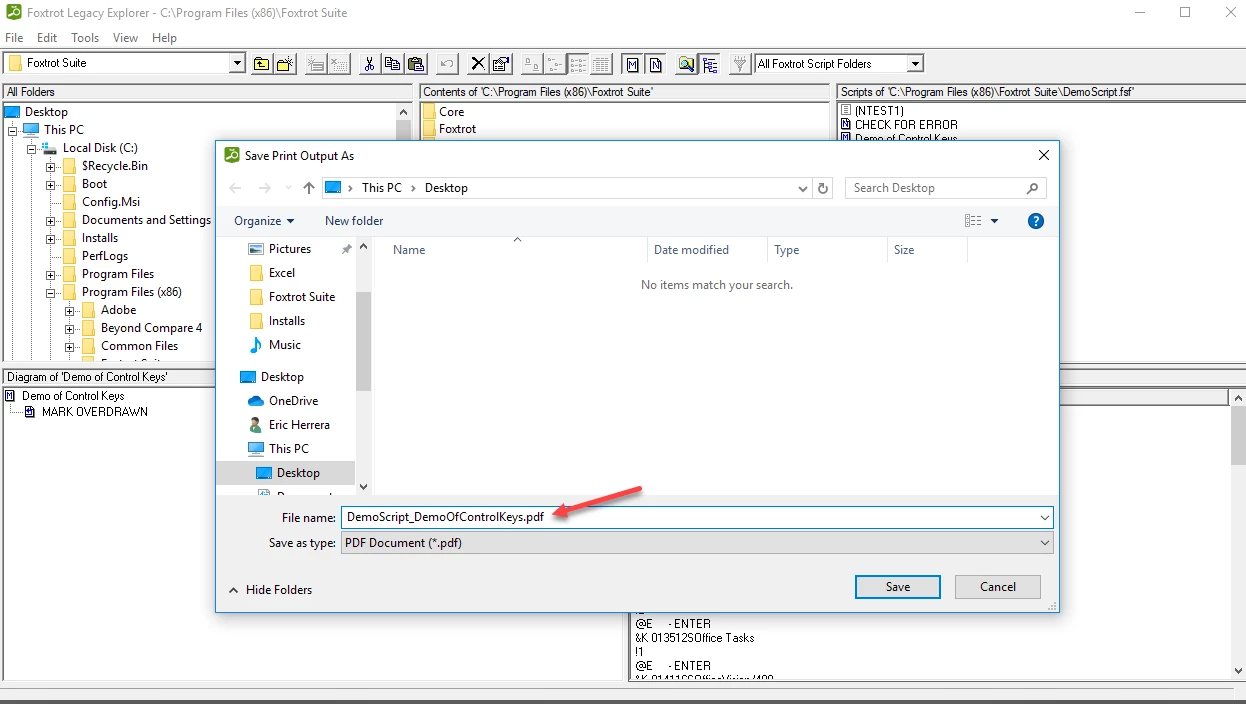
7) Give the destination PDF file an appropriate filename. I would recommend it start with the name of the original FSF file + the name of the Script (ie Task) being printed.Ex: DemoScript_DemoOfControlKeys.pdf
image.png.
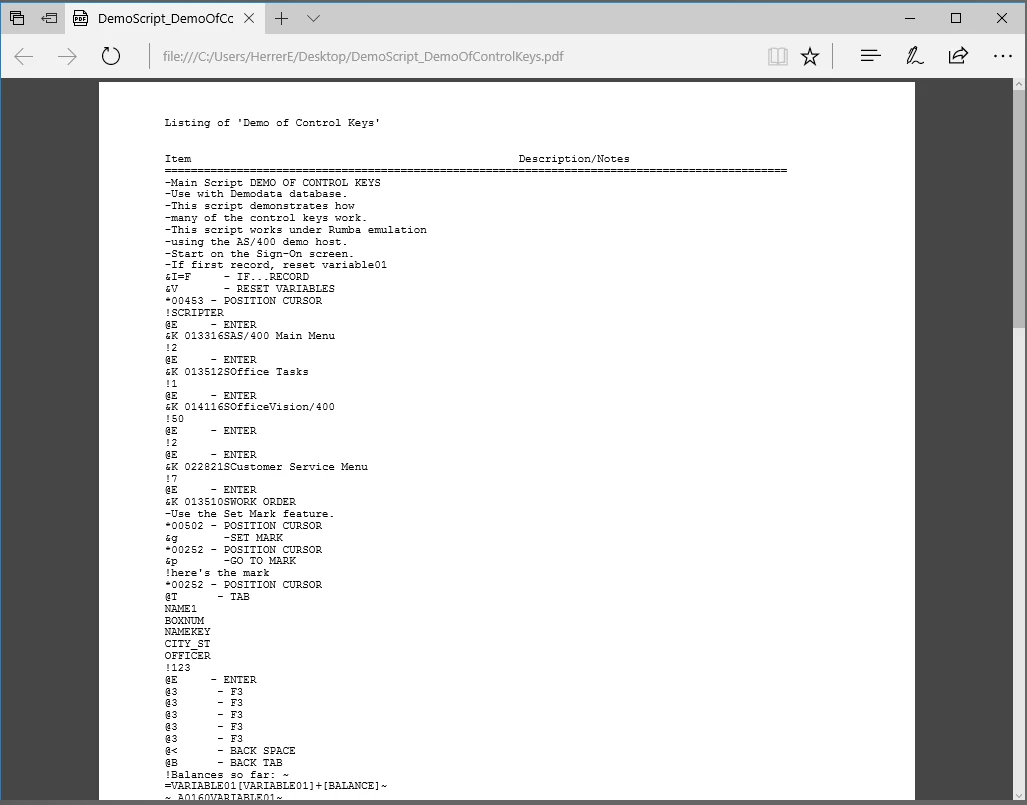
8. The result is a PDF file of their selected Script (ie Task).
Additional Information
If you have any questions about this article, please contact Nintex support at support@nintex.com and reference this article and we will be happy to help.