




Topic
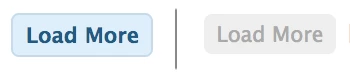
The “Load more” button in Skuid in the Salesforce Production org doesn’t look like the one in Sandbox.
Resolution
Adjust the additional CSS in the v1 theme which is selected as the default theme.
Problem Details
After deploying Skuid pages (v1) from Sandbox to Production, the “Load more” button in the Table footer looked different: font color, background color, and border style were not the same as in Sandbox. The screenshot below shows the Button in Sandbox on the left, and the Button in Production on the right.
Resolution Process
- First check if the themes in Sandbox and Production are up to date. If they aren’t, we recommend updating out of date Themes. However, the themes were up to date.
- Next, I double checked if the Skuid pages in Sandbox and Production were exactly the same. To do this, I copied both XMLs and compared them in diffchecker. They weren’t identical, however I couldn’t find any relevant differences. The theme was the same (Default). The page in Sandbox contained additional CSS, but it was not related to button styles.
- I then used the browser console to inspect the buttons and verified that the CSS was different.
- Furthermore, I checked the custom JS on the page which was different as well, but also not related to any style settings.
- Since the different CSS must be stored somewhere, I checked the themes again. You can’t edit the “Default” theme, but you can select which theme should be assigned as the default theme. A custom theme was selected. This custom theme contained additional CSS in Sandbox, but not in Production.
Outcome
You can check additional CSS in the theme builder. Go to the last item in the list on the left:
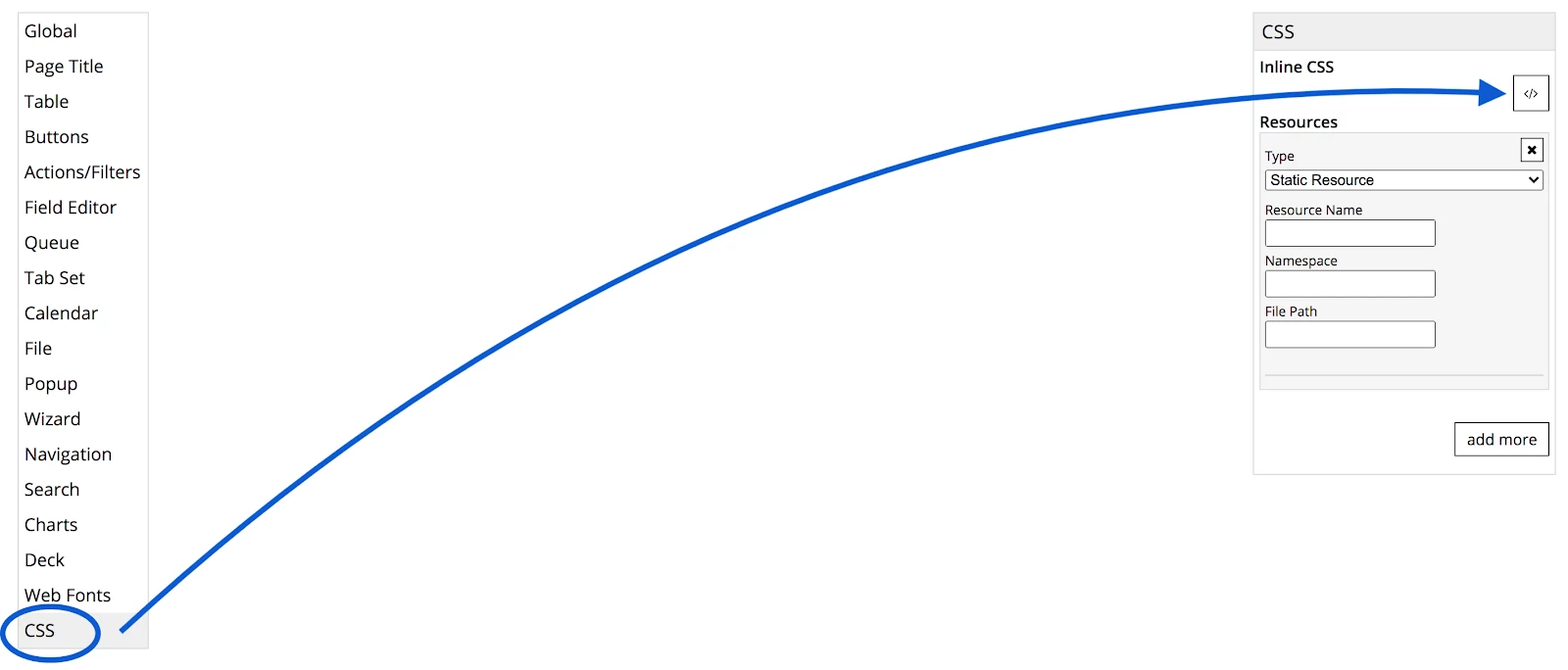
After copying the additional CSS from the custom Design theme in Sandbox to the one in Production, we reloaded the Skuid page preview and the buttons looked the same.
Takeaways
The Skuid page design can vary in separate Salesforce orgs even though the page XML is identical (including the selected Design theme/system), because the Design theme/system settings can be different. If “Default” is selected in both places, double check which Design theme/system is selected as the default theme/System, and check those for any differences. If you can’t find any differences, but want to make sure that it’s identical, you could export the Design theme/system from Sandbox and import it in Production.
Documentation
- Check/Select the Default Theme in v1
- Check/Select the Default Design System in v2
- Update Out of Date Design Themes v1
- Update Out of Date Design Systems v2
- Export and Import Themes v1
- Export/Download Design Systems v2
- Import Design Systems v2
Additional Information
In v2 you can even set up individual default Design Systems for different users. If your Skuid page looks different in Sandbox and Production, double-check if the respective users have different Design System defaults.
Get help with an issue
- Ask in the Skuid question forum.
- If you have a support entitlement, ask your question in Nintex Customer Central.