




Topic
Most times, when RPA LE is upgraded, only the installer executable needs to be run and it takes care of everything.
Sometimes after installing an upgrade of RPA Central, errors are encountered that suggest that there may be remnants of the old install on the machine. For example, it may reference the old license.
Instructions
First, export any botflows by going to the menu at the top of the Bot, and under Botflow, click the Export function.
**Please note: Starting with Bot v17.12, there is a new option under Botflow for a bulk export to backup all botflows listed in RPA Central in just a couple of minutes.
Once this is complete, follow these steps for a fresh install:
1) Go to add or remove programs.
2) Uninstall RPA Central.
3) Uninstall any Microsoft SQL Server LocalDB apps (2014, 2016, 2017).
Example:

4) Restart machine.
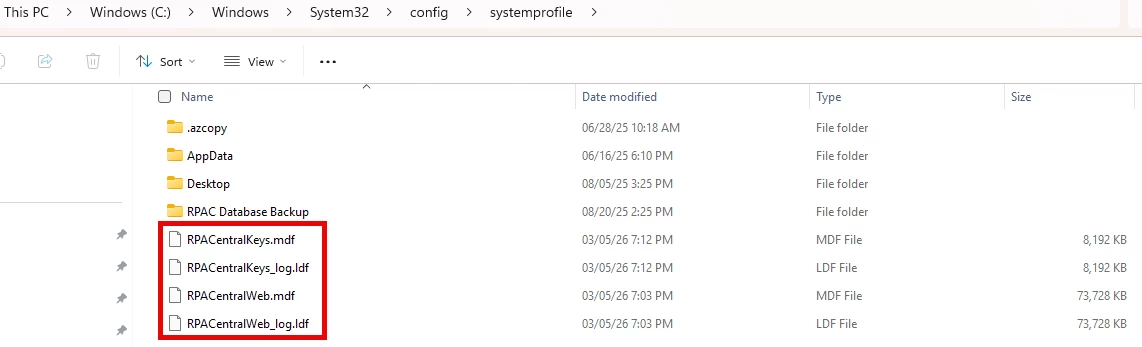
5) In file explorer, go to C:\Windows\System32\config\systemprofile\
Manually CUT all *.mdf and *.ldf files that mention “RPACentral” and MOVE to a BACKUP folder
6) Clear Cache, cookies and browsing data.
7) Navigate to C:\Windows\System32\config\systemprofile\AppData\Local\Microsoft\Microsoft SQL Server Local DB\Instances\
For this folder MSSQLLocalDB, Remove the folder or move it to a temp folder.
Note: This step can also fix the following errors that prevents RPAC from recreating the RPAC database files.
- Error: Windows could not start the RPA Central service on Local Computer.
- Error 1064: An exception occurred in the service when handling the control request.
8) Re-install RPA Central
**If not using the latest version, this would be a great time to upgrade, please see Additional Information for Release Notes page
This will create a Fresh set of RPAC database files in:
C:\Windows\System32\config\systemprofile\
9) Shut down the RPAC Service - This will release the file lock on the RPAC database files
10) Replace the newly created RPA Central database .mdf and .ldf files with the backed-up files that were saved in step 5.
The location of these files is: C:\Windows\System32\config\systemprofile\
Note: These newly created files are empty and we want to use the ones from before the upgrade which contain your botflows.
11) Start the RPAC service and if it succeeds, in RPA Central, the botflows, instances, etc. from the backed up LocalDB files should appear.
**If the exported botflows from the step in the beginning of this article need to be imported, choose the Bulk Import option, if using v17.12 or above and import them through the Bot.