



Overview
This article explains why Nintex’s standard Query a list action fails when SharePoint lists exceed 5,000 items and demonstrates how to use the SharePoint Online Call a SharePoint web service action in Nintex Workflow as a workaround.
The Problem: Why “Query a List” Fails
What is the 5,000 Item Limit?
Microsoft SharePoint enforces a List View Threshold of 5,000 items. In SharePoint Online, Microsoft sets this as a fixed limit that cannot be changed. The limit protects performance by preventing queries from retrieving more than 5,000 rows at once. Without it, SQL Server—the database behind SharePoint—could lock the entire table and slow down the site for all users.
| ⚠️ Important — SharePoint Online vs On-Premises SharePoint On-Premises: An administrator can increase the threshold in Central Administration. SharePoint Online: In Microsoft 365, the 5,000-item limit is fixed and cannot be increased. This article focuses on SharePoint Online and Nintex Workflow. |
|---|
How Does “Query a List” Actually Work?
This is the key point to understand; when you use the Nintex Query a list action, even if you only want a single item, SharePoint still attempts to scan through all items in the list before applying your filter.
| 💡 Think of it this way Imagine a filing cabinet with 10,000 folders. Query a list opens every single folder to check if it matches your criteria, rather than going straight to the correct drawer. Once the number of folders (items) exceeds 5,000, the filing room locks up. |
|---|
As a result, you will see an error like this:

| 🚨 Note: Filters May Not Prevent the Error You might think that adding a filter condition (e.g. “Status = Active”) would prevent the error. Unfortunately, if the list exceeds 5,000 items and the column being filtered is not indexed in SharePoint, the Query a list action will still fail. The filter is applied AFTER SharePoint tries to scan all items. |
|---|
When Does This Happen?
| Scenario | Will “Query a list” fail? |
|---|---|
| List has < 5,000 items | No, it will execute correctly. |
| List has > 5,000 items, no filter | Yes, it will always fail. |
The Solution: Using the SharePoint Web Service Action
Why Does This Work?
Instead of using Nintex’s built-in Query a list action, we call the SharePoint REST API directly using the SharePoint Online Call a SharePoint web service action. This gives us full control over the query, including the ability to use $filter (with indexed columns) to stay well within the 5,000 item threshold per request.
| 📄 Official Nintex Guidance Nintex’s own documentation for Query a list states: If you try the troubleshooting tips provided and still get the error, consider using the SharePoint Online — Call a SharePoint web service action instead. This article shows you exactly how to do that. |
|---|
Prerequisites
-
A Nintex Workflow solution (existing or new)
-
A SharePoint Online connection configured with the Lists and libraries authentication method
-
The URL of your SharePoint site
-
The name of the list you want to query
-
Optional: the name of an indexed column to filter on (recommended for large lists)
Step-by-Step: Configuring the Web Service Call
Step 1: Add the “Call a SharePoint web service” Action
-
Open your workflow in Nintex Workflow.
-
In the workflow designer, click the + button to add a new action.
-
Search for: SharePoint Online — Call a SharePoint web service.
-
Drag it into your workflow at the correct position.
-
Click the action to open the configuration panel.
Step 2: Configure the Connection
-
In the Connection field, select your SharePoint Online connection.
-
If you do not have a connection yet, click Add a connection and follow the prompts. Make sure to select Lists and libraries as the authentication method, this is required for this action.
| 🔑 Authentication Method Matters Only connections created using the Lists and libraries authentication method will appear in the drop-down. If your connection does not appear, check which authentication method was used when the connection was created. |
|---|
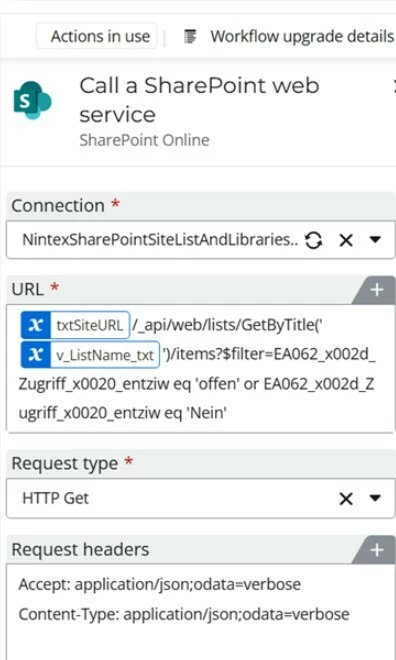
Step 3: Build the REST API URL
This is the most important part. The URL tells SharePoint which list to query and how many items to return at a time. Use the following format:
{your-site-url}/_api/web/lists/getbytitle('{List Name}')/items?$filter=ID,Title,{OtherColumns} Replace the following:
| Placeholder | Replace with |
|---|---|
| {your-site-url} | Your SharePoint site URL, e.g. contoso.sharepoint.com/sites/HR |
| {List Name} | The exact name of your SharePoint list, e.g. Employee Records |
| {item$filter={ID,Title} | e.g. ID /Created By/Title |
| 💡 Tip: Index Your Filter Column First If you are filtering on a column (e.g. Status, Department), make sure that column is indexed in SharePoint first. Go to List Settings > Indexed columns > add an index. Without this, the filter may still trigger the threshold on large lists. |
|---|
Step 4: Set the Request Type
In the Request type field, select GET. You are reading data from SharePoint, not writing to it.
Step 5: Add the Accept Header (JSON Response)
To receive the response in JSON format (which is easier to work with in Nintex), add the following request header:
| Header Name | Header Value |
|---|---|
| Accept | application/json;odata=verbose |
| Content-Type | application/json;odata=verbose |
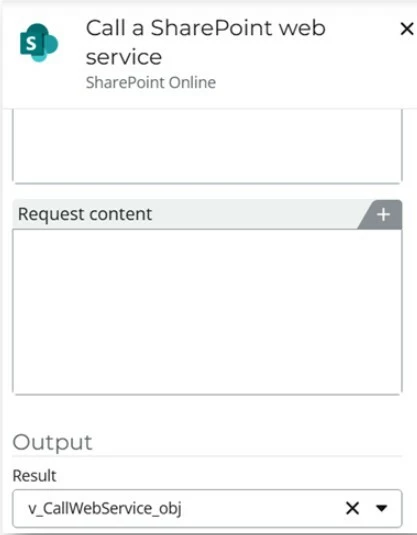
Step 6: Store the Response in a Variable
-
In the Output section of the action, click the Response content field.
-
Click Insert > Create variable and name it something like v_CallAWebService_obj or any variable of your choice.
-
This variable will hold the raw JSON returned by SharePoint.
Step 7: Extract Your Data with Query JSON
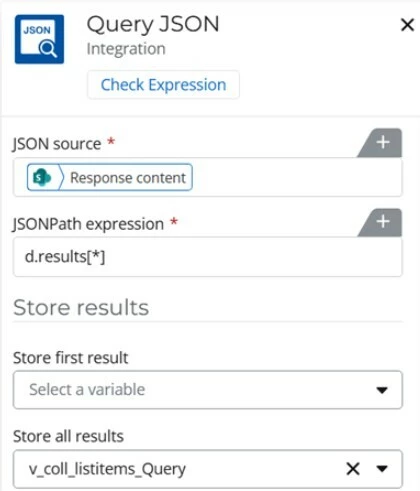
After the web service call, add a Query JSON action to extract the specific values you need from the response.
-
Add the Query JSON action after the web service call.
-
In the JSON source field, insert the v_CallWebService_obj variable Response content.
-
Use the following JSONPath expression to get the list of items:
$.d.results[*] To get a specific field from the first item (e.g. the Title column):
$.d.results[0].Title
| 🔍 JSONPath Quick Reference $.d.results[*] → All items returned $.d.results[0].Title → Title of the first item |
|---|
Query a List vs. Call a Web Service: At a Glance
| Query a List | Call a Web Service | |
|---|---|---|
| Works on lists > 5,000 items | ❌ No | ✅ Yes |
| Easy to configure | ✅ Yes | Moderate |
| Requires indexed columns | Sometimes | Recommended |
| Returns JSON | ✅ Yes | ✅ Yes |
| Recommended for large lists | ❌ No | ✅ Yes |
Tips, Best Practices & Common Mistakes
✅ Best Practices
-
Before filtering on a column in a large list, check whether that column is already indexed in SharePoint. If it is not, consider adding an index, this significantly reduces the chance of hitting the threshold error
-
Use $filter to narrow down results as much as possible before processing.
❌ Common Mistakes to Avoid
-
Using Query a list on a list that already has (or will grow to) more than 5,000 items.
-
Filtering on a non-indexed column and expecting it to bypass the threshold.
-
Forgetting to add the Accept header, without it, SharePoint may return XML instead of JSON.
-
Using a SharePoint connection that was NOT created with the Lists and libraries authentication method, it will not appear in the action.
References & Further Reading
• Nintex Help: Call a SharePoint web service: help.nintex.com
• Nintex Help: Query a list (and known limitations): help.nintex.com
• Microsoft: List View Threshold explained: support.microsoft.com
• Microsoft Learn: Troubleshooting the 5,000 threshold: learn.microsoft.com
• Nintex Community: community.nintex.com