



In Sharepoint, an open file is not automatically checked out.
For the workflow to be paused while someone edits a file, that file needs to be checked out by the user.
If one wants to enforce that checking out the file is mandatory to edit it, they will need to navigate to the library in question and then go to Library Settings -> Versioning Settings and select the “Require Check Out” option as “Yes”.
This will also ensure that no more than 1 person can edit a file at once as a user must first check out the file to them to edit it.
Once this has been done, a workflow can be created to pause until a user has finished editing a file and checks it back in. This can be achieved in 2 ways:
-
Using a Wait for event in list item action to check when the checked out to field no longer contains a value (i.e. is checked in).
-
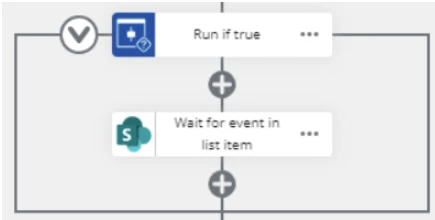
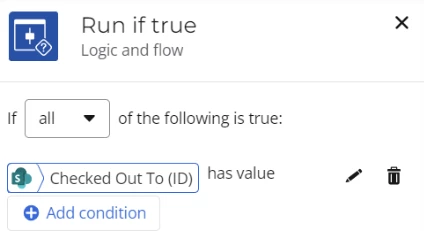
We add a Run if true action to first check if the item is checked out so that we do not wait for no reason. (If the item in the library has a checked out to ID value, someone has checked out the file).
-
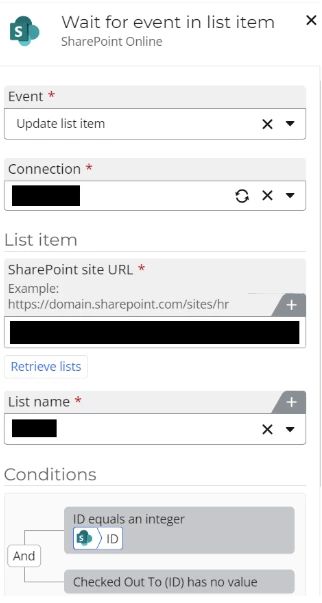
We can then add a Wait for event in list item action to check when the item is checked in (The item in the library will have no checked out to ID value so we check via the update item event in the Wait for event in list item action to confirm that the value has changed). Make sure to include the ID of the item as a condition so that the action checks the relevant file in question.
-
-
If a user wants to continuously check at a set interval if a file has been checked in, a Start a loop action can be used along with a Pause for duration action.
-
We set a Boolean variable (e.g. bool_CheckIn) to no.
-
Add a Start a loop action.
-
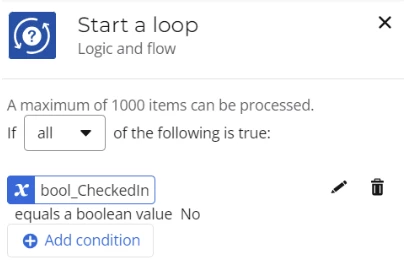
In the loop, we add a condition to continue looping while bool_CheckIn value is no.
-
Also in the loop, we then add a Pause for duration action to wait a set period of time.
-
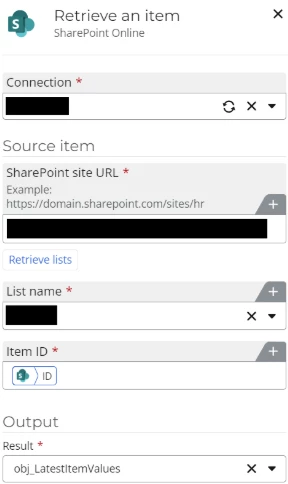
We then Retrieve an item to get the latest value of the check out to ID value.
-
Add a Run if true action with the condition based on the latest value of the checked out to ID field. (To only run if the field has no value anymore i.e. is checked in now).
-
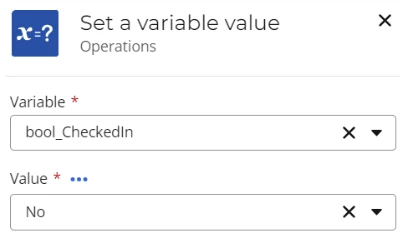
In the Run if true, we then add a Set variable value to make bool_CheckedIn yes.
-
Once the checked out to ID has no more value, the loop will stop pausing as the variable is now yes for checked in and the user can be notified (e.g. via an email):
-
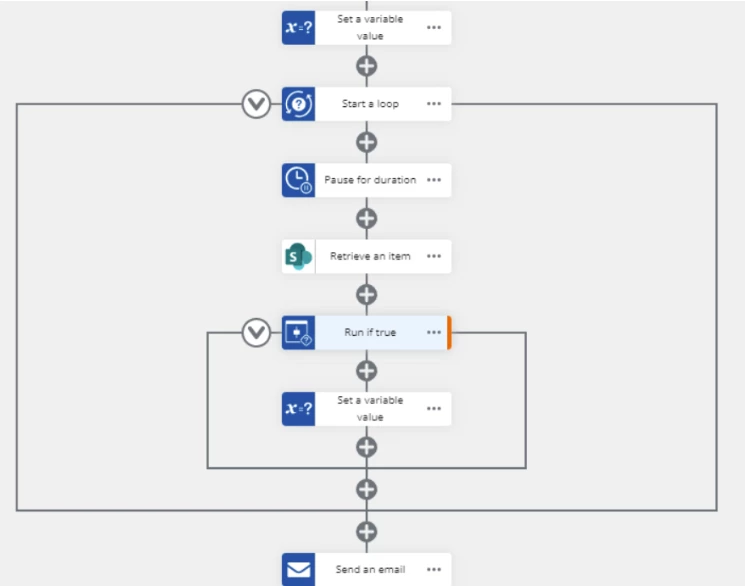
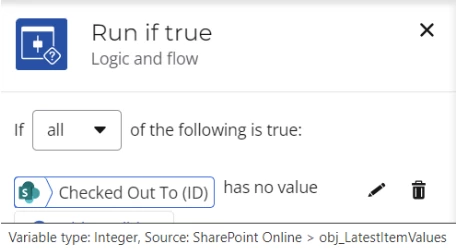
Make sure to use the value from the retrieved item in the Run if true here (NOT from the start variable).
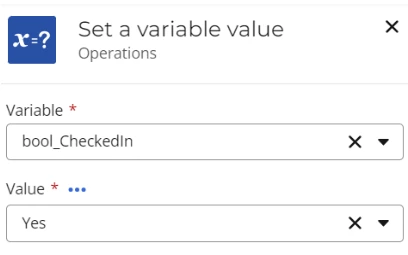
The loop will now stop running as the value of bool_CheckIn is now yes. The workflow will continue now and Send an email to the relevant user(s).