
This is a step-by-step guide explaining how to update lookup fields in a SharePoint list using values from a multi-choice control in a form in Nintex Workflow.
Step 1
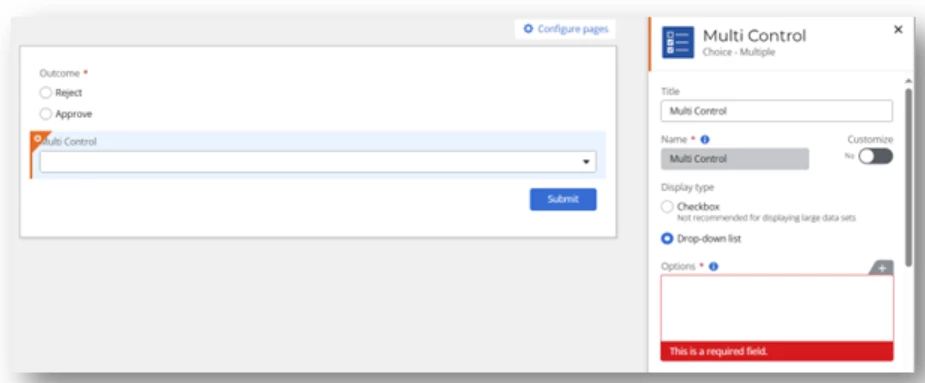
Insert a Choice - Multiple control and click Insert from the options section.
Step 2
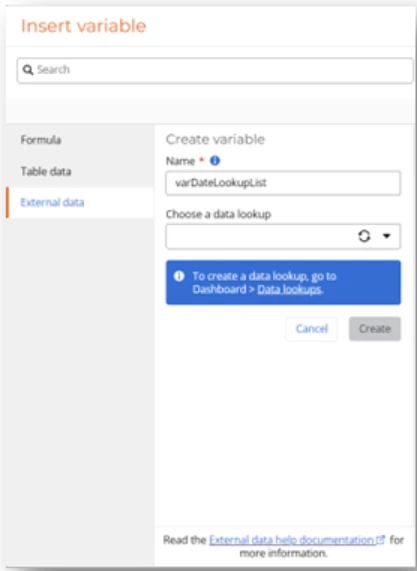
Navigate to External Data, give your new variable a name, and click on Data Lookups.
Step 3
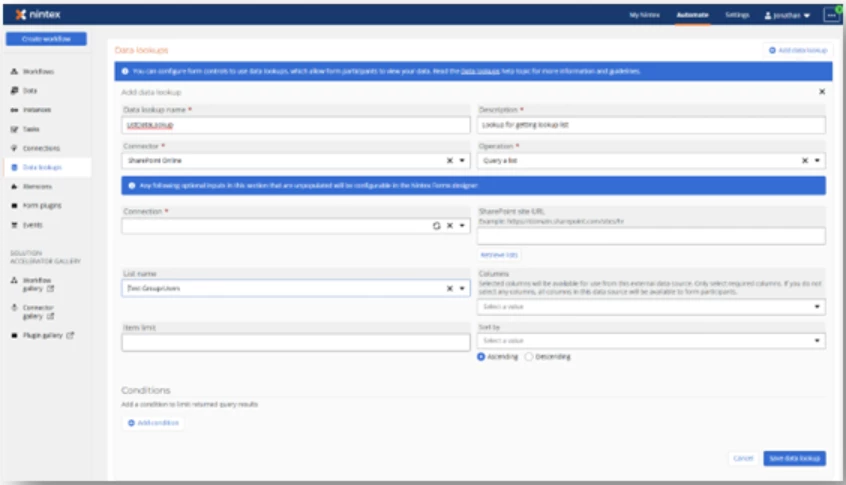
Click Add Data Lookup and provide a name and description for the data lookup.
Ensure that you select the SharePoint Online connector and the Query a List operator.
Choose a list and libraries connection, enter the site URL, and select the lookup list linked to the start event list (in this case, it's called Test Group/Users).
Once done, click Save Data Lookup.
Step 4
After creating the data lookup, return to the External Data page of your new variable.
Select the data lookup you just created, set the item limit to 5000 (the maximum number of items to retrieve from SharePoint), and then click Create.
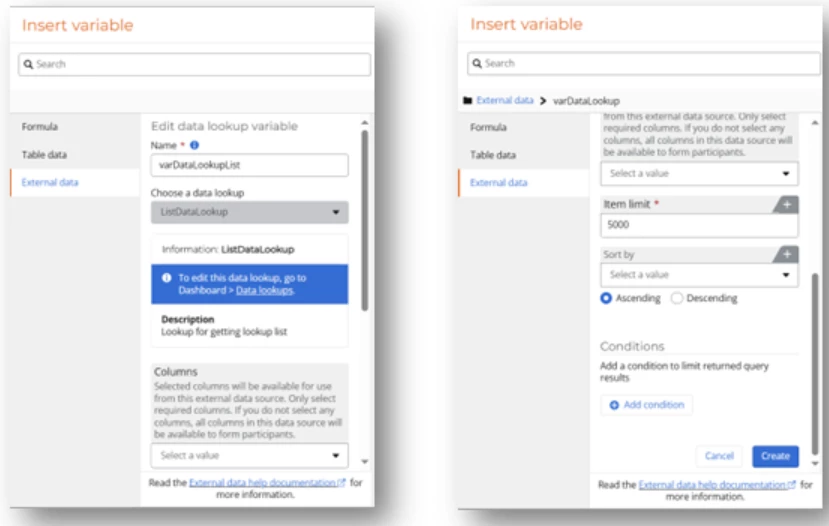
Step 5
A new data lookup object should now be created.
Navigate to Records and click Insert.
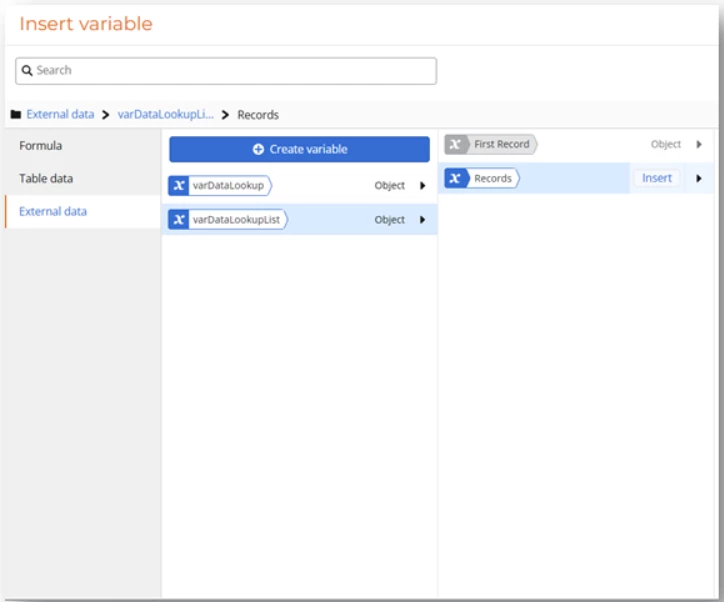
Step 6
In the Option Label drop-down, select the field to be displayed in the multi-select control (in this case, Title). In the Option Value drop-down, select ID, then click Apply Changes.
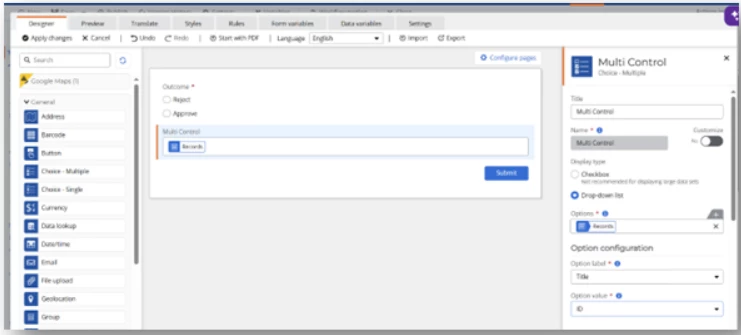
Step 7
On the workflow canvas, add the actions as shown.
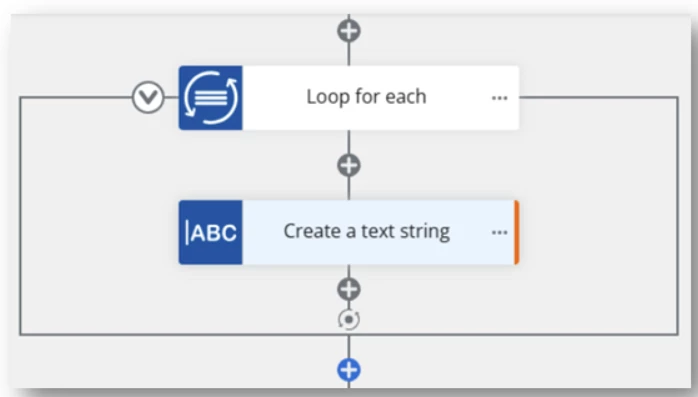
Step 8
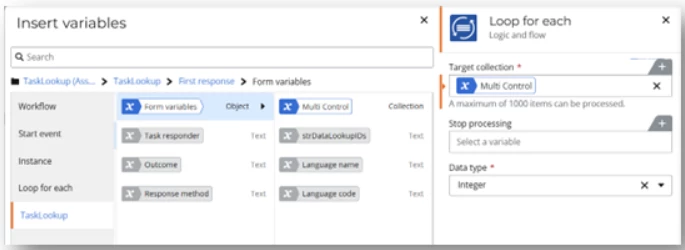
Configure the loop action, ensuring that the target collection is the multi-select control from the task form.
Step 9
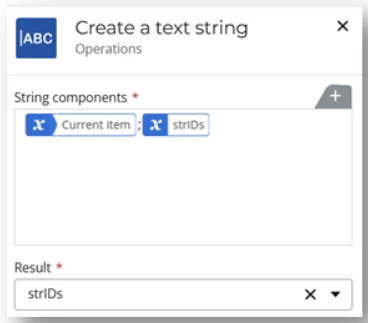
Build the IDs from the task action using the current item within the loop.
Step 10
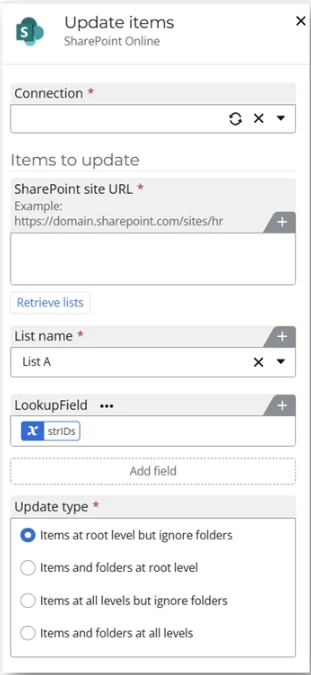
In the Update List action, assign the variable containing the string of IDs to the lookup field that needs to be updated. Ensure that only the current item is being updated.