




Issue
When working with Premier Navigator in Chrome or Edge and a confirmation pop-up box displays like the one below, you can use this workaround to help RPA click the OK button.
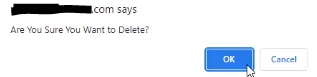
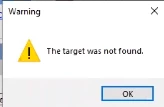
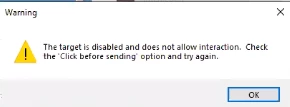
In Bot versions 17.8 and below, the user may find that the normal way of targeting the OK button and sending a Click action may not work and result in a "Target was not found" or "The target is disabled..." error message.
Error Code
Resolution
We found that the words in the pop-up box can be targeted and using a Send value, click the Magic Wand.
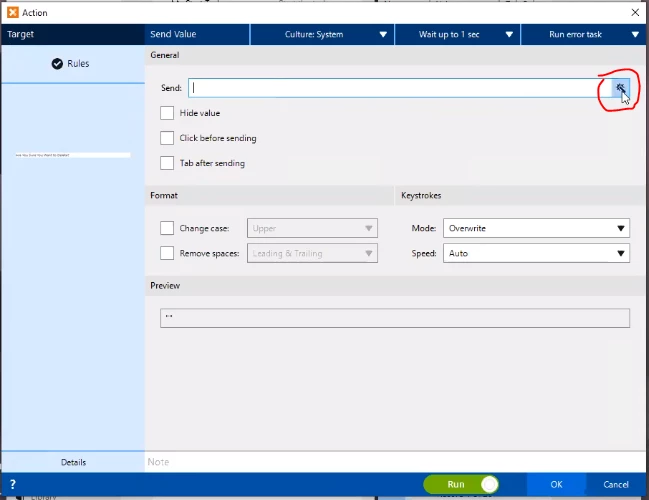
Then send a Tab and Enter keystroke to the words in the box.
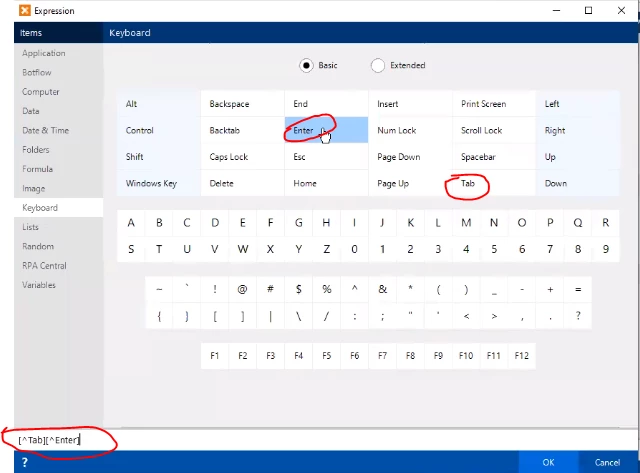
This action may take some time, but it should work.
Additional Information
When RPA thinks a target is disabled, it ignores it and gives an error. In version 17.9 of the Bot, the Dev Team is either going to add a checkbox that says something along the lines of "If target is disabled, click anyway" or they are going to make it so that the Bot will just click the target no matter what.
Version 17.9 should also help with the speed of the workaround action above as it is strengthening connections and enhancing our targeting.
There is a plan to fix this targeting so that RPA will normally Target the buttons without the workaround but the fix will be in a later version than v17.9.