




Topic
This information was provided by our preferred Nintex RPA LE Partner, Peak Consulting. They have successfully helped several banks implement MFA workarounds for their Bots.
In classic Fiserv fashion, they are mandating MFA and enabling it for all hosted banks. Usually they give banks a minimum of 2 weeks notice before enabling. This applies to all users in Navigator, so we cannot opt out for specific Bot accounts.
The implementation of MFA allows for a push to an app or to send a code to your email inbox. Since Foxtrot/RPA LE cannot communicate with MFA apps natively, we’ve used the email code to authenticate. There are a couple of steps required to enable MFA support in a bot:
- Ensure the Navigator User has a valid email address linked.
- In the botflow, add a send/receive email connection for this email inbox.
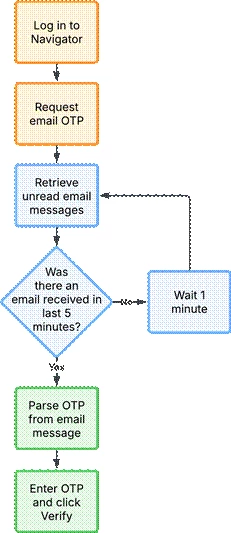
- During the botflow login steps, read recent emails from the inbox, parse out the code, and send to Navigator.
One nice thing about this implementation is that authentication is good for 12 hours. So we have been recommending that customers set up a separate botflow to log in and authenticate each Bot user every morning. Then their existing Bots will be able to log in and function without issue.
Here’s a small workflow we mocked up to outline the botflow steps:
Instructions
You will be using email and will need to be able to receive email. Set up the email to receive using the Help documents:
https://help.nintex.com/en-US/rpa/Botflow/Email_Accounts.htm
Follow these steps to create the Botflow:
- I believe you need an Open App to open Navigator or the MFA screen to ask Fiserv to send you the One Time Password (OTP)
- Create a Get Email action
- Create a Loop Email action
- **It will keep looping if there is more than one, so you may want to clear out the emails when you are done with them.
- Create an If action
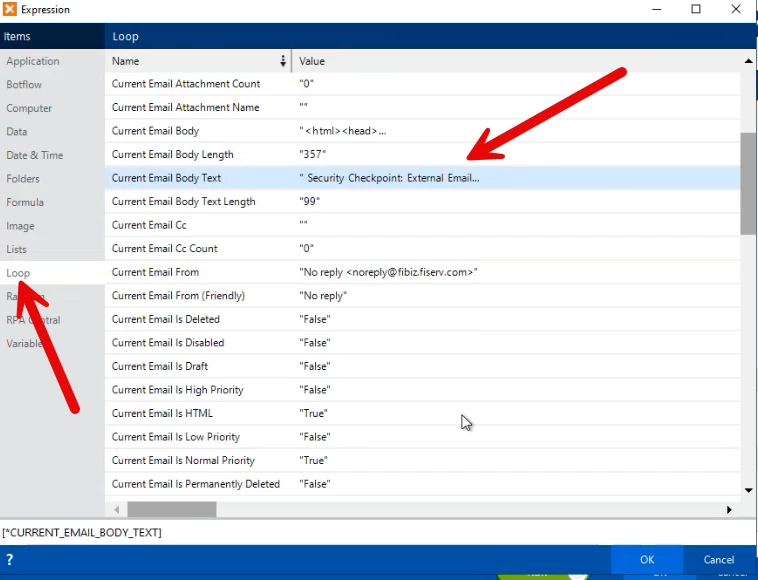
- In the first box click the magic wand
- Choose Loop
- Current Email Body Text
- Choose Contains in the second box in the If action set up page
- Add "Your OTP is" in the third box
- Create a variable to receive the body of the text in email.
- Create a Set Variable (under Data)
- Variable = click the ellipsis (3 dots), choose the variable
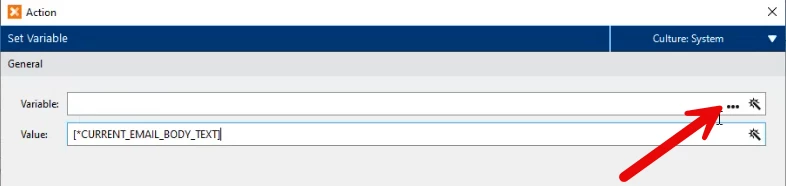
- Value = Click magic wand >> Loop >> Current Email Body Text
- Use a formula to parse the OTP out of the new variable you created and set. Ie. use a Between formula with the colon ":" and the period "." and then remove the space in front.
- Choose Between from formular text section
- Fill in Original Text (ie OTP Email Body variable)
- Start Value - :
- End Value - .
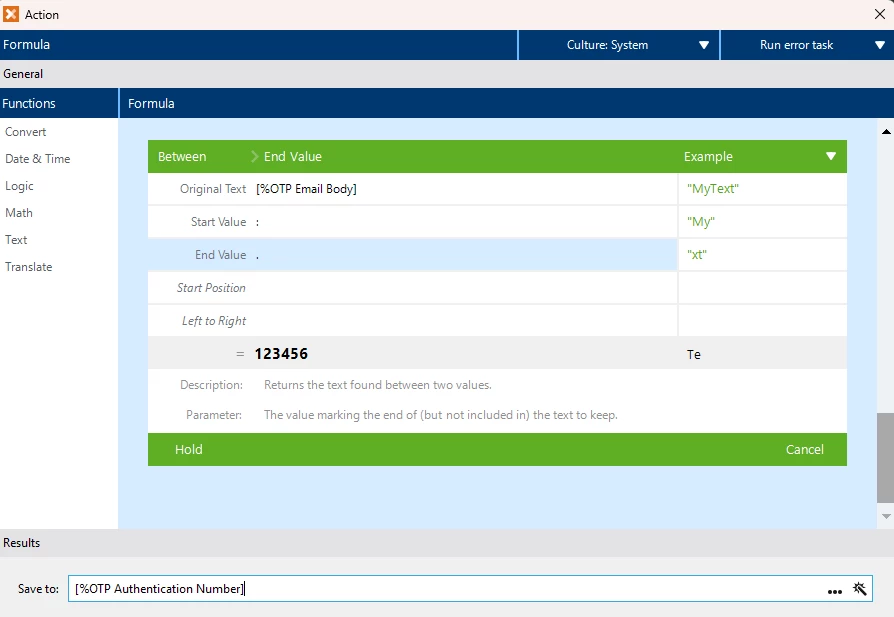
- Click Hold
- Choose Remove from Formular Text section
- Original String = click "on Hold" then choose Between
- Go to RemoveSpaces and choose True.
Additional Information
If you have further questions, please email Support@Nintex.com, and we will be happy to assist.