



Topic
How to setup an Emulator for Foxtrot Legacy.
Instructions
Before you Begin
- Verify that you have read, write, and modify permissions to the proper HLLAPI path. Typically, this is located in the same (if not a relative) folder as the emulators HLLAPI path. If you’re unsure on the location of this path, Foxtrot will display it in the Emulator Path in Step 5 below
- Verify that the emulator is running
- Verify that the emulator has a valid Short Name. The steps for setting up a Short Name for your emulator can be found in the Foxtrot Legacy Emulator Setup Help document, located in your Foxtrot Suite directory
The Emulator Setup Wizard
From Foxtrot Legacy’s Menu Bar, select Tools > Preferences1. Click the button named Emulator Setup Wizard
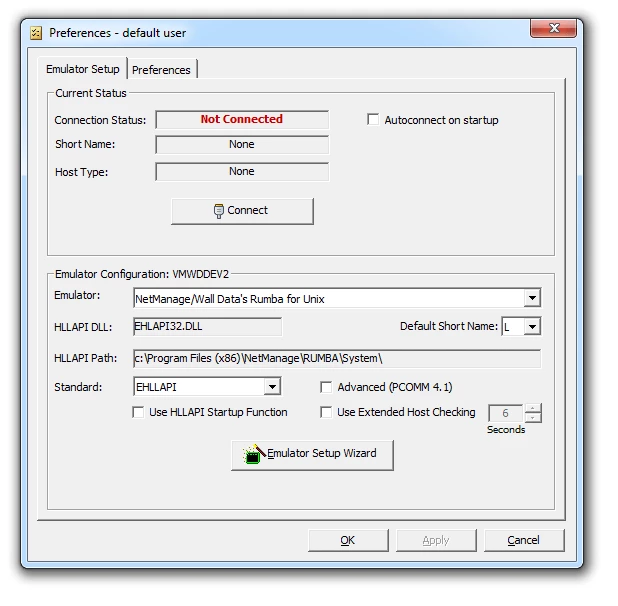
2. You will be greeted with the Welcome screen. Click Next to proceed
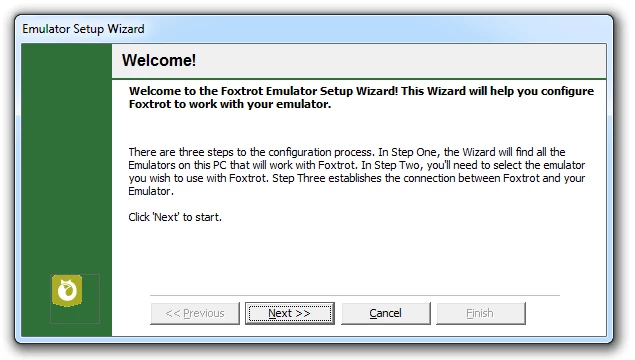
3. Select the Drive you wish to search for your emulator. Once selected, click Update
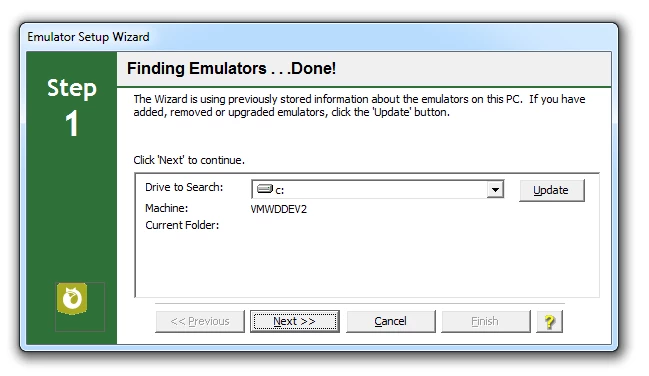
4. After Foxtrot has completed scaning for emualtors, click Next to continue
5. Select an emulator you wish to use. There may be multiple emulators
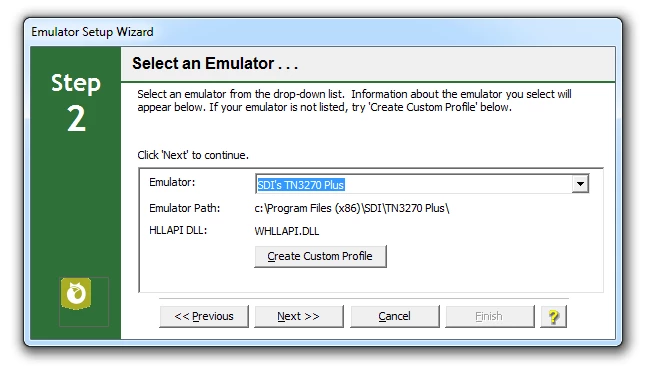
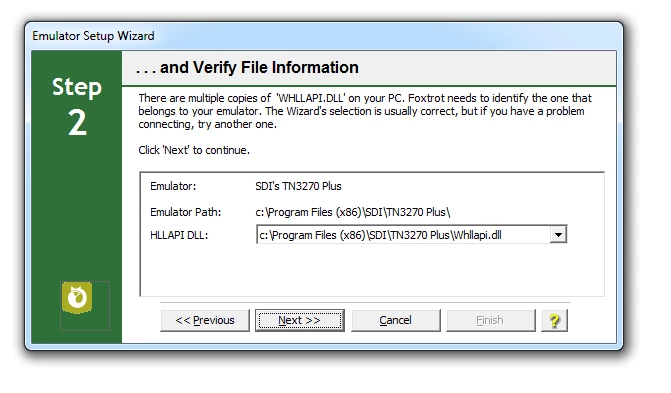
6. Verify the emulators information. If you have not done so already, please verify that you have read, write, and modify permissions to the Emulator Path. To verify these permissions, navigate to this location and attempt to create a text document
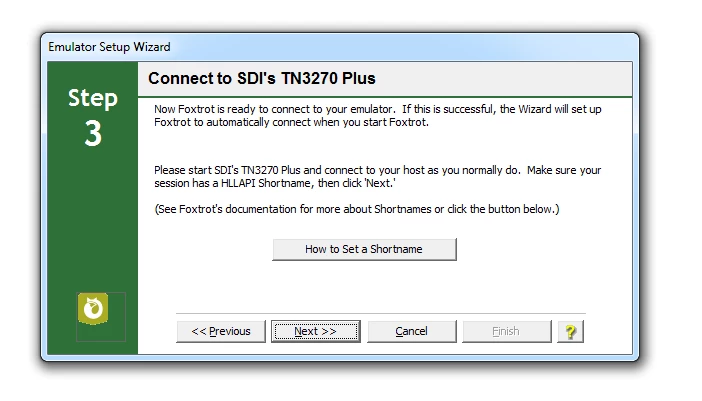
7. Step 3 will require you to verify that a Short Name has been established. Click Next to continue
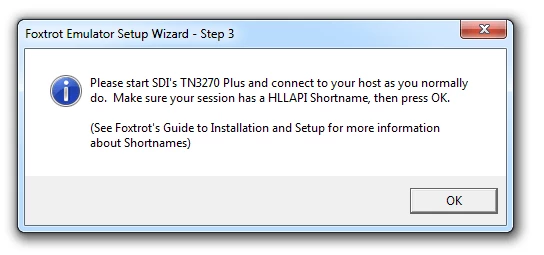
8. Foxtrot will display a message prompting you to verify that your emulator is up and running. Click OK to proceed
9. If successful, you should see the following message
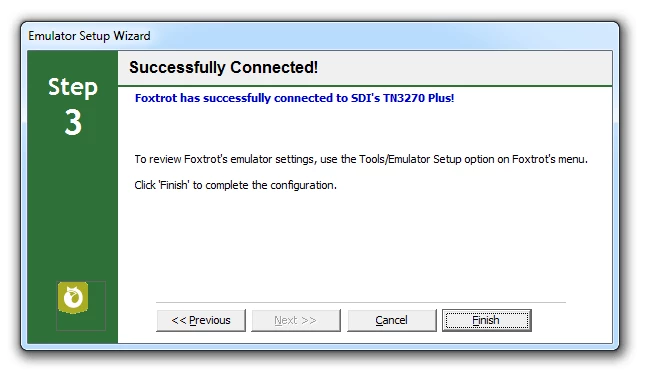
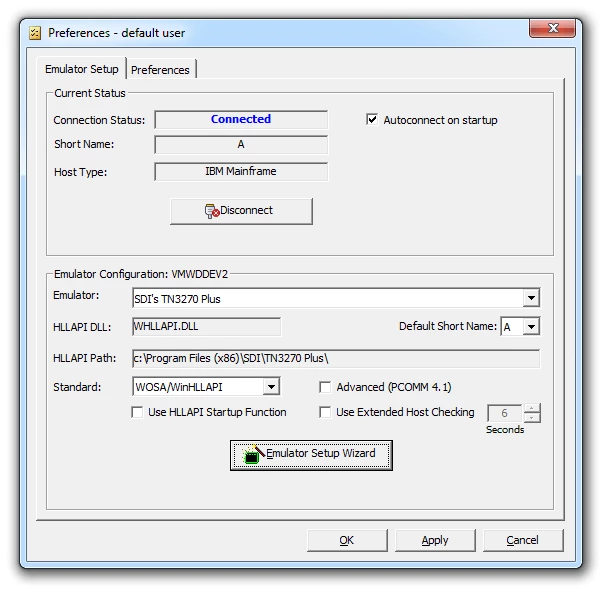
If you fail to successfully connect to your emulator, verify that you have the proper permissions to the HLLAPI path, and that the emulator has a Short Name.