



Topic
In the event where there are updated packages for specific DACs, here’s how you should have them updated on the client (Studio/Robot) machines.
Instructions
Instructions:
1. Access the Dynamic Advanced Command folder installed on the client machine (default location is C:\Nintex\DynamicCommands)
2. Locate the folder that corresponds to the specific advanced command to be validated
3. Identify the date seen on the folder
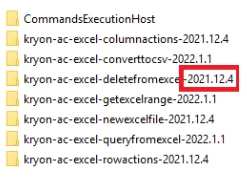
4. Next, open in the browser https://public.kryon.io/#RPA-Versions/ and choose the relevant for your version
5. Open the 'latest' build folder and then the 'Dynamic Advanced Commands Upgrades' folder, below is an example with RPA version 22.3
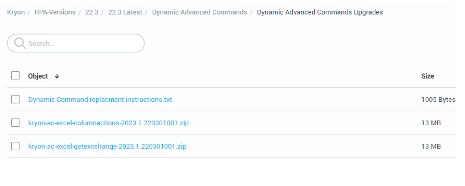
6. Download the desired DAC file and copy it to the client machine
7. Exit the client (Studio/Robot) program
8. Backup the existing DAC package from the DAC folder by moving it to another location on the computer
9. Unzip the downloaded package into the root drive of the DAC folder (i.e. C:\Nintex\DynamicCommands for default location). This should unzip the downloaded package into the correct location.
Please ensure that you DO NOT attempt to rename the file manually. You should also never attempt to take the latest package and replace the existing package by overwriting, as the files could be different!
10. Launch Nintex client (Studio/Robot). After it is launched, check the client logs (%localappdata%\Nintex\<ComputerName>\Logs) to ensure there’s no abnormal errors seen
13. Test the functionality of the newly updated advanced command to make sure it is working as expected and no abnormal errors seen in the logs
Additional Information
DAC for v21.4 and higher