



Topic
| Product version | All versions |
| Components | Aerobase |
Instructions
1 - Login to Aerobase.
2 - Click on Authentication.
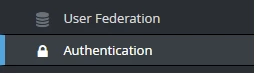
3 - Click on Password Policy tab.

4 - Update the password policy and click Save. For details on each policy type, see the Additional Information section.
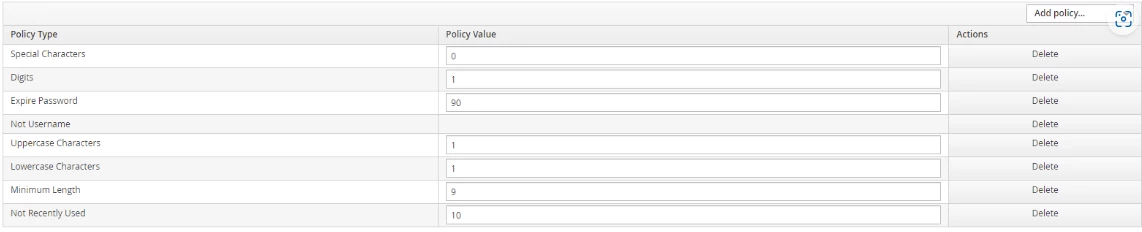
5 - Restart RPA Services for the new settings to take effect
Additional Information
Policy Types:
Digits
- The number of digits required to be in the password string.
Lowercase Characters
- The number of lower case letters required in the password string.
Uppercase Characters
- The number of upper case letters required in the password string.
Special Characters
- The number of special characters such as '?!#%$' required in the password string.
Not Username
- When set, the password is not allowed to be the same as the username.
Expire Password
- The number of days for which the password is valid. After the number of days has expired, the user is required to change their password.
Not Recently Used
- This policy saves a history of previous passwords. The number of old passwords stored is configurable. When a user changes their password they cannot use any stored passwords.