



Topic
Overview
This knowledge base article describes how to enable Verbose logging and collect local Studio or Robot logs when issues occur. This is especially useful when the Studio or Robot has problems running a wizard, starting an advanced command, or when executions do not run as expected.
Instructions
Enable Verbose Logs
Note: Before accessing the folders below, you must first update the logging level. Administrator permissions are required to make these changes.
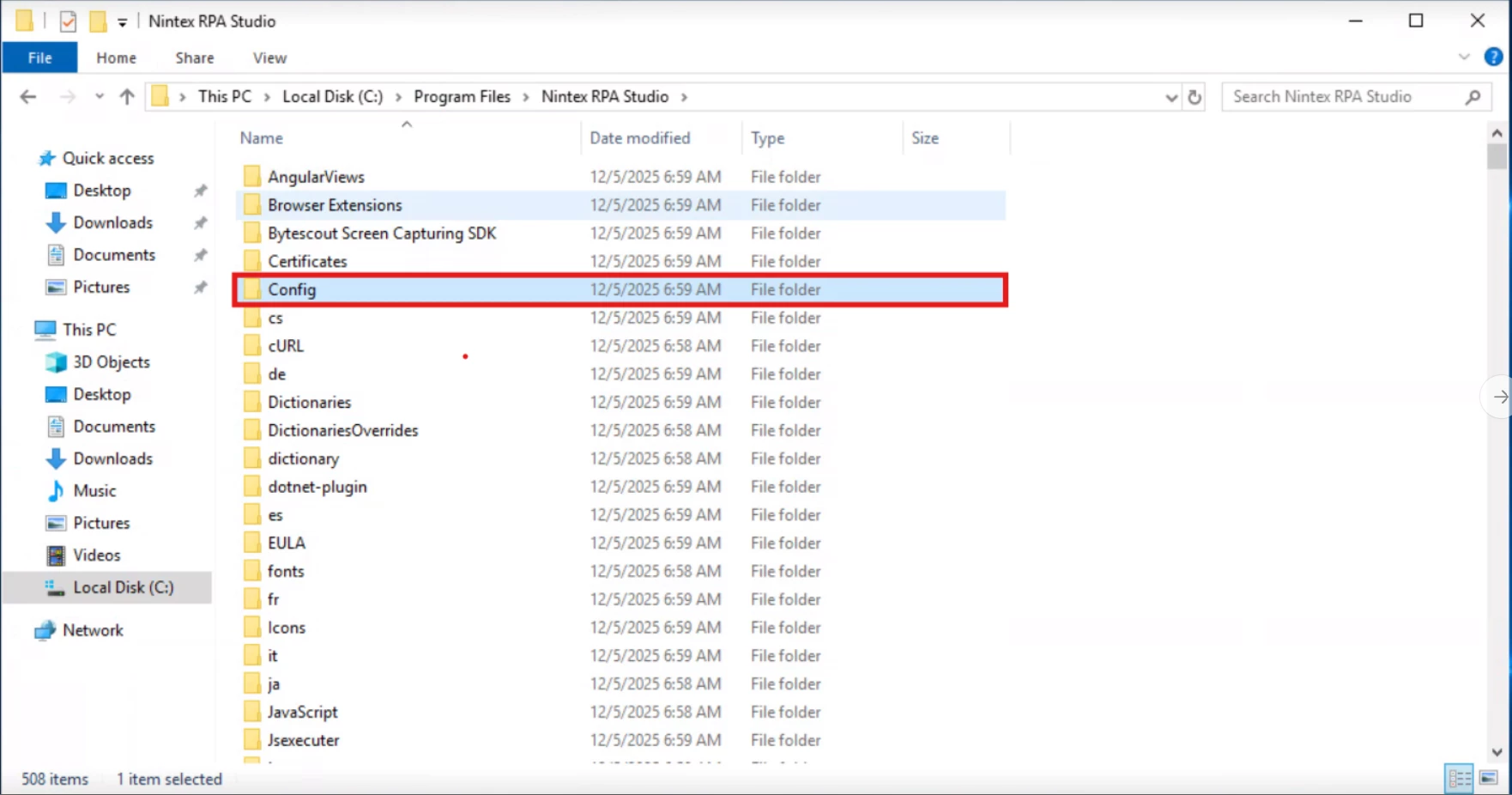
- Right-click the affected Studio or Robot icon and select Open file location.
- This opens the product installation directory. Navigate to the Config folder.
3. Locate the serilog.json file and open it using a text editor (for example, Notepad++).
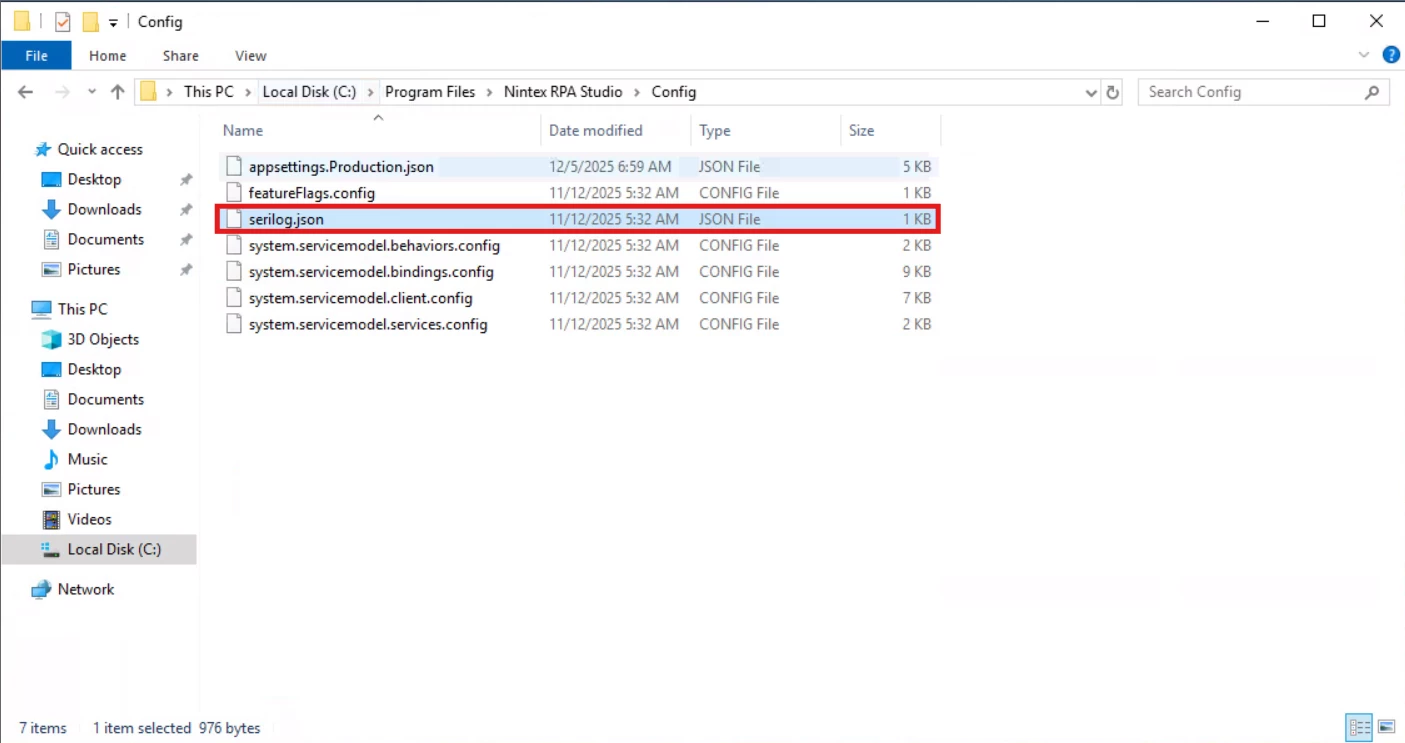
4. By default, the logging level is set to Information. Update the following values to Verbose (line numbers may vary depending on the editor used):
-
- "levelSwitches": { "$controlSwitch": "Verbose" }
- "restrictedToMinimumLevel": "Verbose"
(Optional) Take a backup of the original serilog.json file before saving changes.
5. Save the file and restart the Studio or Robot machine so the new logging level is applied.
6. Reproduce the issue in the same manner as before.
Gather Local Studio/Robot Logs
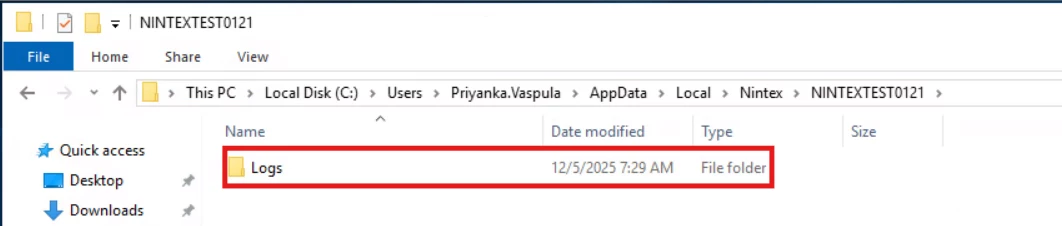
- Open File Explorer and enter %localappdata% in the address bar.
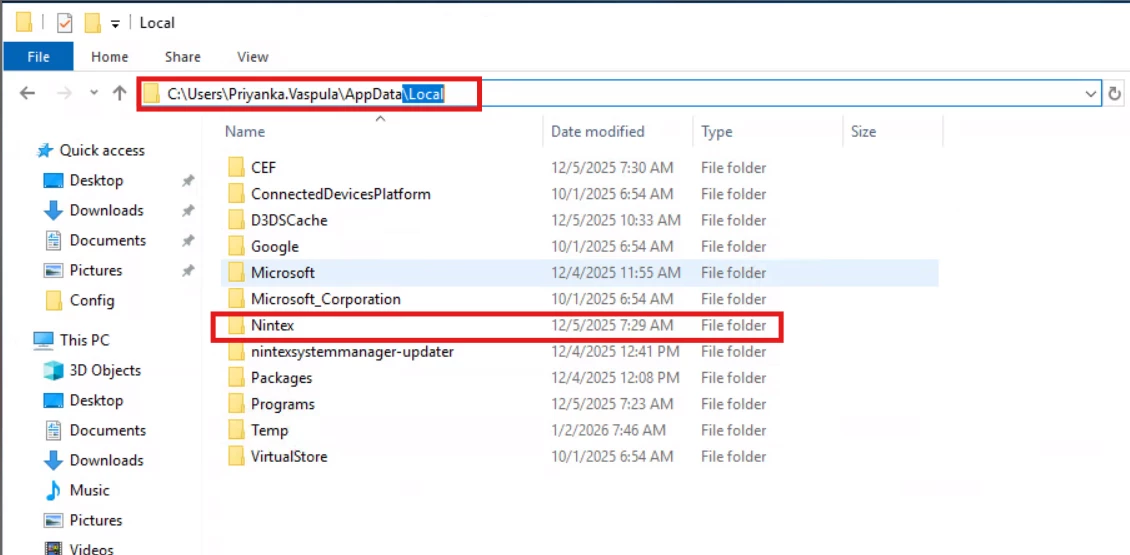
2. Open the folder that matches the machine name (this folder contains a Logs directory). Open the Logs folder inside the machine-name directory.
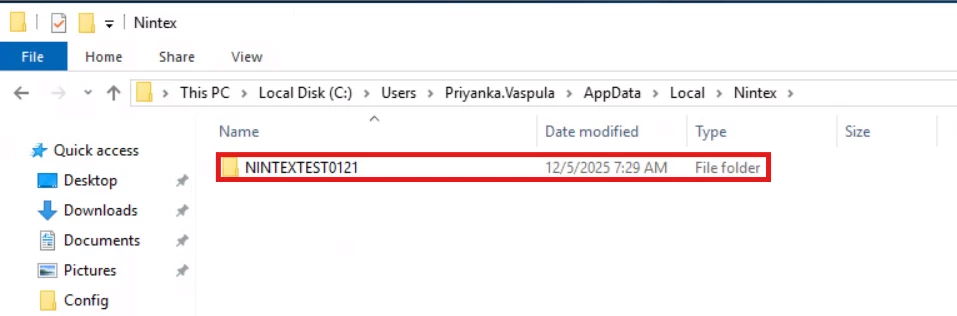
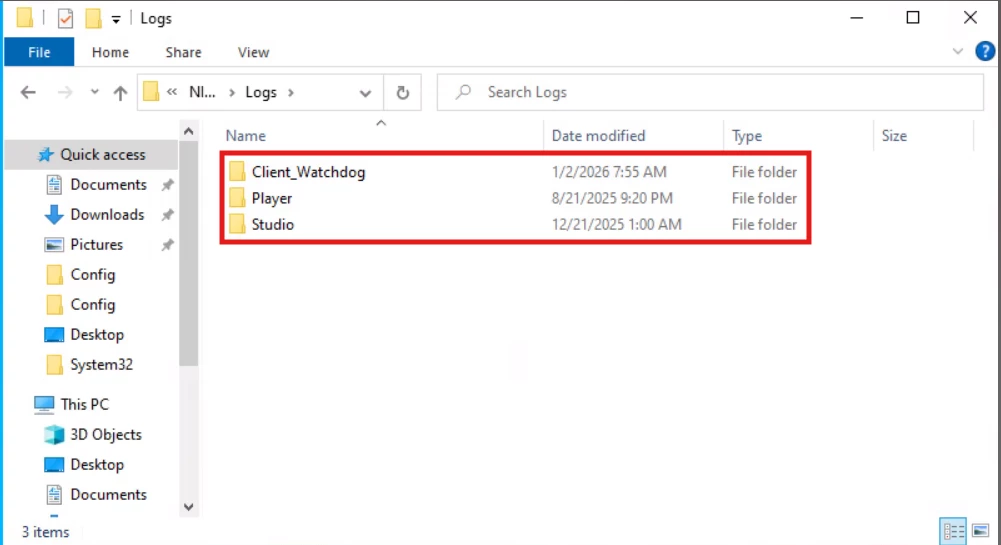
3. Based on the issue type:
-
- Open the Studio folder for Studio-related logs.
- Open the Player folder for Robot-related logs.
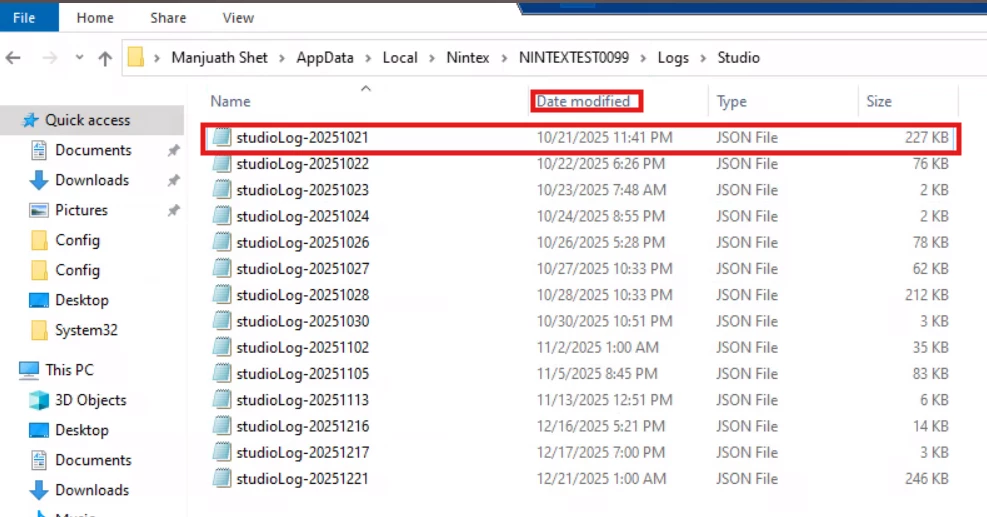
4. Sort the files by Date modified and select the most recent log files.
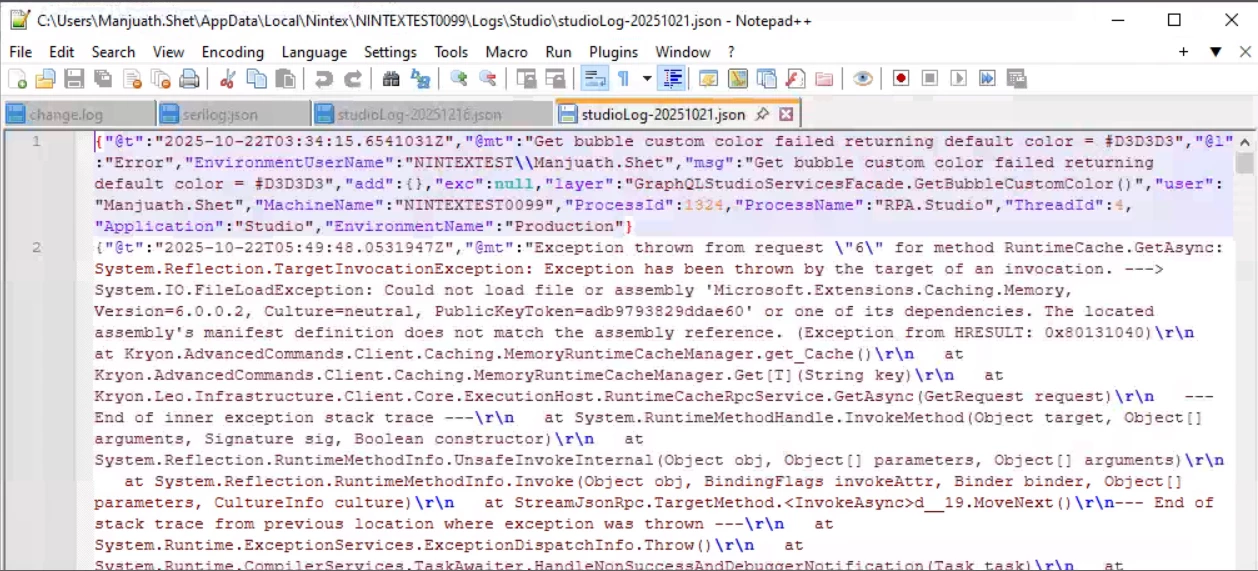
5. Confirm the logs contain the relevant execution details, if required.
Share the Logs
- Send the log files directly to Nintex Support, or
- Compress them into a ZIP file and attach them to the support case.
- If the compressed file size is too large, notify Support so an upload link can be provided.
If you need any assistance while following these steps, please contact Nintex Support.