



Topic
| Product version | 22.3 and higher |
| Components | DAC |
Instructions
- Nintex Dynamic Advanced Commands (DAC) are available for version 22.3.x and above.
- The DAC installer includes the server and client version. The same installation file covers both options.
- Choose the type of installation from the menu below: Client or Server. Then, follow the instructions below depending on the type of installation you choose.
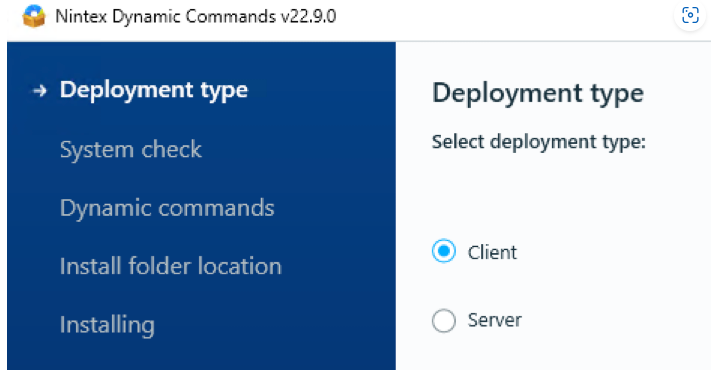
- The DAC server version must be installed on the RPA server for distribution to work.
- If Studio/Robot is installed on the RPA server, there is no need to install the client version.
- After Studio/Robot installation, go to the Options page to start the DAC sync.
For Server Installation:
- DAC should be installed immediately after RPA server is installed.
- Installation path cannot be defined. It will always be installed in:
<Installed Drive>:\Nintex\installer-assets
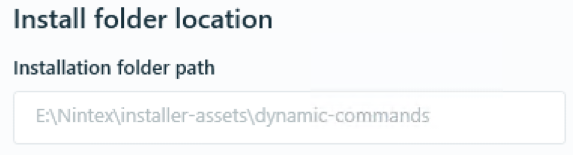
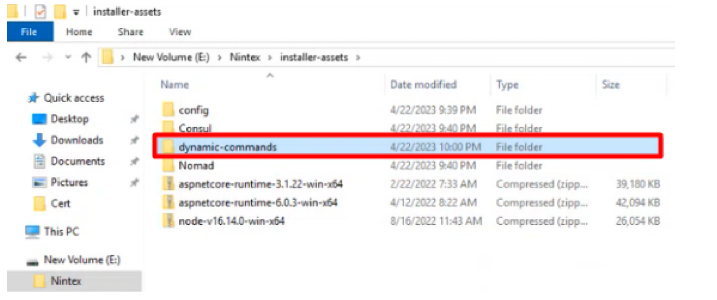
- After installation has been completed, a dynamic-commands folder will appear in the installer-assets folder in the installation directory.
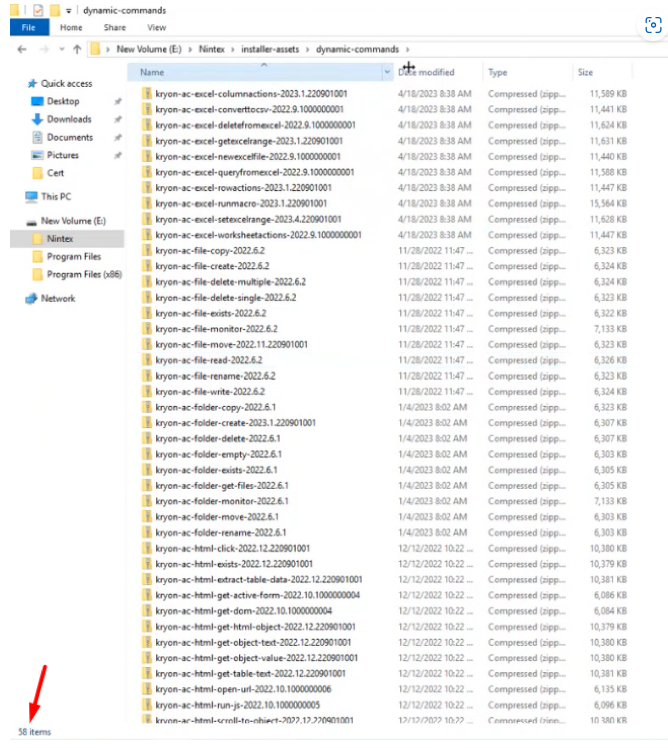
- Opening the folder, you will be able to see all applicable advanced commands and all of them are in .zip format.
- The actual folder which will be used for the distribution to the clients can be found in:
%ProgramData%\Kryon\ac\1\Approved
**The 1 in the above path represents the company ID of the tenant. If there is more than 1 tenant, you should see corresponding sub-folders matching the company ID of the respective tenants.
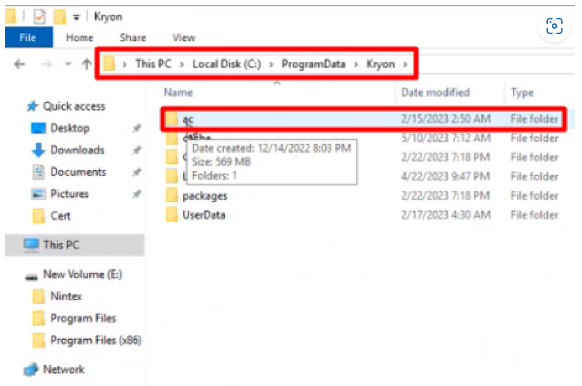
- Go to %ProgramData%\Kryon\ClientsProxy and verify that the clients-proxy .dat files are present.
- The frequency of the DAC sync can be configured from:
<Installed Drive>:\Nintex\config\prod\services\kryon-clients-manager-svc-default.json
- It is worth noting that it uses Cron Expressions.
For Client Installation (On Server)
- There is no need to install DAC client edition on RPA server for client usage.
- The DAC server edition should be installed before client installation.
- Studio/Robot appSettings configuration for DAC folder should point to %localappdata%\Kryon\DynamicCommands
- The first time Studio/Robot is launched, go to the Options menu and proceed to Advanced tab. Locate the section “DAC Updater Service”. Perform a first time sync manually and then set it to run the updater service automatically every 60 mins.
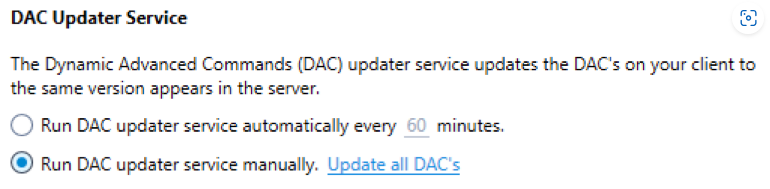
- Check back in the %localappdata%\Kryon\DynamicCommands folder after some time to verify if the DACs are synchronized from the server.
- Studio and Player will have their own folders to execute the DACs from.
For Client Installation (On Client Machines)
- Installation of DAC is as per normal. It should be installed after Studio/Robot has been installed.
- During installation, the option “Client” should be selected in the installer wizard.
- Studio/Robot appSettings configuration for DAC folder should be automatically updated to the location where the DACs were installed.
- The first time Studio/Robot is launched, go to the Options menu and proceed to Advanced tab. Locate the section “DAC Updater Service”. Perform a first time sync manually and then set it to run the updater service automatically every 60 minutes.