




Product: Kryon RPA
Product Version: All
Components: Kryon Robot; Kryon Studio
This article explains how to enable striping within visual detection search area options.
Prerequisites: Any recorded step in Kryon Studio.
Steps:
When working with visual recognition you'll notice that there are three Search Area options under Detection Method which are Click, Stripe and Full. These determine where, and in which order, a robot will search for a visual object on the screen.
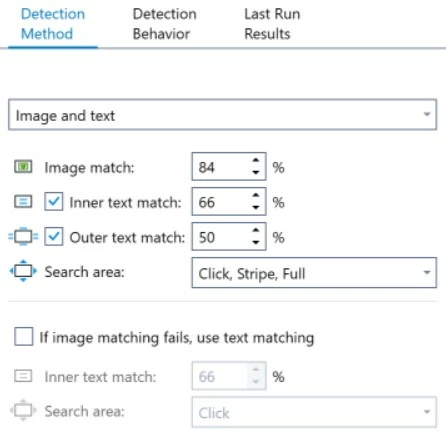
Click : The robot will search the immediate vicinity for the object, based on where you initially recorded the click. The area is a small box around your recorded click.
Stripe : If the robot cannot find the object using Click, it will then search either vertically or horizontally for the object.
Full : If the object cannot be found using either Click or Stripe, the robot will search the whole screen for the object.
Stripe is the only mode which is not enabled by default. To search with Stripe you need to ensure it is selected in the Search Area options and select a docking method. Docking means you are specifying the object maintains a fixed distance from one of the window edges, or is always centered upon resize.
Visual detection is CPU intensive so it is best to search a smaller area of the screen first before expanding your search outwards. This will improve performance and is what these options are really for.
Click : The robot will search the immediate vicinity for the object, based on where you initially recorded the click. The area is a small box around your recorded click.
Stripe : If the robot cannot find the object using Click, it will then search either vertically or horizontally for the object.
Full : If the object cannot be found using either Click or Stripe, the robot will search the whole screen for the object.
Stripe is the only mode which is not enabled by default. To search with Stripe you need to ensure it is selected in the Search Area options and select a docking method. Docking means you are specifying the object maintains a fixed distance from one of the window edges, or is always centered upon resize.
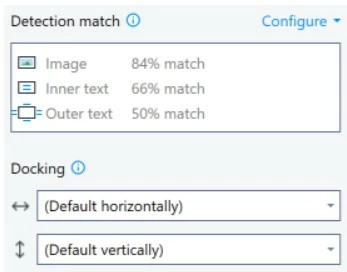
- If the docking method is set to Left, Center or Right, striping will search vertically.
- If docking is set to Top, Middle or Bottom, striping will occur horizontally.