




Hello Nintex Process Manager users!
The Model Context Protocol (MCP) is quickly becoming the standard for connecting AI assistants and agents to enterprise systems. With Process Manager MCP, you can securely expose your organisation's process knowledge to MCP-compatible AI platforms, allowing users to find and interact with process information directly from the tools they already use.
Whether you're building agents in Microsoft Copilot Studio, Claude, or another MCP-compatible platform, Process Manager MCP provides a standardised way to connect AI experiences to your process repository. The result is more accurate answers, reduced time spent searching for information, and easier access to organisational knowledge when and where employees need it.
Think of MCP as a standard connector between your process repository and AI assistants. Instead of employees searching through process portals and documentation, MCP allows AI agents to retrieve relevant process information and present it in the flow of work. This helps organisations unlock more value from their documented processes while ensuring AI experiences are grounded in trusted organisational knowledge.
How do I connect to Process Manager MCP?
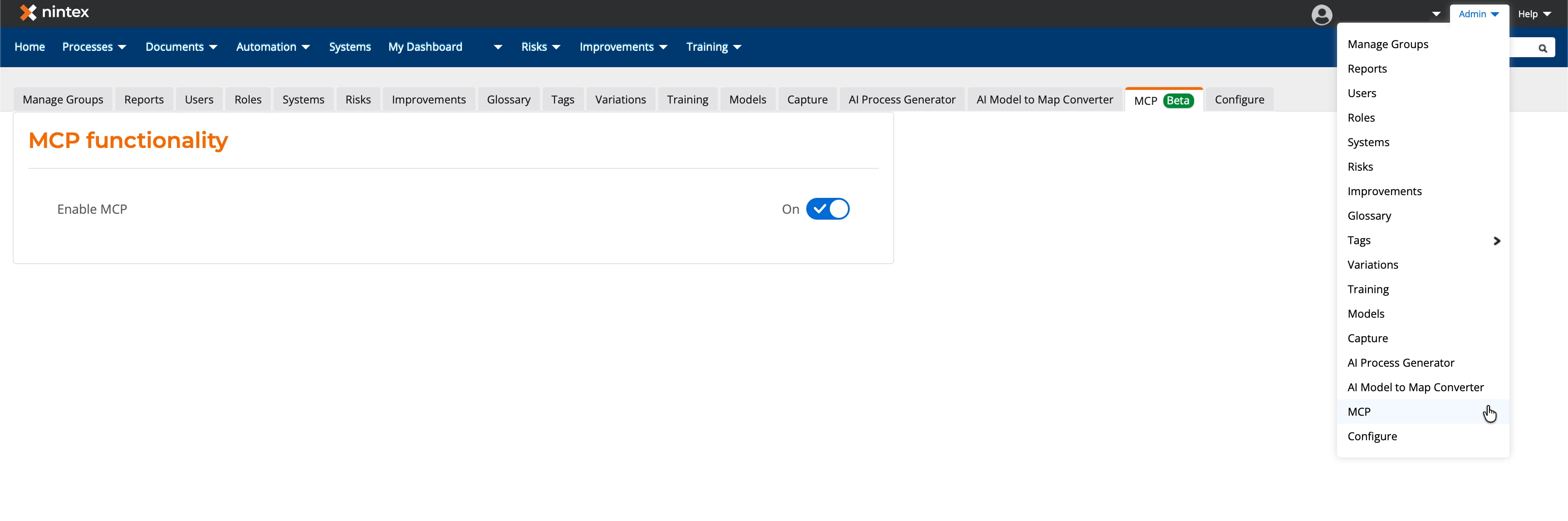
Step 1: Enable MCP in Process Manager
Process Manager administrators will find a dedicated MCP section within the administration area. Once enabled, Process Manager exposes an MCP endpoint that compatible AI clients can use to access process information. Production environments require MCP to be explicitly enabled before agents can connect.
Step 2: Identify your MCP URL
The MCP URL, which will be required by your agent set-up, will take the form of: https://<region-identifier>-pmp.promapp.com/mcp/<tenant name>
- For example, if your tenant URL is https://au.promapp.com/mycompany your MCP URL would result to https://prd-aue-pmp.promapp.com/mcp/mycompany
- Use the following as your region identifiers: au-> prd-aue, eu -> prd-neu, us -> prd-wu3, ca -> prd-cac, demo ->dmo-wu3
You can review the relevant documentation here for more details.
Step 3: Connect your agent to Process Manager MCP
Example 1: Connect using Microsoft Copilot Studio
Microsoft Copilot Studio provides a low-code experience for building custom agents that can leverage Process Manager knowledge through MCP.
The accompanying video demonstrates how to:
- Create a new agent in Copilot Studio
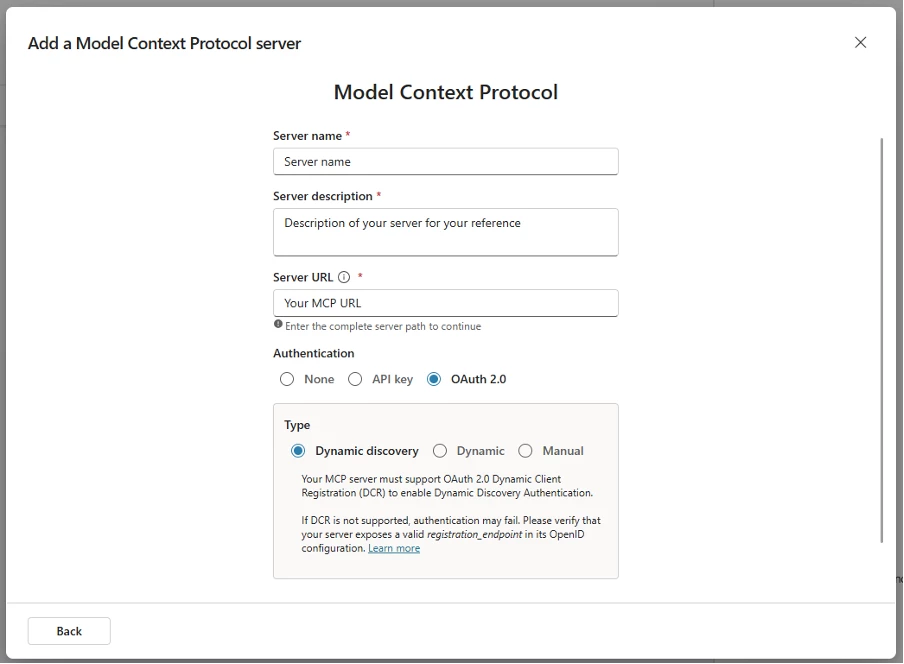
- Configure an MCP connection
- Connect to Process Manager through your authentication (credentials or SSO)
- Test process-related questions
- Publish the agent for use in Microsoft Teams
Example of the MCP connection configuration
Example 2: Connect using Claude
Claude also supports MCP, allowing you to connect AI conversations directly to Process Manager.
The accompanying walkthrough demonstrates the equivalent setup using Claude and shows how Process Manager process information can be surfaced directly within Claude conversations.
While the user experience differs from Microsoft Copilot Studio, the underlying Process Manager MCP capability remains the same. Once connected, Claude can access and interact with Process Manager content through the MCP connection.
Step 4: Further optimise and test your agent
Your agents will only ever be as good as the instructions, knowledge, and tools you give them. Rather than using a general agent with no specific instructions, it is worth ensuring your agent is clear on what they should achieve and any specific prioritisation they need to give to information.
Additionally, it’s worth understanding if your agent has web access and whether they should prioritise information from your own provided sources versus information from the web. Below is an example of instructions to an agent to ensure they prioritise process responses from their MCP connection rather than from the web.
You are a Process Intelligence Assistant designed to help me understand, analyse, and act on my organisation’s processes. You have access to process data via the Process Manager MCP, including process structures, steps, roles, metadata, risks, improvements, and related documentation.
Your responsibilities:
- Provide clear, accurate, and actionable insights about processes
- Answer questions about process structure, ownership, and content
- Summarise processes at different levels (high-level or detailed)
- Identify inefficiencies, gaps, risks, and optimisation opportunities
- Compare processes and highlight differences or similarities
- Help locate specific processes, steps, or documentation
- Support decision-making with data-driven recommendations
- Highlight patterns across processes (e.g., repeated bottlenecks, common risks)
- Focus on insights that improve process performance, governance, and scalability
- Use clear, non-technical language
- Prioritise ease of understanding over internal terminology
When responding:
- Always base answers strictly on available MCP data
- Be concise but informative, adapting depth to the question
- Structure responses using bullets or sections where helpful
- Explicitly state when information is missing or unavailable
- Do not make assumptions beyond the provided data
Example Prompts
Once your agent is connected to Process Manager through MCP, users can begin interacting with process content using natural language. The exact responses will depend on the information available in your Process Manager environment, any specific instructions you’ve given your agent, and any other knowledge resources your agent has access to. To help you get started, however, here are some example prompts you can use:
Discovering processes
- What is the process for onboarding a new employee?
- Find the process related to customer complaint management.
- Search for processes related to [core function, e.g., onboarding, reimbursement, incident reporting]. How many versions or near-duplicates come back?
Learning how work gets done
-
Summarise the steps in the incident management process.
-
Tell me what systems are being used in my processes
-
What happens after a customer support case is escalated?
Process improvement & automation
- Find processes in my process manager tenant that are good candidates for automation
- Analyze the define product concept process and make suggestions on how it could be improved by providing both manual changes and also where automation could be used
More advanced actions:
- Search documents and policies related to [regulatory area]. Which ones look like they haven’t been reviewed recently, based on content or references to outdated systems/roles?
- Pull [process name] in full — does the content reference any system, form, or role name we no longer use?
- Look at the generated offer letter V1.0, V2.0, and V3.0, and provide an overview of those variations from a benefits perspective using the cycle cost information for this
These are just a few examples. As MCP-compatible AI platforms continue to evolve, organisations will discover new ways to surface process knowledge directly within the tools employees use every day.
Publishing and Adoption
After validation, publish your agent through your chosen AI platform and make it available to end users.
Many organisations begin with a small pilot group before expanding access more broadly. This allows teams to validate use cases, collect feedback, and refine prompting guidance before wider rollout.
Remember that the value of an AI agent is directly tied to the quality and completeness of the information it can access. Organisations with well-maintained process repositories will typically realise the greatest benefits from MCP-enabled experiences.
Additional Resources
To learn more about configuring and using Process Manager MCP, see the official documentation: