



Nintex University offers two primary roles for customers and partners: Learner and Manager. The Manager role provides additional permissions that allow designated users to manage learners, groups, learning assignments, and access to reporting and analytics. This article explains the permissions available to Nintex University managers and provides an overview of how managers can use these capabilities to support and manage their organization's learning experience.

Manager Permissions
Managers can only access and manage information associated with the groups they oversee, based on their assigned permissions. To enable manager permissions, a Nintex University Admin must create a dedicated group, add the relevant learners and courses to that group, and assign the appropriate manager.
Current Permissions
| Permission | Access |
|---|---|
| Content | View only |
| People | View, edit, and assign learners |
| Groups | View only |
| Analytics | Basic access |
Manager Experience
🔓 Access
Managers have access to both manager and learner views in Nintex University. Once a Nintex University Admin updates your profile with manager permissions, you’ll receive an email invitation from nintex.university@nintex.com to activate your manager profile.
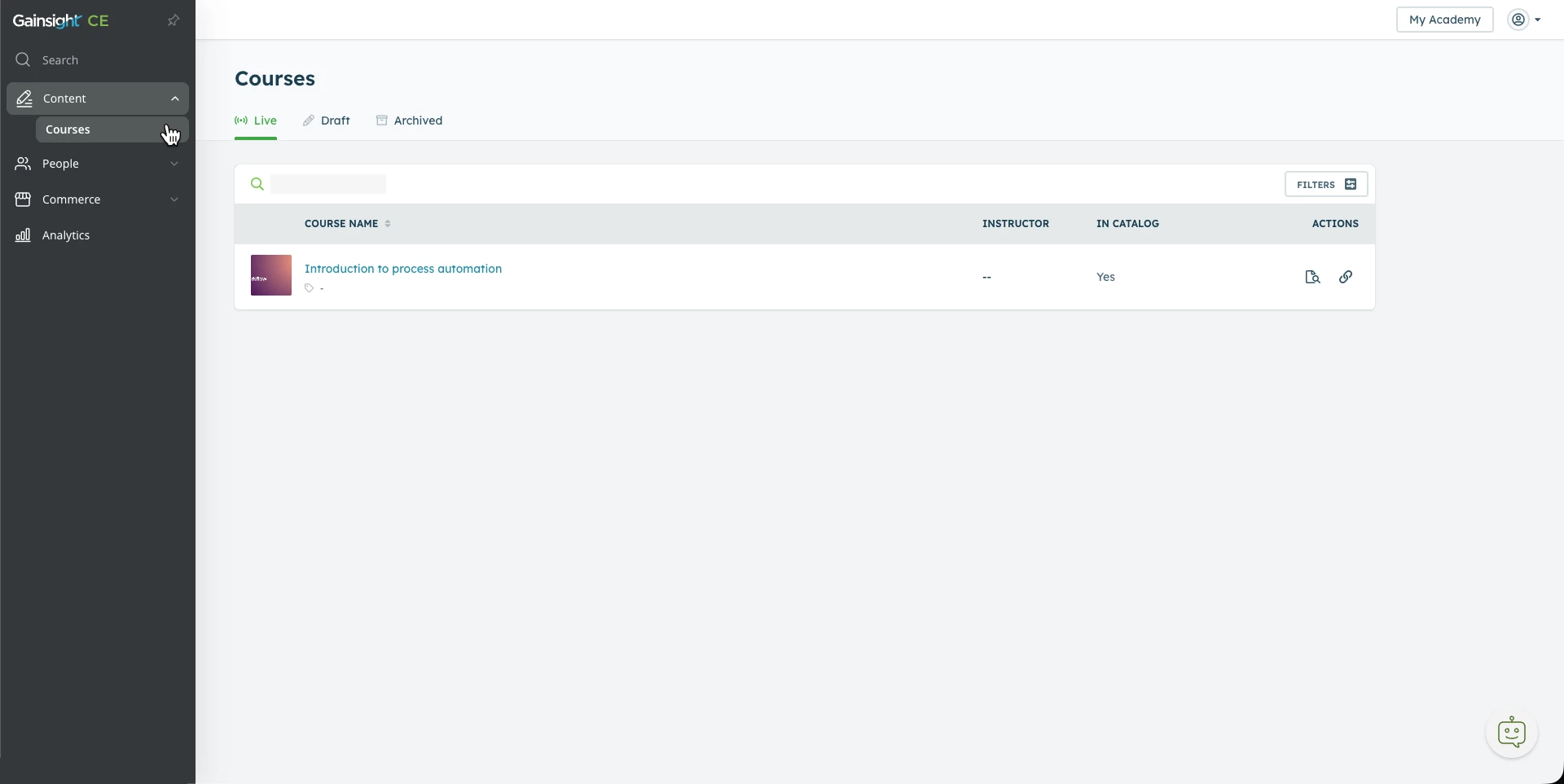
You can use your existing learner credentials to sign in and complete the standard authentication process. After your manager profile is activated, you’ll automatically land in the manager view when you sign in, which displays three main sections: Content, People, and Analytics.
The manager dashboard is accessed through a dedicated login link. Use the manager login link (app.northpass.com) whenever you need to access your manager profile, and bookmark it for easy access.
To access the learning platform, select My Academy in the top-right corner, then select Learn to switch to the learner view. To return to the manager view, select Admin View.
Managing your profile
You can manage your profile and account settings from the profile icon (👤) in the top-right corner of the dashboard. From Account Settings, you can update your password and personal information. You can also use this menu to access Help and Support (powered by Gainsight CE)or log out of the platform.
✏️ Content
The Courses page allows managers to view all live courses available in the learner view, preview course content, and access direct course links to share with learners and teams. It’s important to review the course content and confirm its relevance before sharing or assigning it to learners.
Learning paths are not included in the manager view. To review the courses included in a learning path, switch to the learner view and access the relevant learning path. If you need additional information related to learning paths, contact the Customer Enablement team.
👥 People
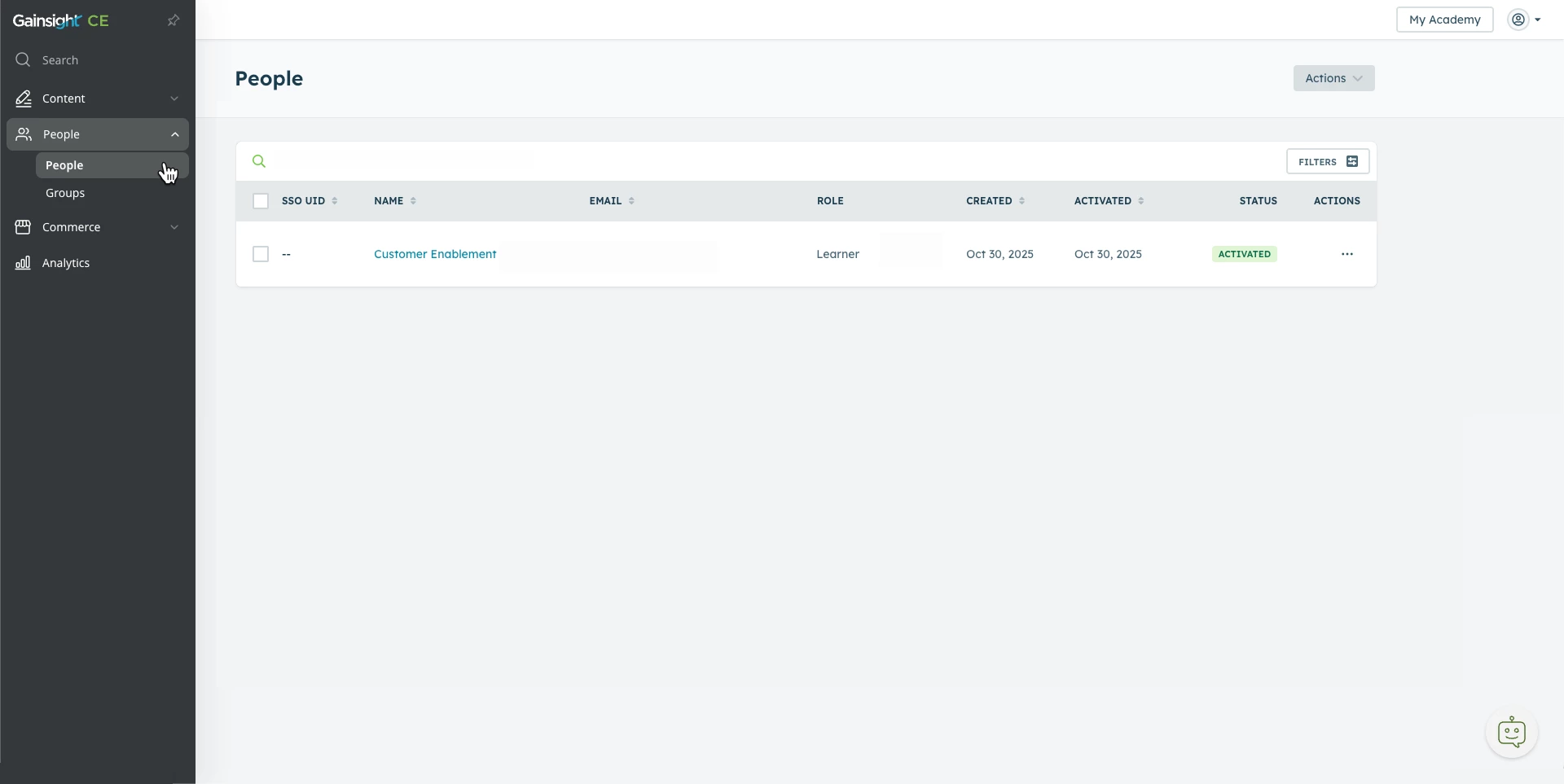
The People page displays the learners you have permission to manage, typically those in the group you manage. From here, you can access a learner’s profile in either of two ways: select the learner’s name to open their profile directly, or use the actions menu and select View profile or Edit. Both options open the same learner profile, where you can view or edit their information.
Learner profile
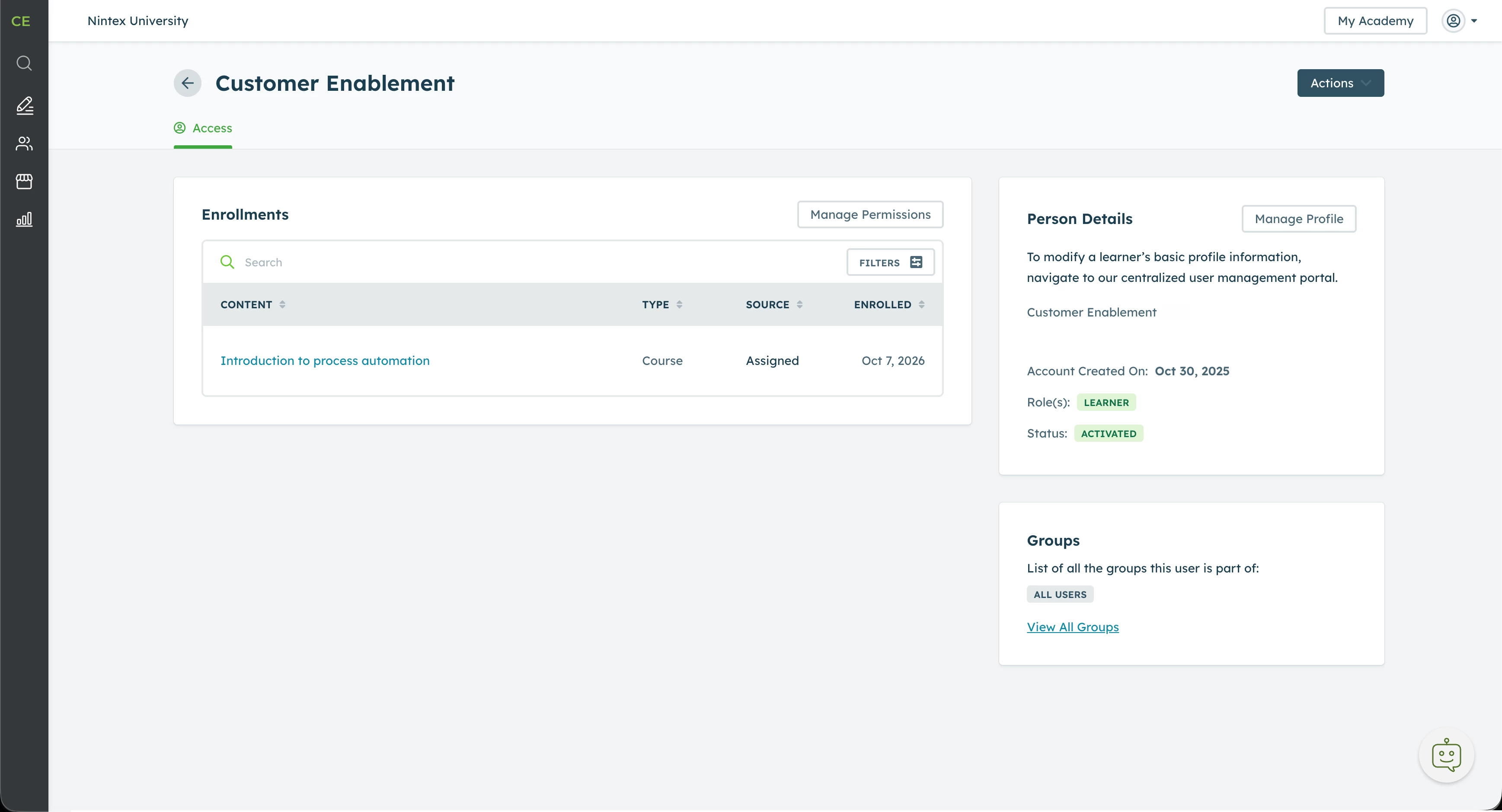
A learner’s profile provides an overview of their enrollments and content access. Managers can use the profile to review a learner’s access, manage course enrollments, and update their profile information.
Note: Managers cannot send learner invitations directly from Nintex University. New and returning learners must activate or access their profiles through learn.nintex.com using the prompts to sign up or log in and complete the authentication process.
The Access section shows the content currently available to the learner, including the content type, enrollment source (such as Assigned, Link, Catalog, Group Course, or Group Learning Path), and enrollment date. This information helps managers understand what content a learner has access to and how they were enrolled.
Manage Permissions
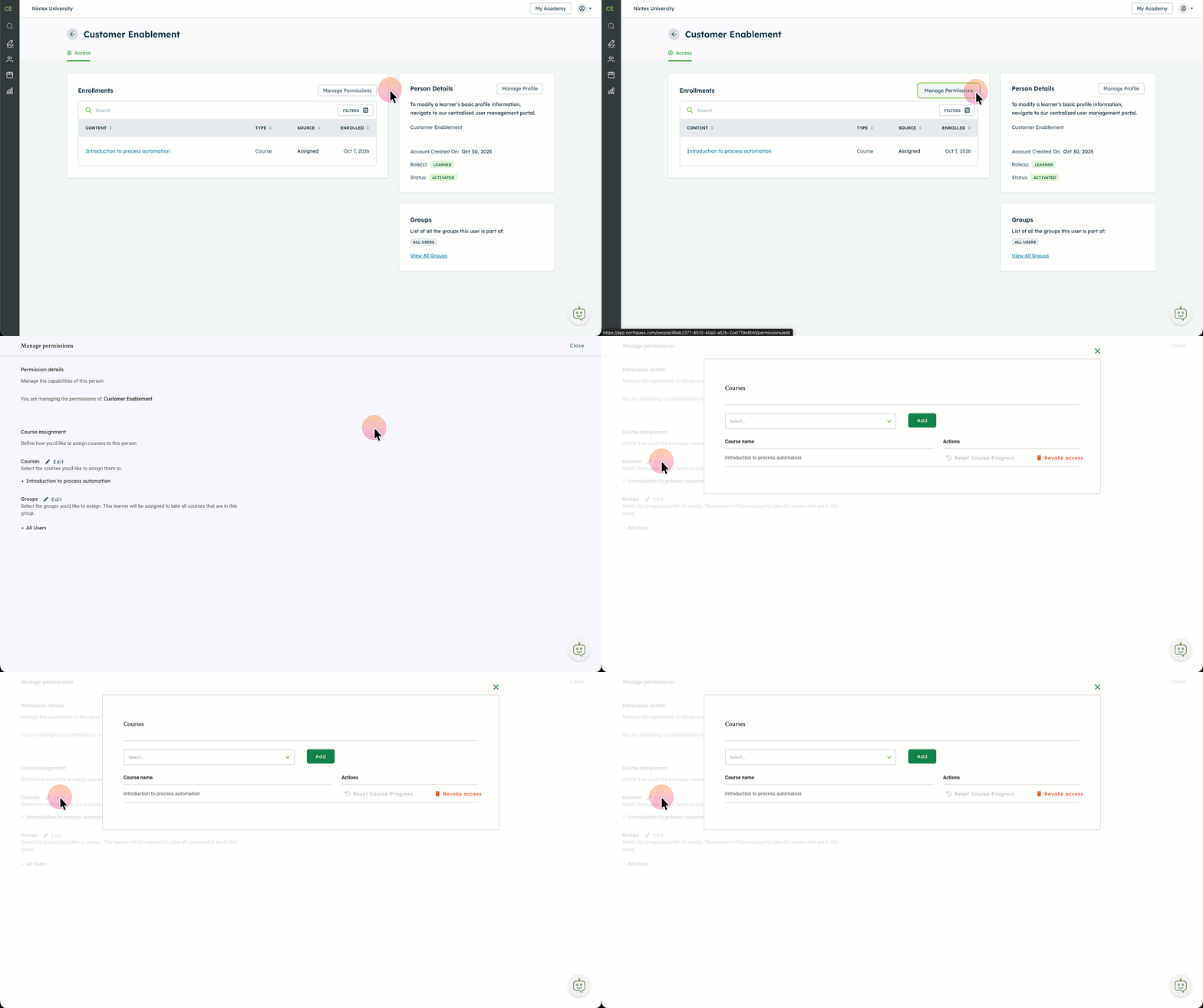
The Manage Permissions page is one of the most important areas for managers, as it is where they can manage learner enrollments and learning access for learners in the groups they oversee. From here, managers can:
-
Assign courses (including certifications)
-
Reset course progress (reenroll)
-
Revoke course access (unenroll)
-
Add learners to groups they manage
Note: Managers cannot assign learning paths directly. Learning paths must be self-enrolled by the learner or assigned by a Nintex University Admin. However, managers can assign individual courses within a learning path. If a learner completes those courses before starting the learning path, their completed course progress will be recognized when they enroll in the learning path.
Manage Profile
The Manage Profile page allows managers to update a learner’s personal information, including their first and last name, email address, and profile picture.
📊 Analytics
Nintex University provides two levels of reporting access. Basic access is assigned to external customer and partner managers to protect the privacy of customer and partner data.
-
Basic: Managers can view reporting data for the courses and groups they oversee.
-
Extended: Provides broader visibility into learner, course, and learning path data. This level is currently available only to internal Nintex Admins and managers.
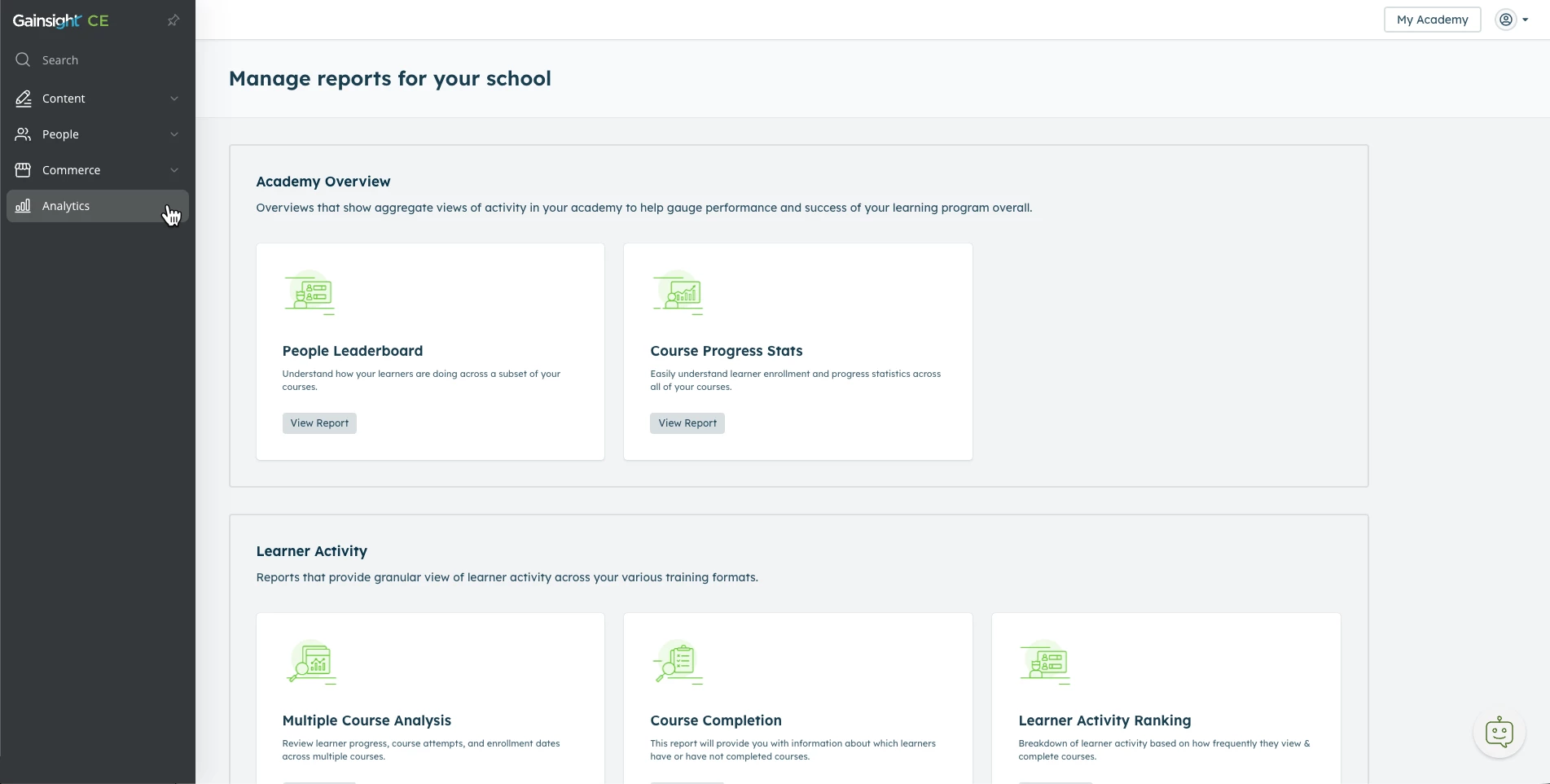
Reports available to Group Managers
| Report | Link |
|---|---|
| Academy Overview | |
| Learner Activity | |
| Content Performance | |
| Assessment |
Additional Notes
-
Some dashboards, including Instructor-Led Training, Credential Achievement, Learning Path Progress Stats, and Multiple Learning Path Analysis, are not available to managers with Basic permissions
-
Learning path reporting data is restricted to Nintex Admins and managers with Extended access. If a customer or partner requires learning path reports, contact Nintex Customer Enablement to discuss options for providing scheduled reports sent from noreply@lookermail.com.
-
For the most comprehensive view of learner progress and performance, we recommend using the Multiple Course Analysis report. This report provides a consolidated view of each learner’s activity and the key metrics needed to monitor progress and support reporting.
To request Manager access, please contact enablement@nintex.com and provide the email addresses of the users who require Manager permissions, the name of the group you would like created, and the email domain(s) of the learners who need to be added to the group. This will help us ensure the appropriate access and permissions are configured for your team.