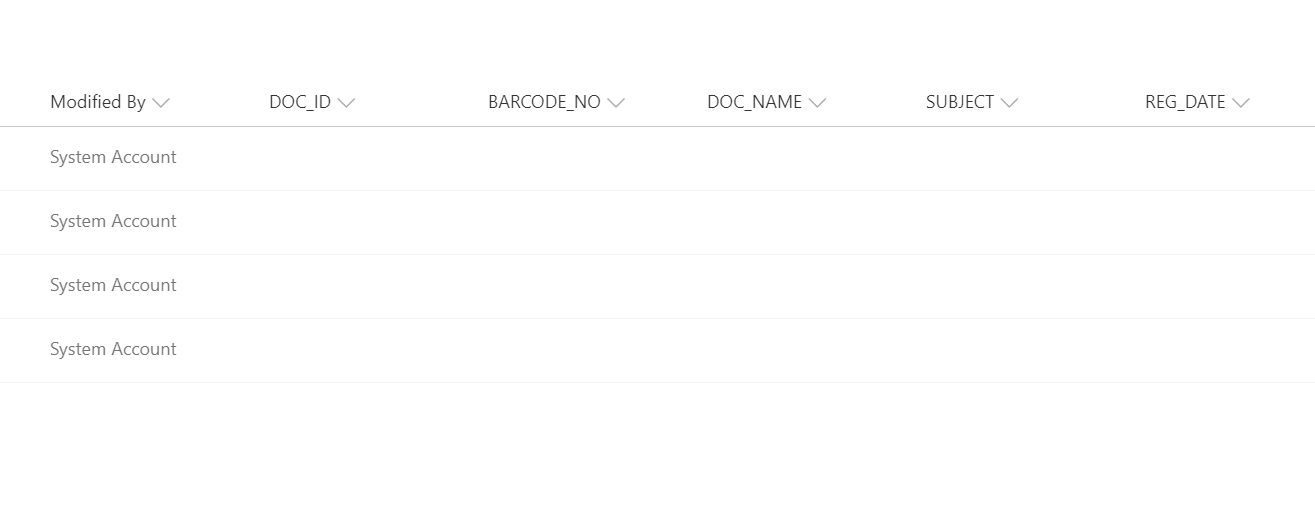
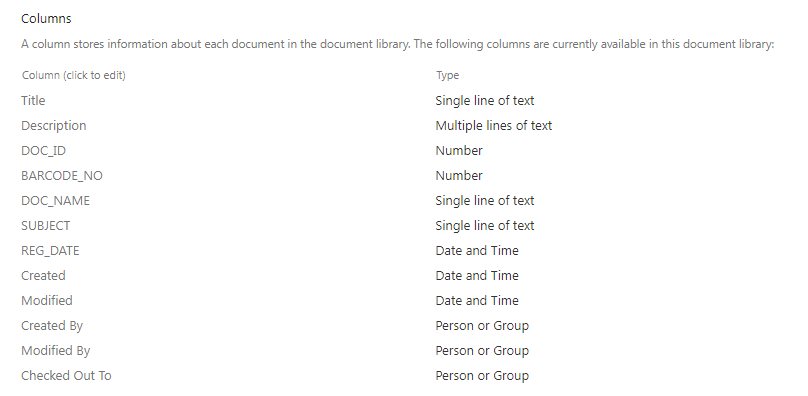
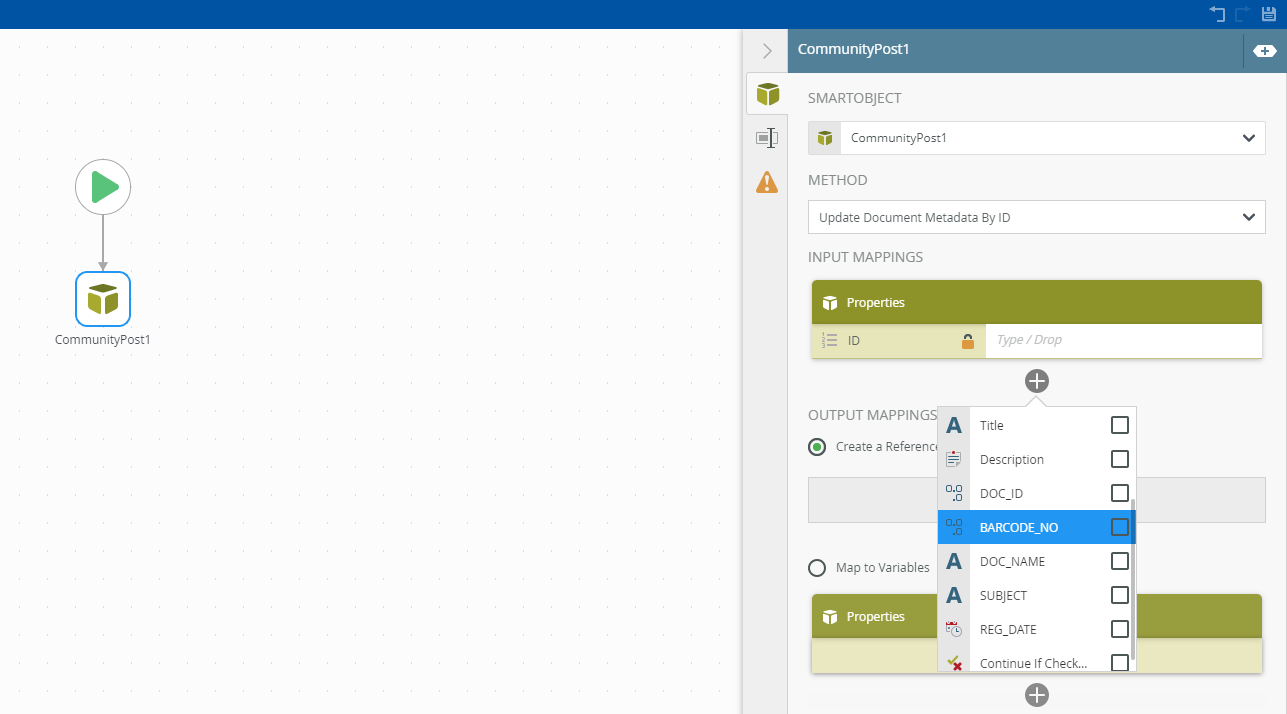
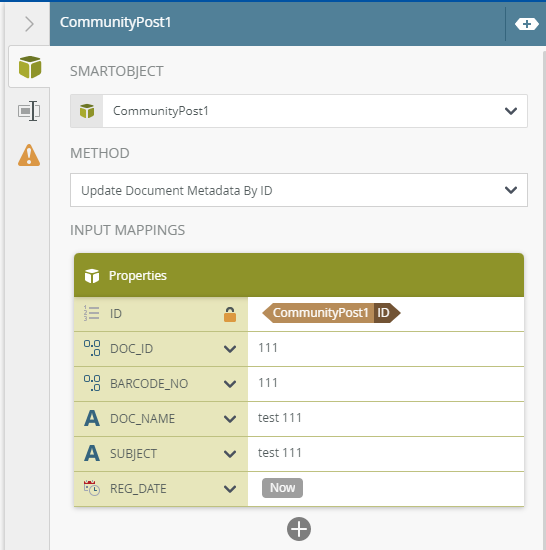
I created SharePoint document library and & I have a columns for (age,title,name ,….) and create Smart object from this document but I cannot update this column values (age , title , name ,...) when using update document properties from workflow or ( update document metadata by id as smart object )
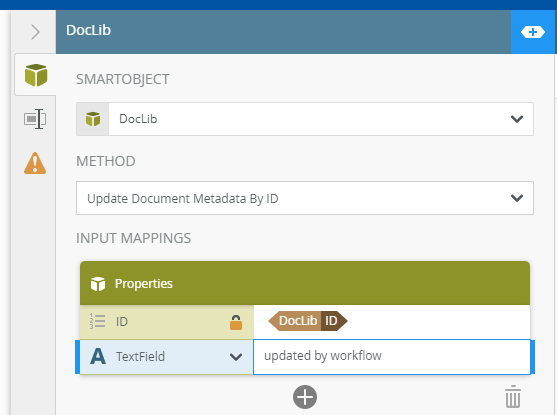
how i can update value on this columns. please check the below images .
Best answer by TinTex
My apologies, but this is not apparent from the screenshots:
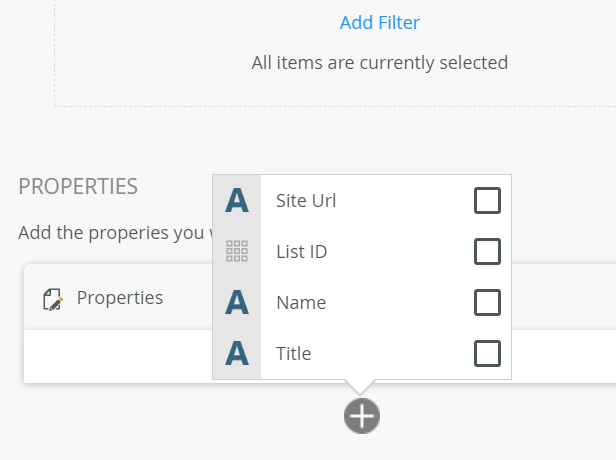
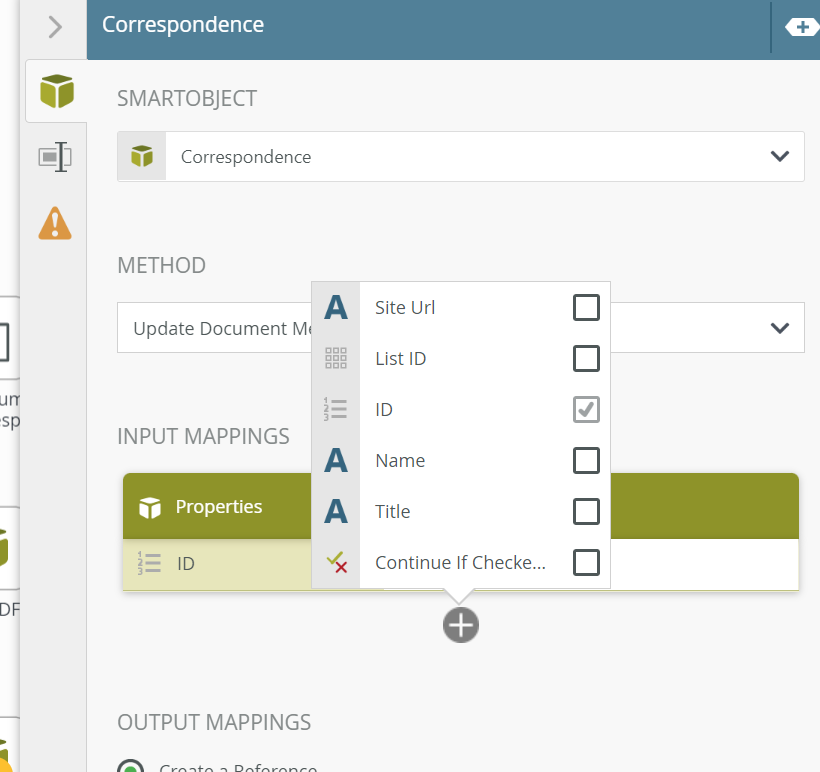
Is the issue here such that you are not able to find these columns (age,title,name ,….) in the Input Mappings section when calling the Correspondence > ‘update document metadata by id’ method?
If the columns were added after you generate the SmartObject, you will want to go back into the K2 Application and initiate the ‘Regenerate only SmartObject’ (or similar prompt) again before these columns would show up in the workflow designer.
Another thing that can happen is if the Document Library have Content Types enabled; as content type can have different columns. The ‘update document metadata by id’ method is usually for the ‘Document’ default content type. If you have another content type such as ‘Video’, then the method would be ‘Update Video Document Metadata By ID’
Or is there error/issue when you workflow executes?
My apologies, but this is not apparent from the screenshots:
Is the issue here such that you are not able to find these columns (age,title,name ,….) in the Input Mappings section when calling the Correspondence > ‘update document metadata by id’ method?
If the columns were added after you generate the SmartObject, you will want to go back into the K2 Application and initiate the ‘Regenerate only SmartObject’ (or similar prompt) again before these columns would show up in the workflow designer.
Another thing that can happen is if the Document Library have Content Types enabled; as content type can have different columns. The ‘update document metadata by id’ method is usually for the ‘Document’ default content type. If you have another content type such as ‘Video’, then the method would be ‘Update Video Document Metadata By ID’
Or is there error/issue when you workflow executes?