




Topic
For example, if there are three templates in the package:
Instructions
-Ensure the output type of the email delivery option is set to 'Separate PDFs' or "Originals" (depending on your use case)
-Click on the edit template dropdown that you would like to have the template merge up to (ex: if you would like the second template to merge with the first, then click the edit template dropdown on the second template).
-Click on the Setting for Output on the "Merge Type" dropdown
-Click on the edit template dropdown that you would like to have the template merge up to (ex: if you would like the second template to merge with the first, then click the edit template dropdown on the second template).
-Click on the Setting for Output on the "Merge Type" dropdown
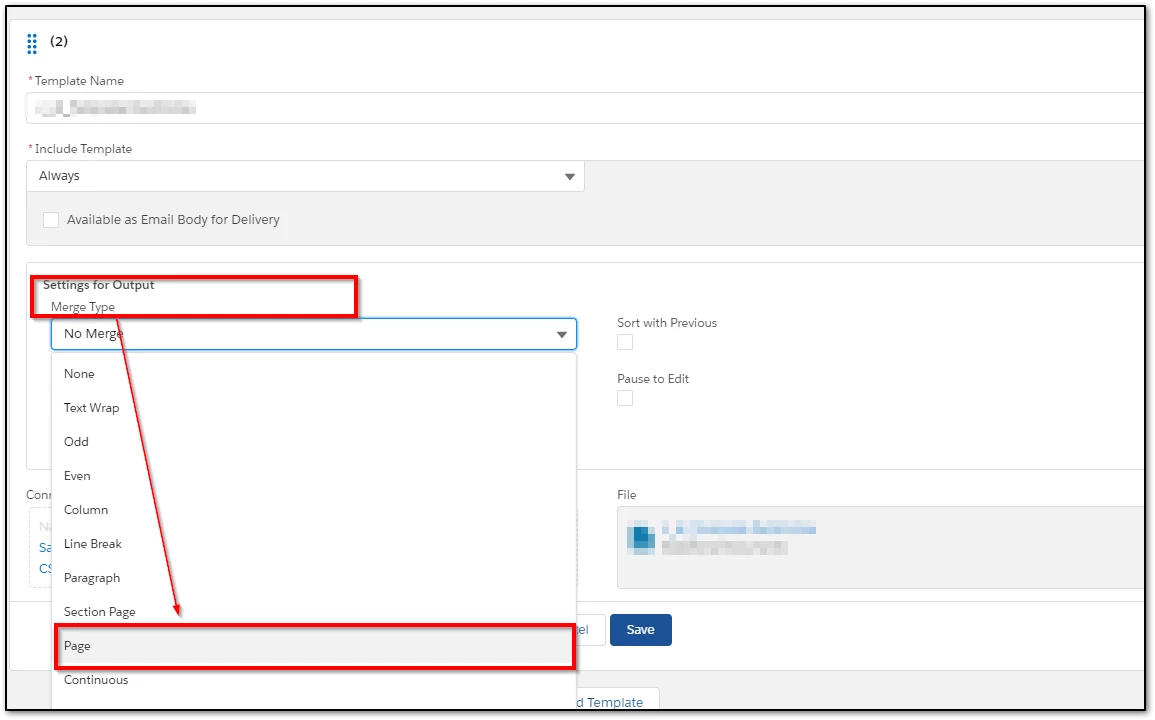
In the example above, the output will be the first two templates combined as one attachment, and the other template as a standalone separate attachment.