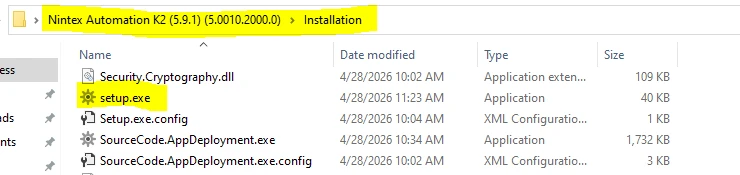



Issue Desription
When you perform a fresh Nintex Automation K2 installation using an on-premises K2 application server with the K2 database hosted in Azure SQL an error occurs.
Note: This will affect all K2 Five and Nintex Automation K2 Versions. In the workaround steps below, Nintex Automation K2 (5.9.1) has been used as the example.
Error Message:
“ExecuteSqlScript.Execute: Logged Error: Script execute failed: System.Exception: Script execution exception: System.Data.SqlClient.SqlException (0x80131904): Invalid column name”
Workaround Steps:
The workaround solution (K2 Database.zip), which followed the process below has been attached. Note: solution works if you point the installer to an existing but empty K2 database hosted in Azure SQL. If you are pointing to an already populated one, you might encounter Encryption Validation errors. The solution implementation is as follows:
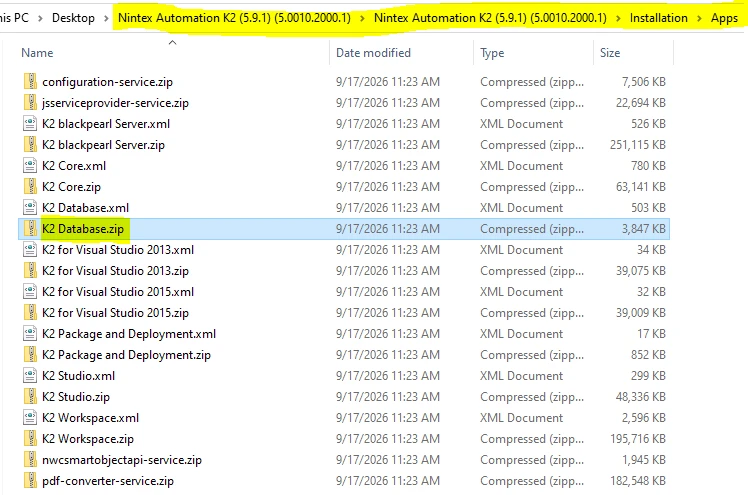
1. Extract the K2 Database.zip from the installer folder, to your chosen location. Thereafter, navigate to the extracted K2 Database folder.
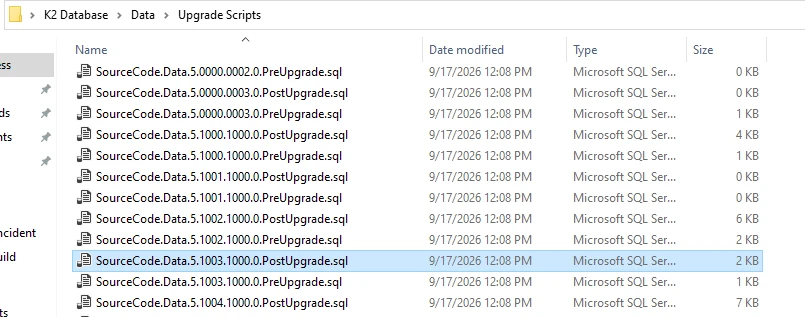
2. Open the shown sql script (./K2 Databse/Data/Upgrade Scripts/SourceCode.Data.5.1003.1000.0.PostUpgrade.sql)
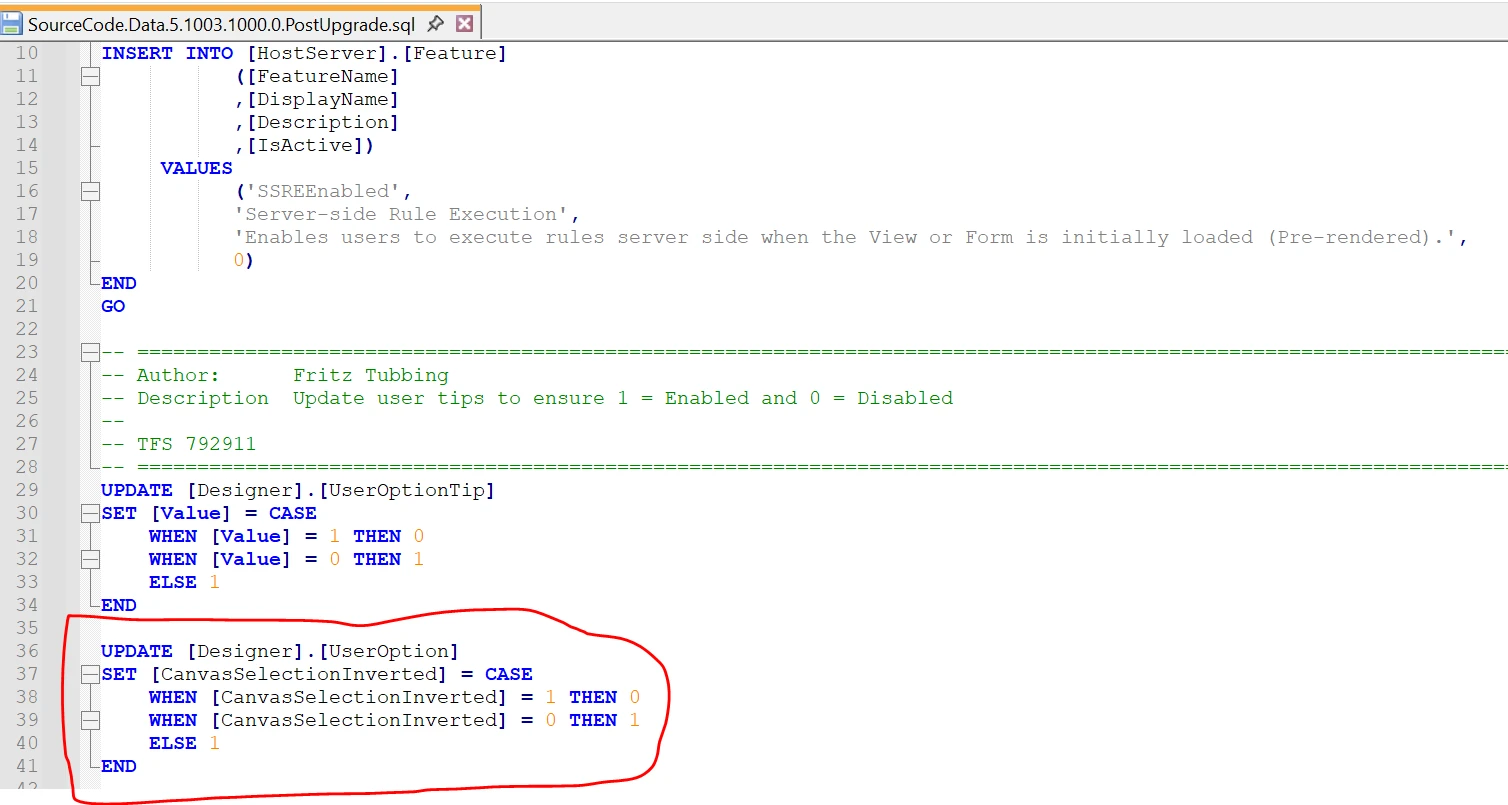
3.Remove the red block shown below (lines 35 to 41), save and close file.
4. Inside the extracted K2 Database folder, select the Build Output and Data folders and send them to a compressed zip file named K2 Database.zip.

5. Replace the old K2 Database.zip in the installer folder (./Nintex Automation K2 (5.9.1) (5.0010.2000.0)/Installation/Apps) with the newly created one
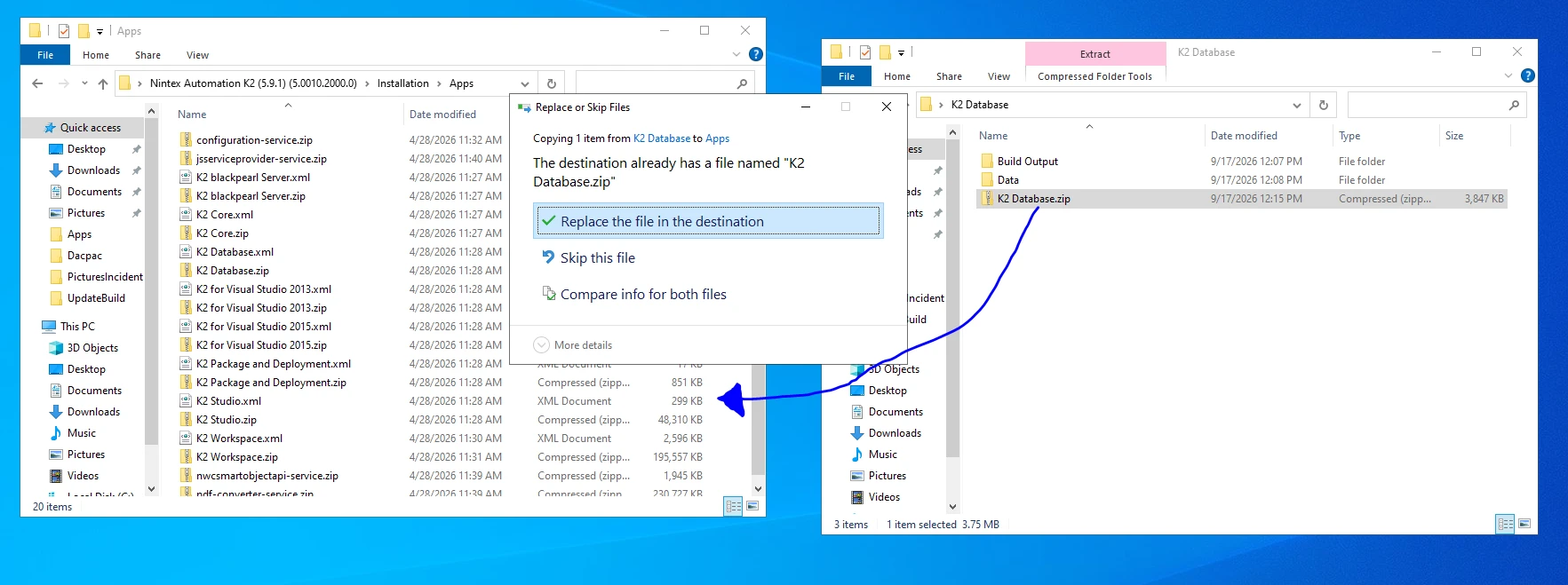
6. Navigate and run the setup.exe. The customer can then point the installer to their Azure hosted K2 sql database