



Known Issue: SharePoint Database Migration with K2
KB003714
PRODUCT
Nintex Automation K2
BASED ON
Nintex Automation K2
Introduction
Use this article when you are migrating your SharePoint environment to a new farm, such as upgrading from SharePoint 2019 or 2016 to the SharePoint Subscription Edition. The guide helps you preserve the OAuth connection between K2 Five for SharePoint and your SharePoint farm by setting the correct SPAuthenticationRealm.
Important
Before you begin, make a backup of your existing environment. Additionally before you migrate your SharePoint farm, obtain the SPAuthenticationRealm from your existing environment. When you create a new SharePoint farm, it generates a new SPAuthenticationRealm for the OAuth flow. This new realm disrupts the OAuth connection between K2 and SharePoint. To prevent authentication issues, set the SPAuthenticationRealm on your new farm to match the one from your previous farm.
Obtain the SPAuthenticationRealm from the existing SharePoint 201x farm
- Log in to your SharePoint 201x farm.
- Open the SharePoint Management Shell.
- Run the following command: Get-SPAuthenticationRealm
- The returned value is the SharePoint Authentication Realm used in the OAuth flow. Keep this value as you will need it for your new farm.
Migrate your SharePoint farm
Follow the article to upgrade your farm:
Upgrade databases from SharePoint Server 2019 and SharePoint Server 2016 to SharePoint Server Subscription Edition – Microsoft Learn
Once you have successfully migrated your SharePoint Farm to Subscription Edition, you will need to do the following below to retain the K2 Five for SharePoint app OAuth flow.
Set the previous SPAuthenticationRealm on the new SharePoint farm
- Log in to your new SharePoint Subscription Edition farm.
- Open the SharePoint Management Shell.
- Run the following command to retrieve the new farm’s OAuth realm (for rollback purposes): Get-SPAuthenticationRealm
- Run the command below to set the realm from your previous farm: Set-SPAuthenticationRealm -Realm {value from previous SharePoint 201x farm}
Redeploy the K2 Five for SharePoint App
You must redeploy the app because the new SharePoint farm does not contain an SPTrustedSecurityTokenIssuer for K2 Five for SharePoint.
- Copy the Nintex Automation K2 installation executable to your new SharePoint Server.
- Extract the executable.
- Navigate to the extracted folder and run AppDeployment.exe.
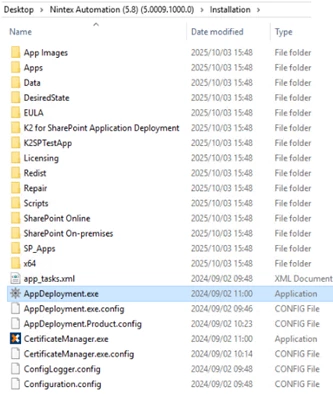
- Click Next.
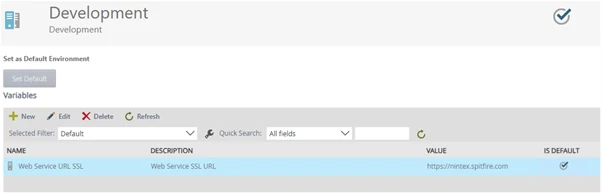
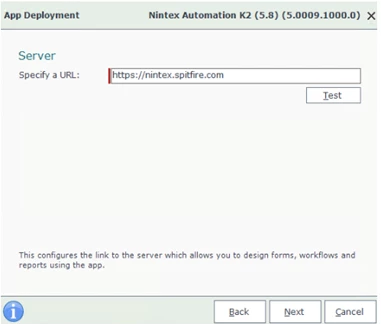
- Provide your Environment Web Service URL SSL:
- To find this value, go to your Nintex Automation Management site.
- Expand Environment Library, select your environment (Development or Production).
- Locate Web Service URL SSL and copy its value.
- Click Next.
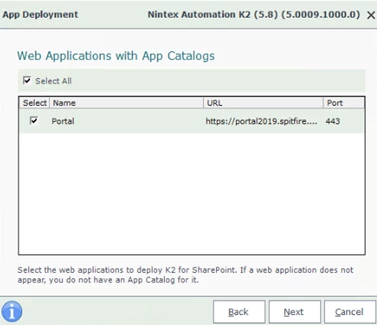
- Select your SharePoint App Catalog and click Next.
- When the deployment succeeds, click Finish to close the wizard.
Re-register the K2 App in SharePoint
- Open your SharePoint App Catalog site.
- Click the K2 Five for SharePoint app.
- Under Administration, click Registration Wizard.
- The wizard should automatically detect your previous URL from the SharePoint 2019 farm.
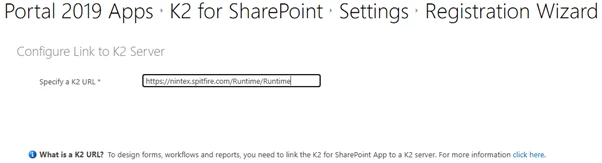
- Click Next to complete the registration.