Nintex Community Menu Bar
Question

How to loop and send emails within K2 Onprem Workflows

  • April 21, 2026
  • 1 reply
  • 18 views

Forum|alt.badge.img+2

Hello together,

I have an a string which look like this “test01@test.com;test02@test.com;test03@test.com”. No I want to loop through the string and send a spearate email to each email address. 

I tried this several times, but it won’t work in K2 Workflows Engine with the loop. Can you suggest me how I can build that kind of loop and send emails out?

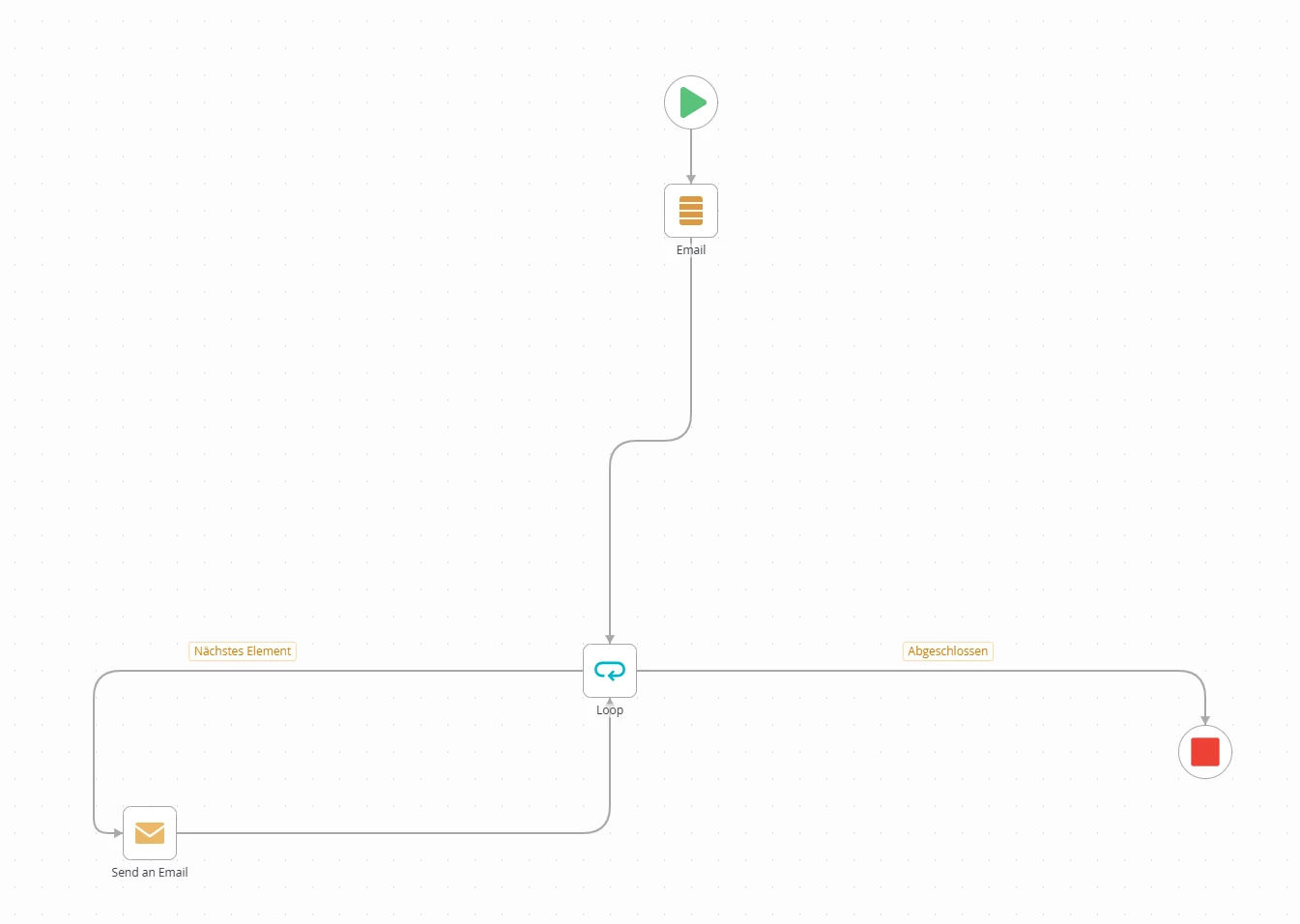
My workflow looks like that.
Best regards

Matthias

1 reply

JRoberts
Nintex Employee
Forum|alt.badge.img+12
  • Nintex Employee
  • April 21, 2026

Hi Matthias,

Note:  Two things you can do here. First, you could just drop that delimited string in the “To” box and K2 will send the same message to each recipient similar to when you add addresses in your email app and separate them with a comma or semicolon. It wouldn’t necessarily be customized for each recipient in this case.  
 

Second option, the Split function in the Context Browser for text is your friend here if you want to send a separate email to each recipient in the list and customize the message.


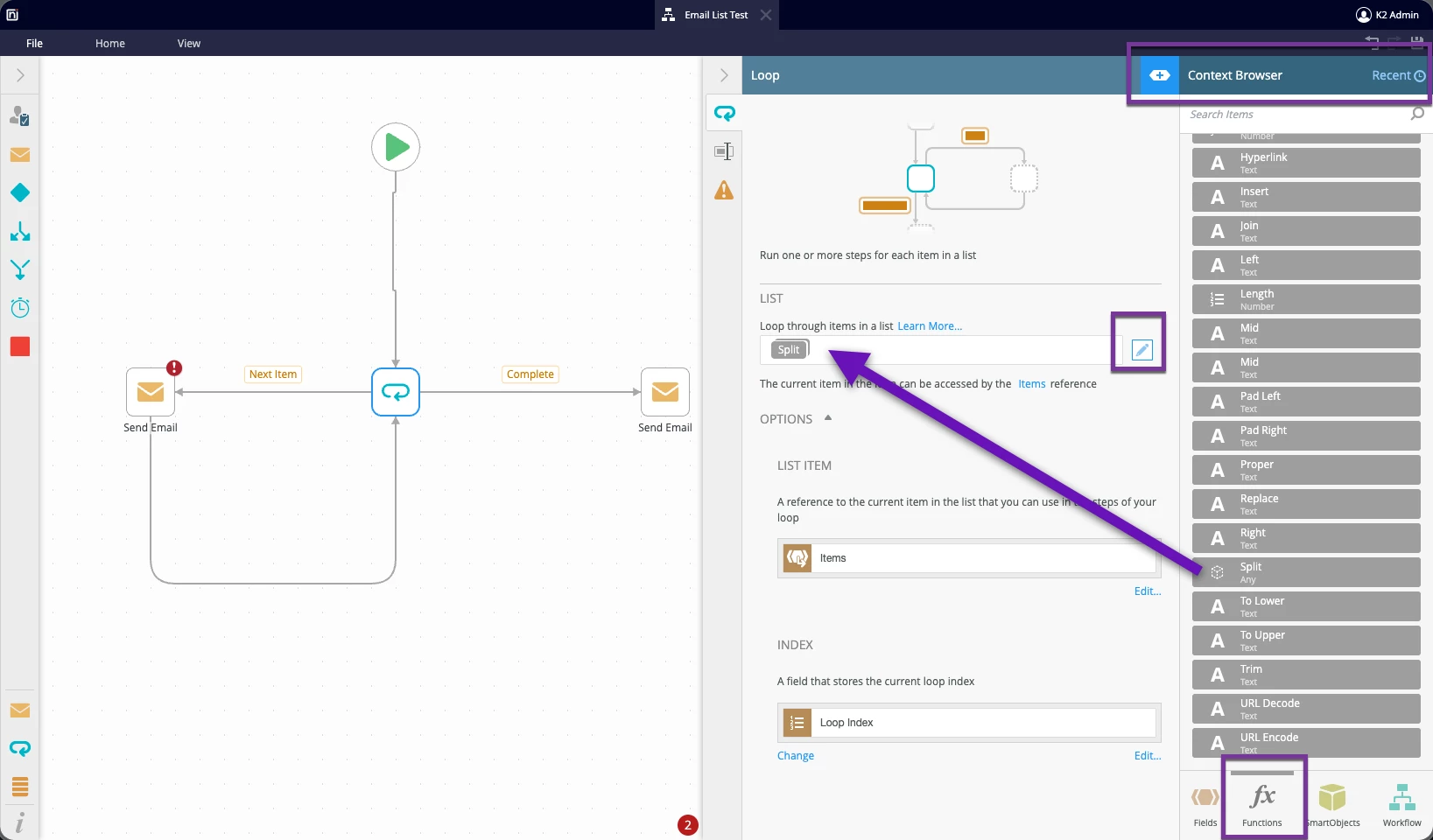
  1. In the loop step, click on the pencil icon to edit and create your own list to loop through. Locate and drag the Split function into the List box.

     
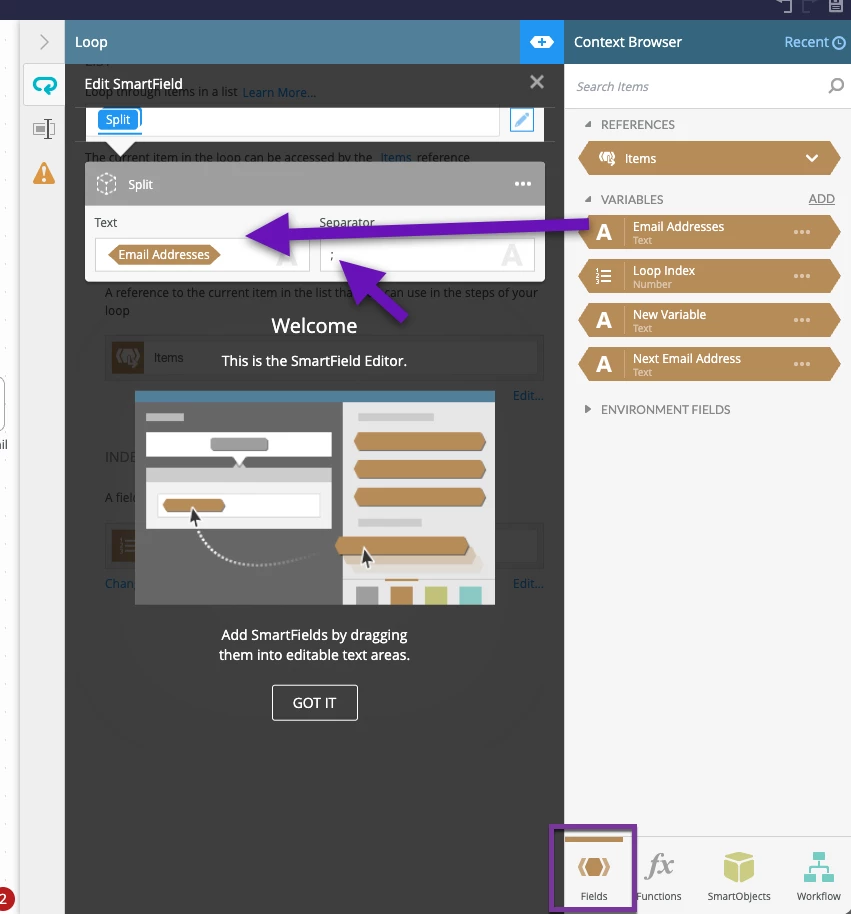
  2. When you edit the Split function, drag the variable over that contains your semicolon delimited string of email addresses wherever that comes from. Drop it into the Text box. Then put a “;” in the Separator box. My example is just a text variable that I hardcoded a delimited list in. (e.g    “address1@gmail.com;address2@gmail.com;address3@gmail.com) It can also be a text field from a SmartObject.


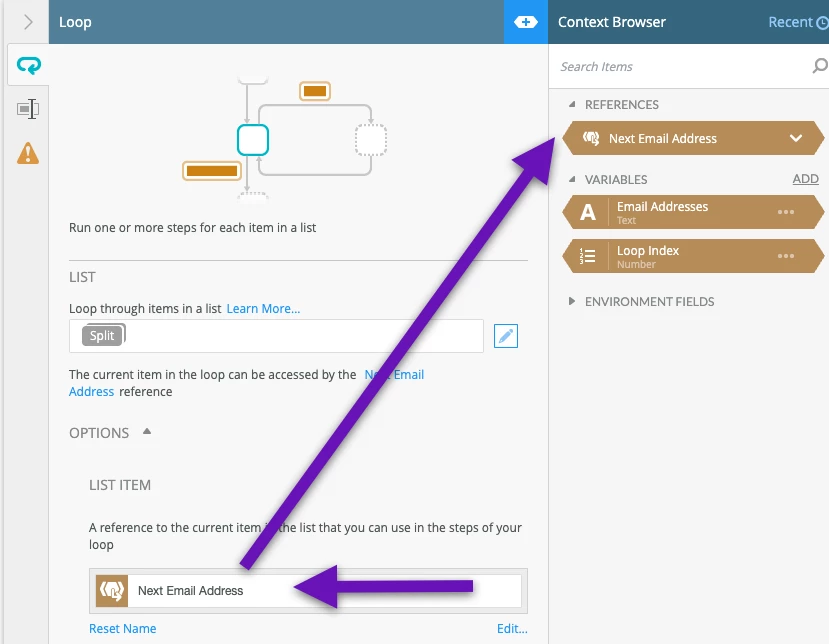
  3. Back in the Loop step, create a List Item reference variable to store the current email address in that the loop is processing. You can name it something meaningful for your use case. It will then appear as a Reference variable you can use throughout your loop steps in the Context Browser.


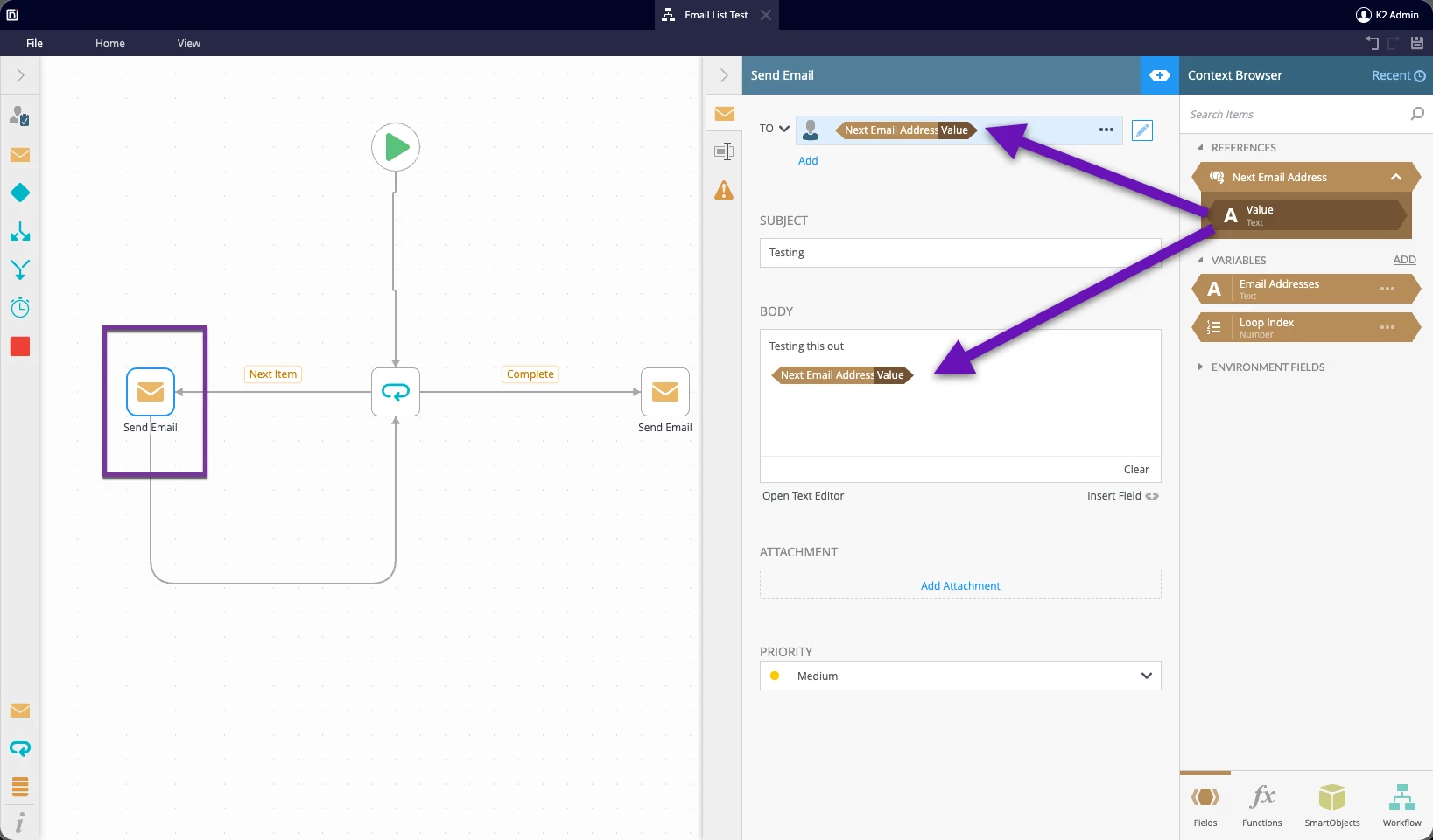
  4. From there, use the Value placeholder from that reference variable in the Send email step’s To box. You can loop through delimited lists like this and use the current value the list is on throughout steps inside the loop. 


    Hope that helps!

    Jason