



What’s Changing and How to Prepare
Microsoft is retiring the SharePoint Online Add‑In model on April 2, 2026. Because the legacy Nintex Forms for Office 365 app is built on that model, it will stop functioning once Microsoft removes Add‑In support. Every existing Nintex form must be moved to the Nintex SPFx app before that deadline to ensure continuity.
This guide outlines what’s changing, how to migrate your forms, and what to do if you’re running out of time.
What This Means for Existing Nintex Forms
Once Microsoft disables the Add‑In framework:
- All forms built in the Nintex Forms for O365 Add‑In will stop working.
- Forms must be republished in the Nintex SPFx app to remain functional.
- Classic and Old Responsive forms must be upgraded to New responsive.
Where do I get the SPFx App?
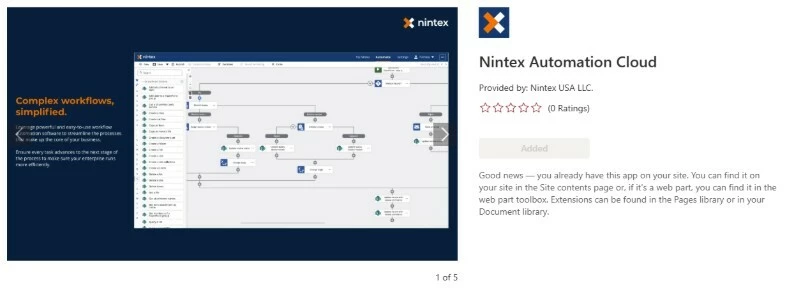
The SPFx app is titled “Nintex Automation Cloud” in the SharePoint Store. You can find it there or by appending “/_layouts/15/appStore.aspx/appDetail/WA200004625?entry=NewAppInSiteContents&sorting=1&from=0&catalog=0&id=fabcb9ee-fd73-4249-b687-5352c0ec1648” to your site URL
How to Move Your Forms to the SPFx App
There are two migration paths depending on the type of form you have:
1. New Responsive Forms
- Open the Nintex SPFx app.
- The app automatically detects the existing form definition from the Add‑In version.
- Simply republish the form in SPFx.
2. Classic or Old Responsive Forms
- Open the form in the Add‑In app.
- Select Upgrade Now in the Form Designer to convert it to New Responsive.
- Make any required adjustments in the New Responsive Designer.
- Open the SPFx app and republish the upgraded form.
How do you identify what type of form is in use?
1. Use Nintex Analytics
- Open Nintex Analytics
- Navigate to the Forms Dashboard where you can find the locations of your forms along with the type of form
2. Manual Check
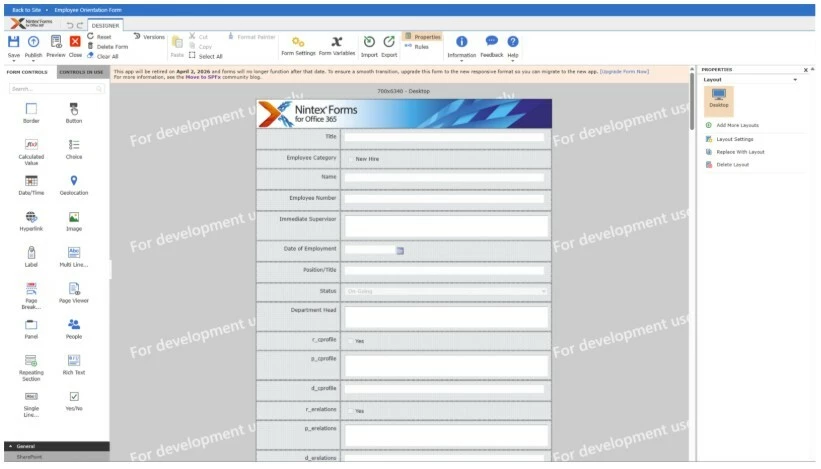
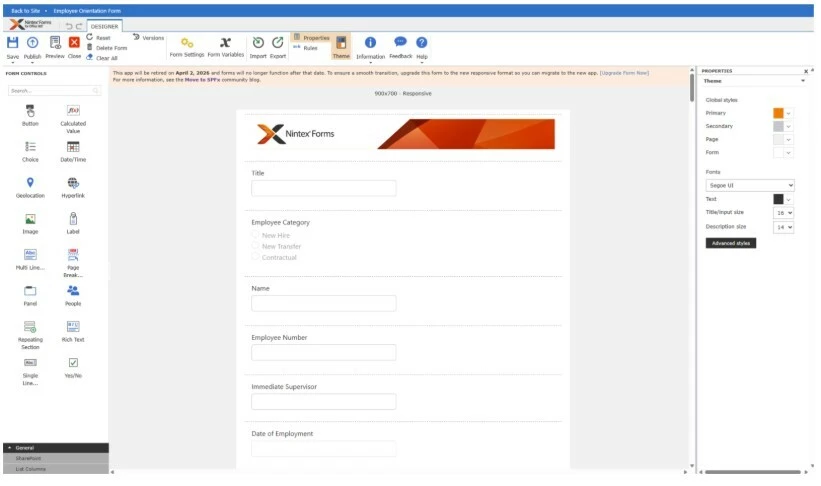
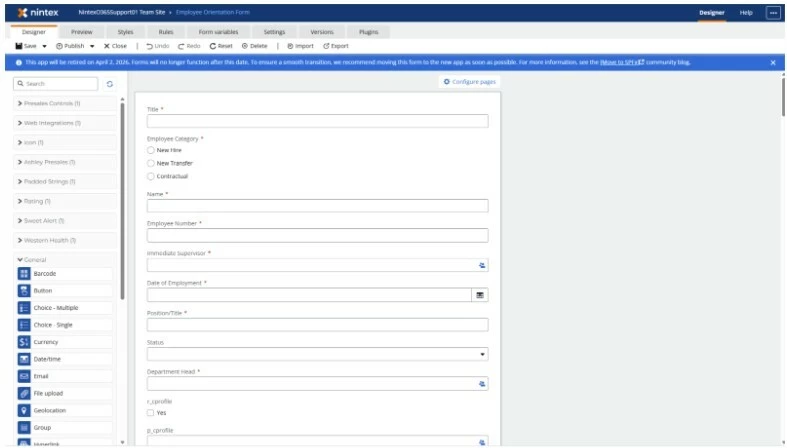
- You can open the forms designer to verify which form type is in use. Here are examples of the form types
Classic:
Old Responsive:
New Responsive:
Will Old Nintex Forms Still Work After Deprecation?
No. Once Microsoft removes Add‑In capabilities, legacy forms will stop functioning entirely. Any form not migrated to SPFx before April 2, 2026 will break.
What If You Forgot to Republish a New Responsive Form?
Good news: Just open the SPFx app and republish. The form definition will still be available.
What If You Haven’t Upgraded Your Forms and the Deadline Is Near?
If you’re short on time:
- Prioritize business‑critical forms first.
- Export all forms so you have backups for post‑migration remediation.
- The SPFx app can import Classic and Old Responsive forms directly, using the same upgrade engine the Add‑In app uses.
- After import, you’ll receive a New Responsive version to finish remediating.
Having exports ensures you can continue remediation even after the Add‑In app is removed.
How to Verify Whether Your Forms Have Been Migrated
You can check manually or use scripts.
Manual Check
Open a new form on your list and look at the URL:
- Add‑In app: https://{TenantName}-##########.sharepoint.com
- SPFx app: https://*.nintexo365.net/
Automated Check
Use the scripts located here: https://download.nintex.com/sl/supportfiles/Nintex%20SPFx%20Migration%20Scripts%20and%20Guide.zip
These scripts can scan a single site or your entire tenant to confirm which forms still need to be migrated.
After Migration: What’s Next?
Once you’ve confirmed all forms on a site are successfully migrated and functioning
- Remove the Nintex Forms for O365 Add‑In from the site.
- This prevents accidental republishing in the deprecated app and ensures all future edits happen in SPFx.
Need More Help?
Reach out to your dedicated Nintex Account Manager or Customer Success Manager for more information.
Also see: