



In this blog I am going to go through the recently released flow feature for Nintex Workflow CE.
Visual Flow for Workflow Instances
With a recent update in Nintex Workflow CE, we now have the ability to view a visual flow of a running or completed workflow instance.
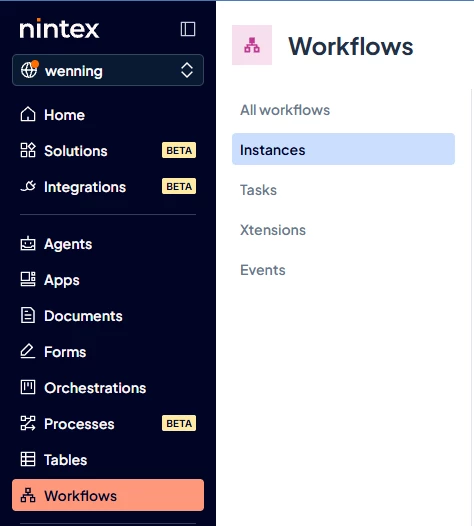
To view a flow, click on instances to bring up all the instances that are running, completed, failed, paused, etc.
Once on the instances screen you will see a list of the instances from the last 5 days, you can adjust that if needed by going to custom filter and creating the desired date range.
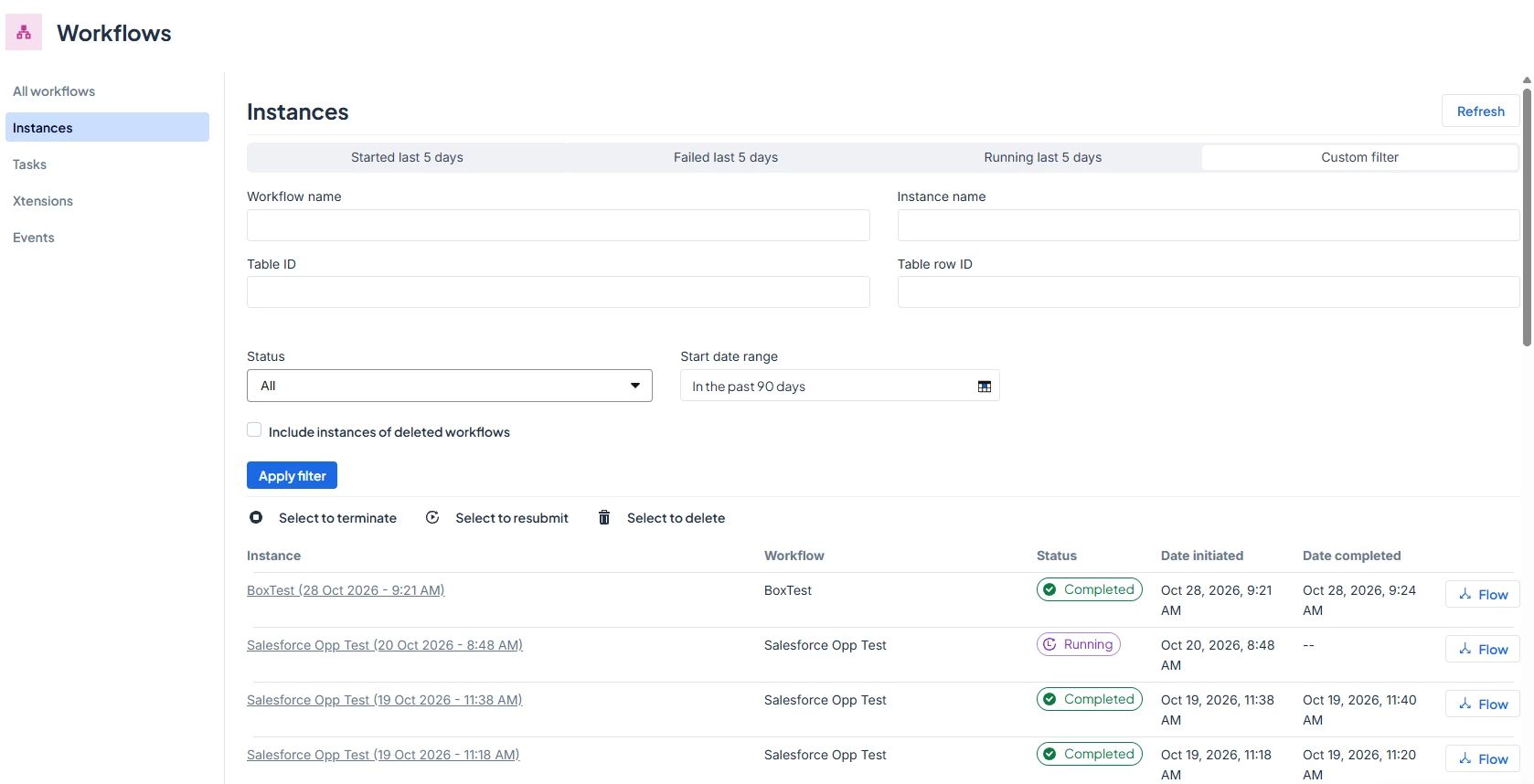
For the workflow instance you would like to view the flow for, click on the flow button on the right-hand side of that instance

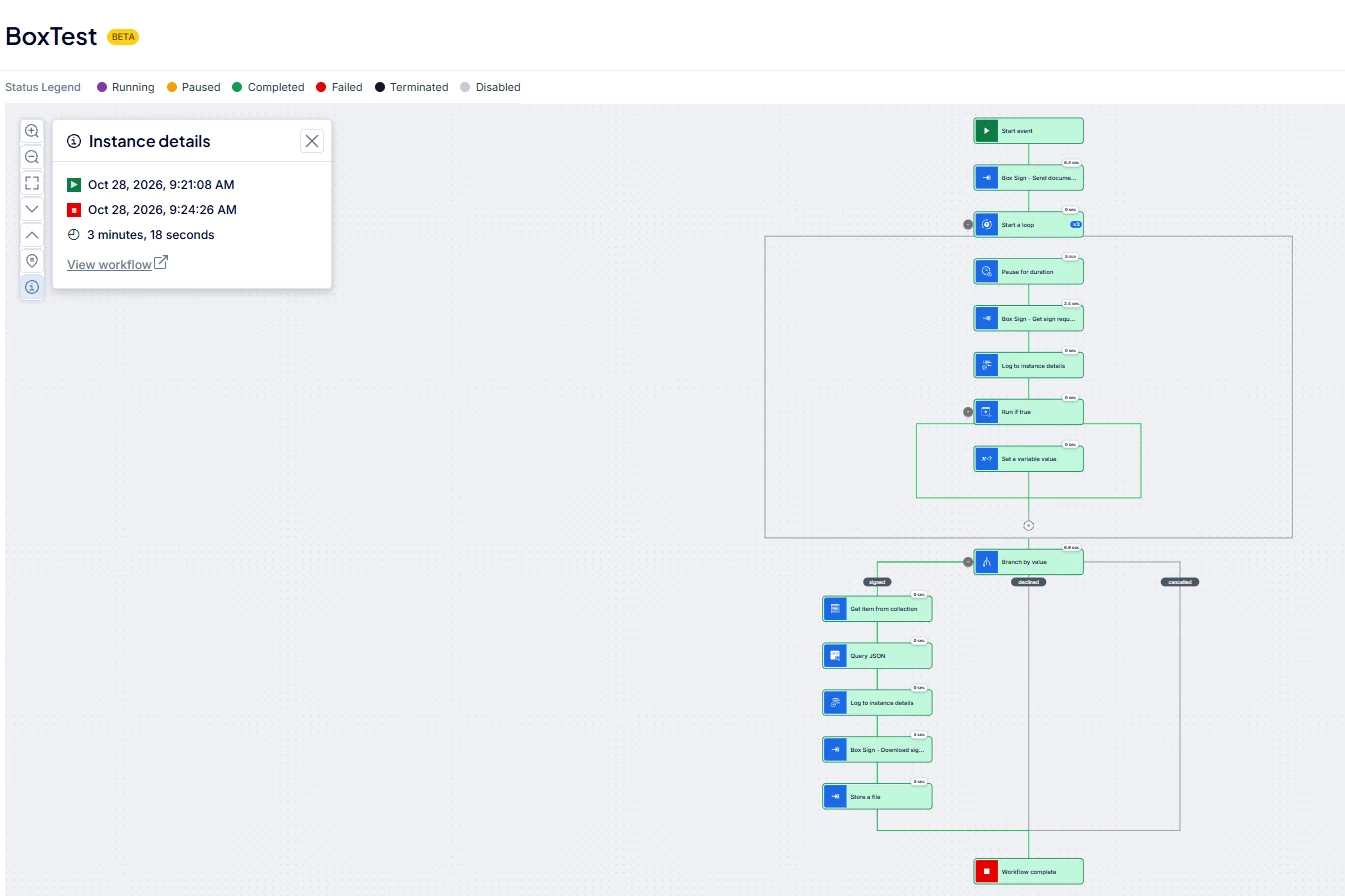
The flow screen will come up and show a visual representation of the workflow and if completed show the path it took as it ran.
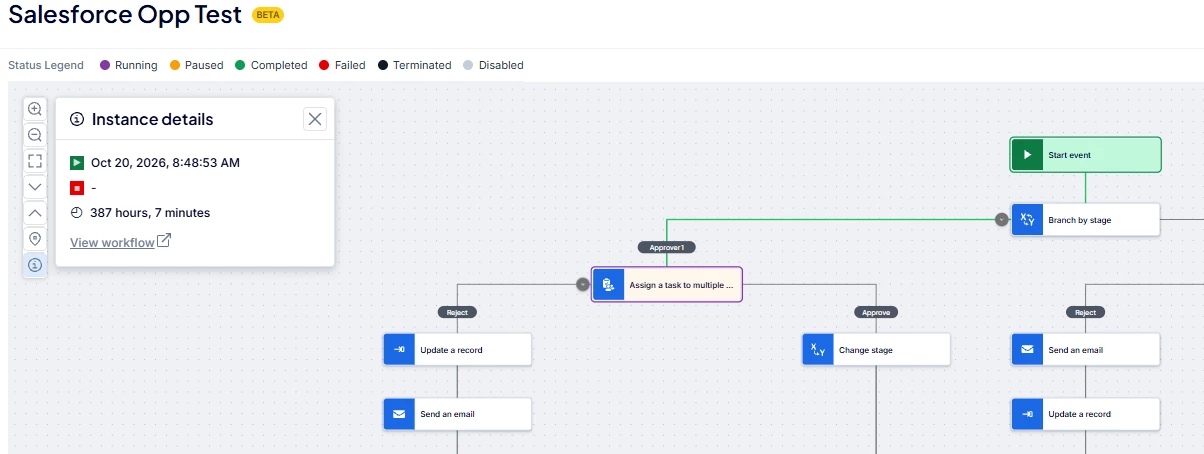
If the workflow instance is still running you will see what action the workflow is currently at as it run, that action will show up with a purple outline.
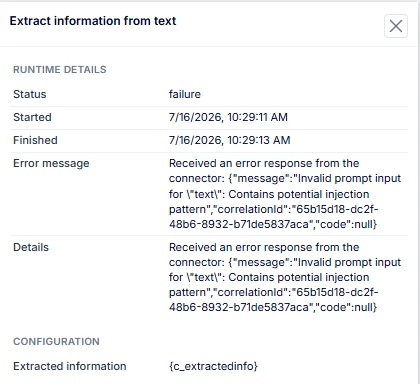
If the instance fails you will see the action is failed on, colored red
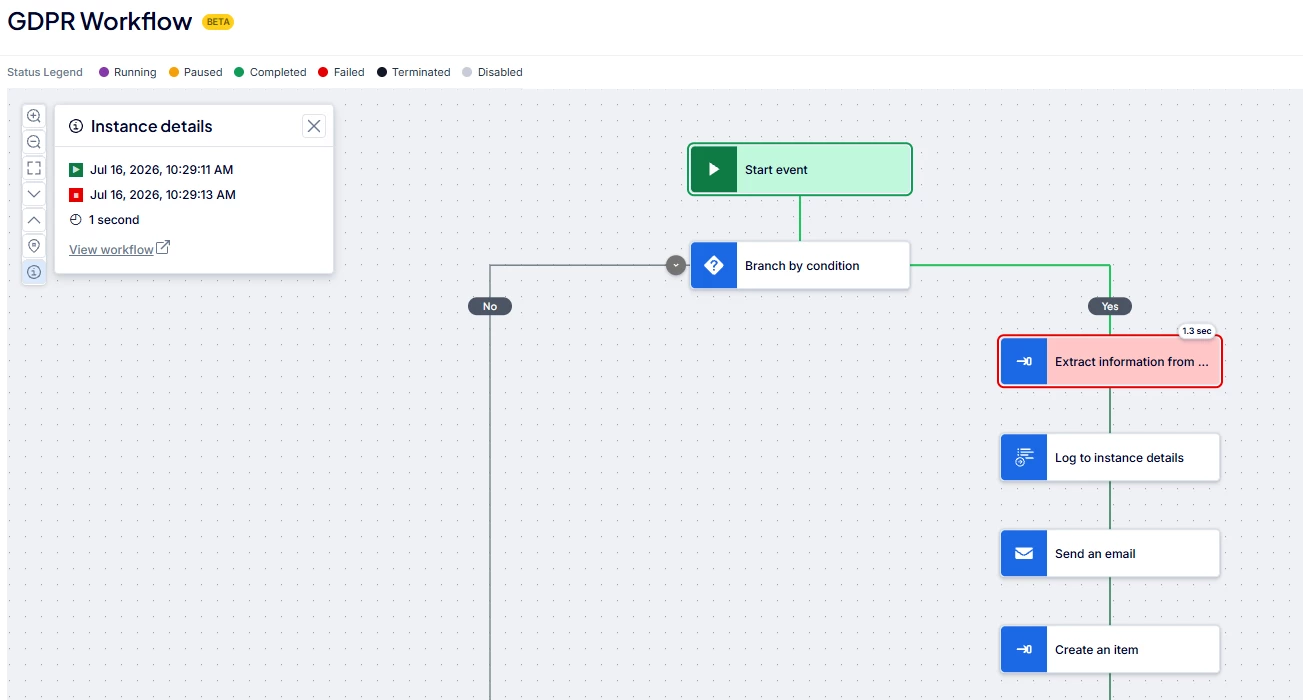
You can click on the failed action to view the error message
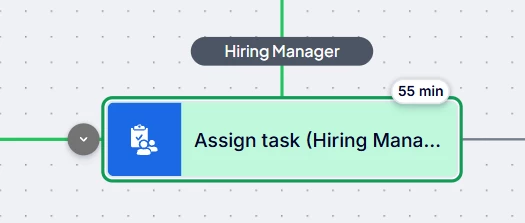
Some other data that is available to view is the duration of activities that ran, this can be helpful in identifying potential bottlenecks with tasks, or other actions. So, for example if you are expecting a task to complete in 1 day and you see it is taking 3-4 days to complete that could be a bottleneck in the process that needs to be reviewed
The other thing you can do on completed workflow is play an animation to watch the path the workflow instance took as it ran to make sure it is working as expected. The play animation button will only show on completed instances.