



With Nintex Workflows for O365 deprecating from 2 Apr 2026, the workflow extraction script provides you with an opportunity to mass export your workflow definitions prior to the deprecation and have them archived.
Pre-Requisites
- Download the O365 migration script.
-
Ensure your machine is running PowerShell version 5.x.
-
Version 7.x is supported, but you must use the following command prior to running:
-
Import-Module Microsoft.Online.SharePoint.PowerShell -UseWindowsPowerShell
-
-
-
You are logged in with a SharePoint Online account that has at least Manage Web permissions on sites you wish to export workflows.
Obtain your Nintex API Key
To get your Nintex API key which is required in the workflow export, complete and submit this request form. Here are the fields required to be completed.
- Licensed Organization Name – Input your company name
-
Requestor First and Last Name
-
Requestor Email Address – Required to receive the API key details
-
SharePoint Online URL – SPO tenant URL e.g. https://xxx.sharepoint.com
-
Tenant ID – Tenant ID of your SPO tenant
-
Tenant Region – Region where your SPO is hosted
Step-by-Step Instructions to Export Workflows
-
Locate the folder where the migration script is located. Extract the package. You should have 2 PDF files, 1 word doc and a “Scripts” folder consisting of a “bin” subfolder, 2 PowerShell scripts and 1 readme file.
-
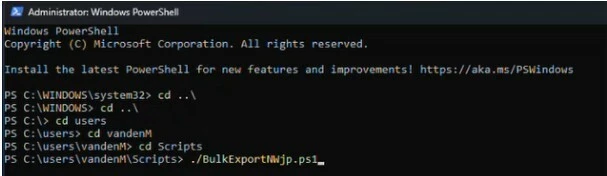
Open PowerShell as Administrator and navigate to the “Scripts” folder.
-
Execute the script “BulkExportNwjp.ps1”
-
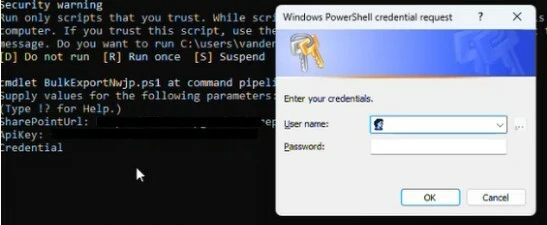
When the security warning appears, enter “R” to run once.

-
You will be prompted to input the following next.
-
SharePoint URL – SPO tenant URL
-
Nintex API Key
-
Credentials – Your SPO credentials
-
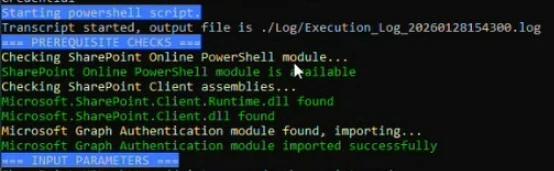
The script will perform an initiate validation and generate an output log file.
-
Next it will check if you want to export by a specific site or the entire tenant. Selecting “Y” will allow you to input the specific site to export from, otherwise the script will export all workflows within the tenant.
-
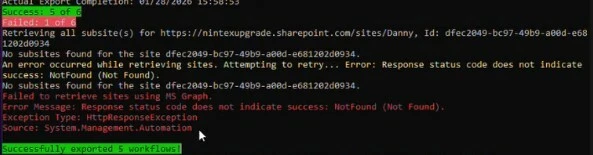
Allow the export to complete. The total number of successful exports will be shown upon completion.
-
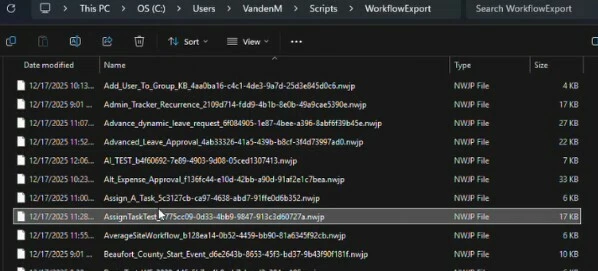
Exported workflows can be found in the subfolder “WorkflowExport” in *.nwjp format.
-
A migration_tracker.csv file will also be created during the export to provide a log on the workflow export status.

Things to Consider During Export
-
Do ensure change freeze on the workflows is implemented before attempting to export them.
-
If you have a sizeable number of site collections (>10) within your site, it will be advisable to export the workflows by site instead of tenant. This will ensure your workflows can be compartmentalized for archiving purposes.
-
If you have a sizeable number of workflows (>50) within your site, it will be advisable to run the export after business hours to reduce any potential impact to the business and system operations.
-
The export tool will no longer work from 2 Apr 2026 so plan to export before the deadline.
Also see: