




Product: Kryon RPA
Product Version: All
Components: Kryon Admin
This article will explain how to enable and use Kryon multi-tenancy licenses
Prerequisites: A Kryon RPA multi-tenancy license file.
Steps:
Introduction to Kryon multi-tenancy licenses
In order to use the Kryon RPA platform, we need a license file. The process for generating the license file is handled by the Kryon RPA sales contact. These type of license requests are generated when the customer wants to manage multiple tenants or libraries. In this document you will learn how to enable Type 1 licenses on in Kryon Admin.How to enable a multi-tenant license
Steps to enable Multi-tenant/Multi-library in Kryon Admin.
1. Go to LeoConfigEditor in C:Program FilesKryon Application ServerConfig Editor and locate the LeoLicensingType config key
2. Set the value to “1”
3. Next go to C:Program FilesKryon Application ServerKryon Admin Client 64bit and open Kryon.Admin.exe.config
4. Locate the key LeoLicensingType and change the value to “1”
5. Restart Kryon services
6. Login to Kryon Admin
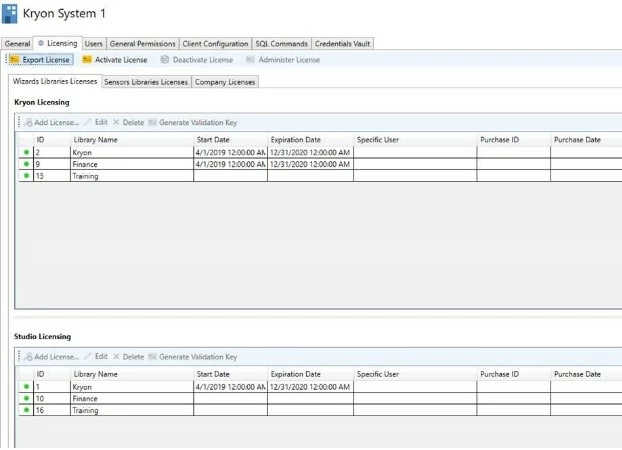
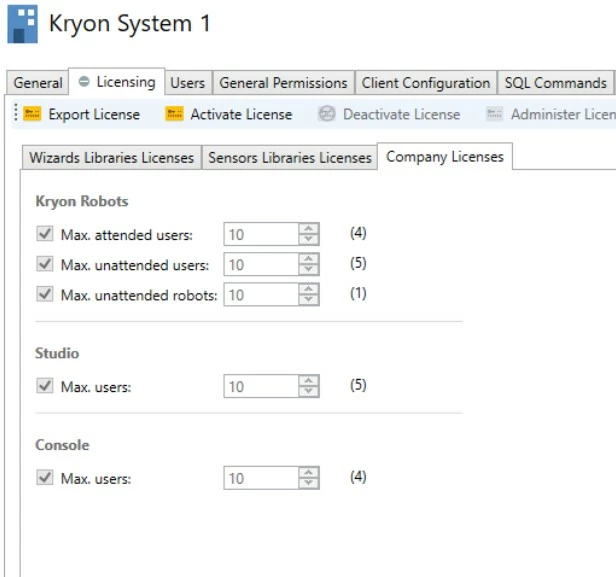
Under the Licensing page for each tenant, you will now see a different type of licensing setup. To get started, you will first need to create the required Libraries and then assign the libraries to each tenant
Additional points
- License files cannot be shared among tenants. Each tenant needs a separate license file.
- Once the license is applied in the Kryon Admin, the license distribution cannot be changed.
- The Kryon Support team does not manage the issuance of licenses. Please work with Account Owners to obtain a license.
More Information: None