Nintex Community Menu Bar

Responsive Nintex Form >> Individual Control Styling >> Attachment Control

  • March 20, 2020
  • 9 replies
  • 66 views

Abhishekn
Forum|alt.badge.img+5

Hi Team,

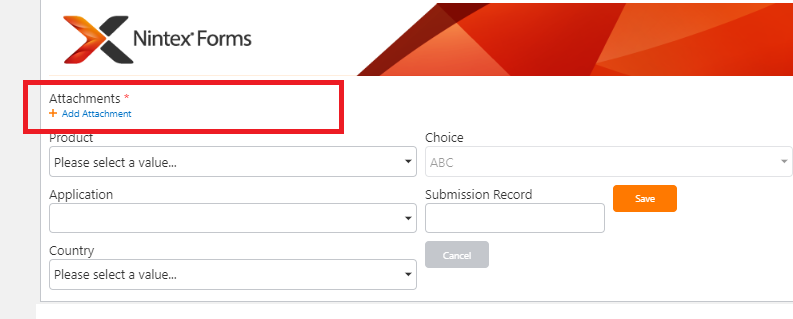
I have a Responsive Nintex form and want to Style an individual control. Like Attachment control. I want to make Font Bold and Little Big Font of Attachment control.

How we can do this.
6884i79D883964B250E71.png

9 replies

Abhishekn
Forum|alt.badge.img+5
  • Author
  • March 20, 2020

1 Point also i want to Increase the Font Size of Add Attachment Link


Forum|alt.badge.img+8
  • Novice
  • March 20, 2020

I don´t think there is a way in the responsive form designer to control the font weights and sizes individually.

Using this CSS I was able to modify the font weights. Using a script editor on a page, you could apply the styles to you form as well (however only for this one page)

/* Control description */
.nf-attachment-control label.control-title {
    font-weight: bold;
}

/* Individual Attachments */
.nf-attachmentsTable a {
    font-weight: bold;
}

/* Add Attachment link */
.nf-attachmentsLink a {
    font-weight: bold;
}

Abhishekn
Forum|alt.badge.img+5
  • Author
  • March 20, 2020

Thanks for you reply, but i belive we can not add the script editor on a page of Nintex Form (Redirect to this page when click on New button from SharePoint list), below is the Screen Shot of the Responsive Form. in which we want to increase the Font size.

6890i1664111360A5F34F.png


Forum|alt.badge.img+8
  • Novice
  • March 30, 2020

Okay so I got it to work in my environment using a calculated value which uses js to apply the style.

  1. Add a calculated Value to your form
  2. Add following formula to it:
    (function applyStyle() { var style = document.createElement("style"); style.textContent = "/* Control description */ .nf-attachment-control label.control-title { font-weight: bold; }  /* Individual Attachments */ .nf-attachmentsTable a { font-weight: bold; }  /* Add Attachment link */ .nf-attachmentsLink a { font-weight: bold; }"; document.body.appendChild(style) })()
    The formula defines a function called "applyStyle" and immediately calls it. You can adjust the css as needed.
  3. Hide the calculated value using rules

Tested in IE and Chrome

SharePoint 2013

Nintex Forms Version: Nintex Forms 2013 ( 2.11.5.0 )


Forum|alt.badge.img
  • May 12, 2020

Hi @Tarf ,

I'm getting the "The formula contains a syntax error or is not supported." error when trying to create a Calculated Column using your formula; although opening it in a script editor the syntax seems correct. Did you have to make any changes to get the calculated field to work?


Forum|alt.badge.img+8
  • Novice
  • May 12, 2020

Hi @SeanM,

you do not need to create a calculated column on your list but a calculated value on your form.

The value then applies your css for the form.


Forum|alt.badge.img
  • May 12, 2020

Thanks for clarifying @Tarf and also the quick reply; apologies I should have read your first message properly!


Still doesn't seem to be applying the style, just returning "#Value!#" on the form; I'll spend some more time on it see how I get on.


Forum|alt.badge.img
  • May 12, 2020

Thanks for the tip and help @Tarf! Have got it working now, it was probably actually working initially earlier but the sytle I was applying was being overridden, adding "!important" did the trick.


Forum|alt.badge.img+8
  • Novice
  • May 12, 2020

Hi @SeanM,

glad to hear it worked!