


Do you want to show master-detail information in a form and have it render automatically each time you change the master? Repeating sections are your friend for this.
The secret sauce is to set the default value of the repeating section to the data containing the detail line.
“Default value?” I hear you ask. “Surely that is only set when the form loads?”
Well yes – every other control operates this way but we’ve tweaked repeating sections to re-render if the default value field changes. This way you could use it to set up a repeating section with default values when the form loads but you can also re-render the repeating section if you change the default value.
Read on for some examples of how to get this going.
Example 1 – using a collection as a data source
The first example we’re going to use is by using a collection variable. One thing you need to be aware of is if the collection variable is part of an object then it must be at the root level of the object. If it isn’t then you can use the text method outlined in the second example below.
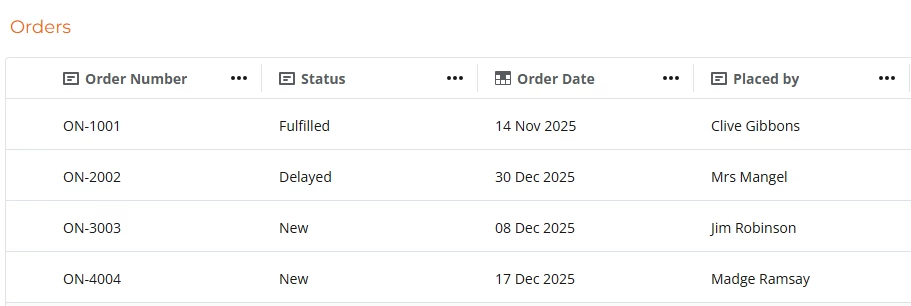
In this example, I have two Nintex tables. The first table contains a set of orders as shown below
The second table contains the line items for each order
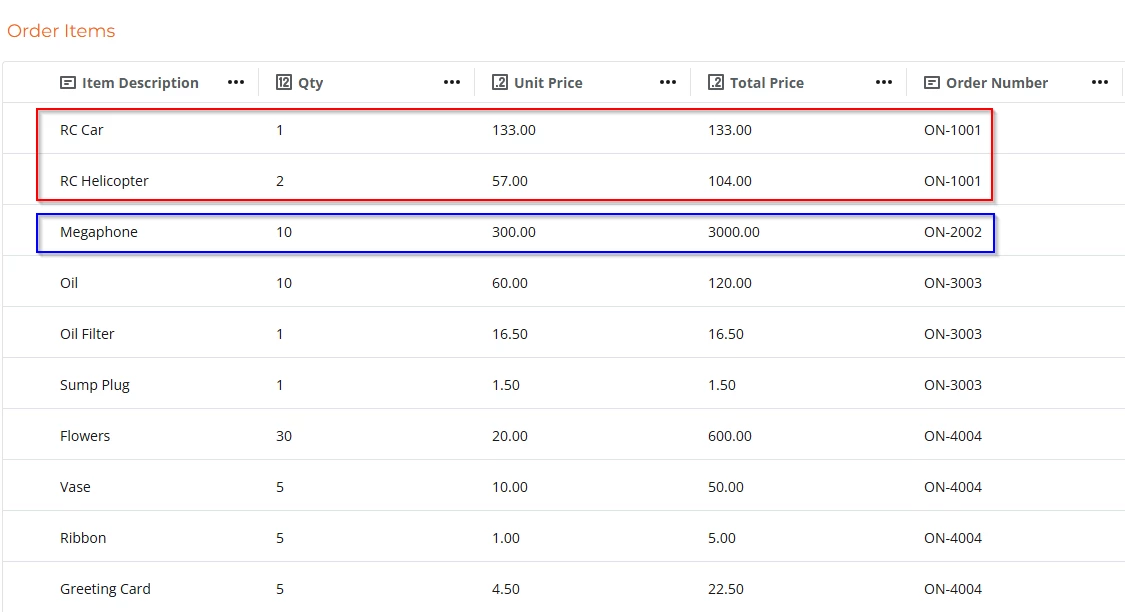
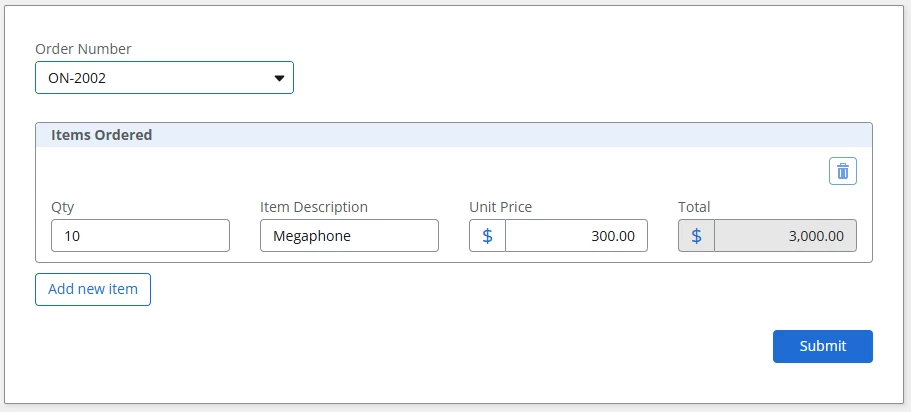
What we want to achieve is if we select order ON-1001, the repeating section should only show the items related to that order i.e. RC Car and RC Helicopter. Similarly, if we select ON-2002, it should only show Mrs Mangel’s Megaphone.
Open up your form designer and create a choice single control where the data source is a Nintex table and the display field and the value is Order ID. If you’re not sure how to do that, check out this blog: https://community.nintex.com/nintex-workflow-2/nintex-data-is-live-62228
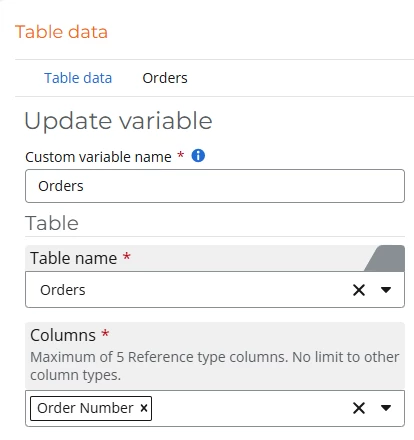
You’ll see I named my data variable “Orders” which we’ll refer to in our second data variable. I populate the contents of a drop down list (choice single control) with these orders.

Create a second data variable called Order Items and select all the columns that you want displayed in your repeating section. The important thing to configure is the conditions section where you only want to bring back the order items associated with the order selected in the choice control. Not sure how to do that? Check out the article linked above which also describes how to do this.
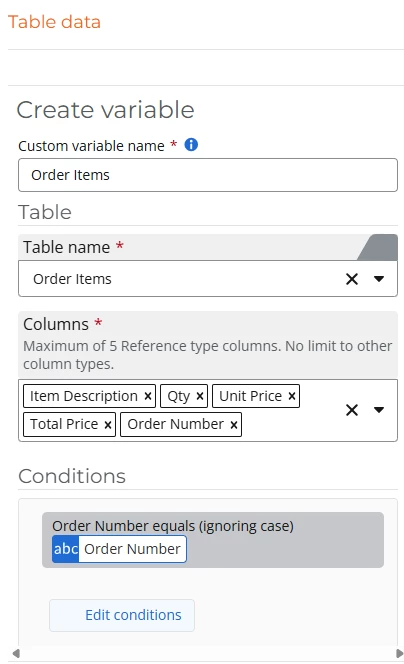
Now we can create a repeating section and populate it with the order items.
Drag a repeating section control to your canvas and check out this Default value type options.
The first field (Default value type) asks what format the data will come in. Conveniently with tables, data comes as a collection and it also fulfils the other primary criteria that the collection is at the root level of the data variable.
The second field (Default value) is where you are going to place your data:
- Click on the +/insert icon
- Click on Table data
- Expand out Order Items and you will see the order items rows are structured as a collection
- Click on the Insert button
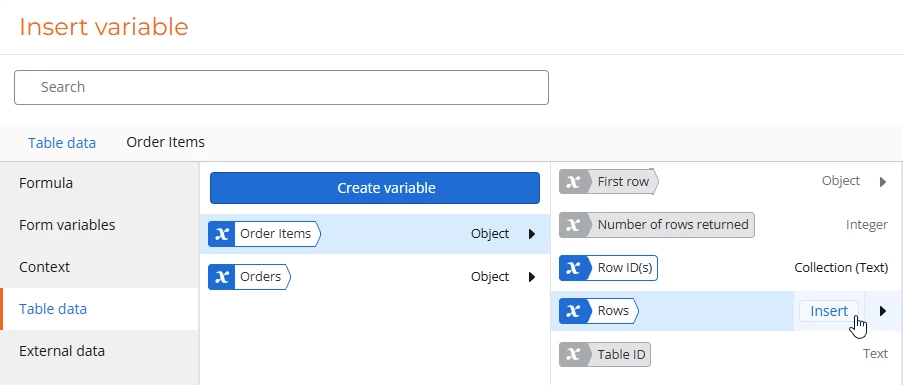
If you preview your form right now it would do something you probably haven’t seen before – it will dynamically change the number of rows corresponding to how many items are associated with each order. What it won’t do (yet) is display any detail however that’s really easy.
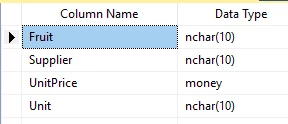
Drag and drop controls into the repeating section that correspond to the data types you want to show e.g. for the item description, use a short text field, for the qty use a number control, for the price fields use currency fields. Then, (here’s the important bit), the name of the control must be exactly the same as the unique identifier table column name and that includes the case. How do you know what the unique identifier of the column name is? Go to the table, edit the column and it will show you:
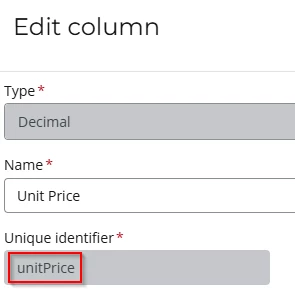
In this example above, the column name is unitPrice. Now that you know the unique identifier is called unitPrice, you can use it in your control.
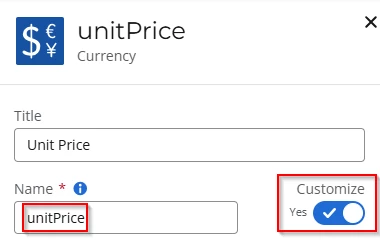
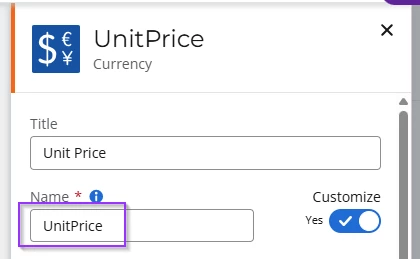
Like the example above, make sure to tick the Customize toggle and set the Name to the unique identifier (in this case unitPrice). You can set your title to anything you would like. Also please note the first column of the table always has the unique identifier of “name”.
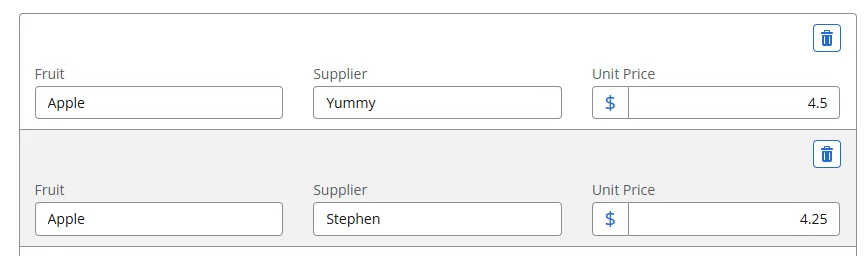
That’s it. You’re done! Here are two examples based on the table data below (and a little tidy up of the form)
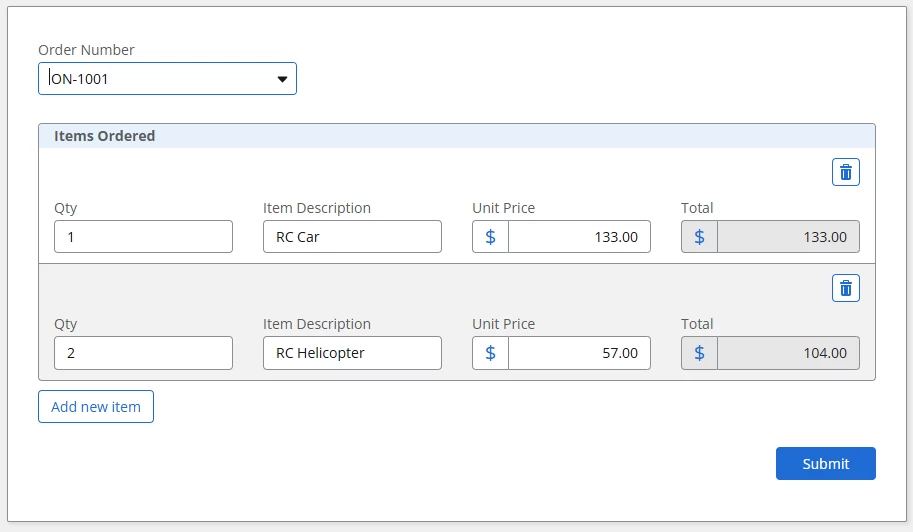
and
Example 2: Using text as a data source
This second example is very similar to the one above except instead of using a collection, we are going to use plain text. In this example our data source is Salesforce and I’ve created two data variables. The first data variable lists the customer names and the second lists the opportunities associated with that customer. It’s set up exactly how I set up the tables in example 1 except the data is coming from Salesforce.
If it’s set up in exactly the same way as example 1 then how come we can’t use the collection method? We can’t because if you navigate to the data source variable, you’ll see that the collection of fields isn’t at the root level of the opportunity and the group of data that we want is an object rather than a collection.
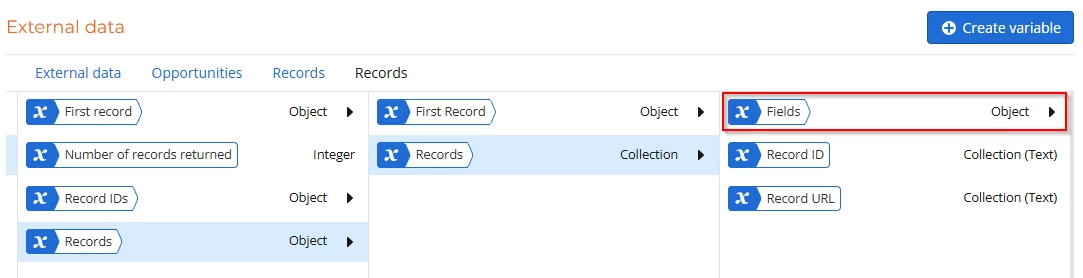
Therefore we’re going to convert this object to text and use the converted text as our default for the repeating section. In the example below, I’ve created a form variable called “Opportunities as text” and used the convertToString formula.
How do you know which object/collection to pick? Navigate through your data and pick the object or collection that holds all the fields. In this case it’s the “fields” object but this will differ depending on the data source you are using.
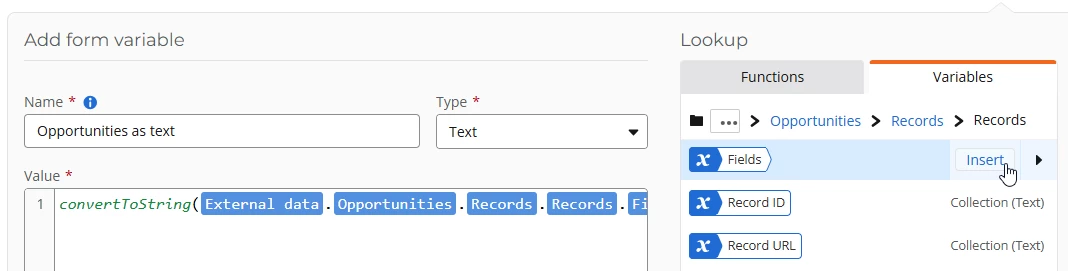
Now you can use that form variable as the default for your repeating section
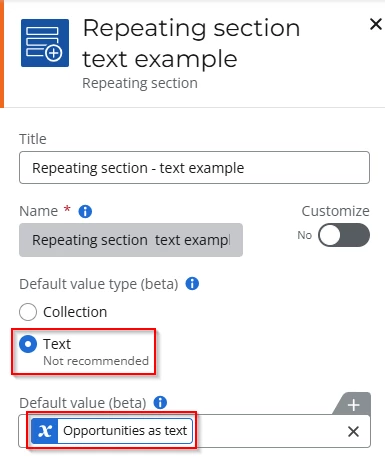
Once that’s done you can add your controls to the repeating section and name them as per the unique names that are supplied by whatever system you’re connecting to. In the Salesforce world you can navigate to the object explorer and it will show you.
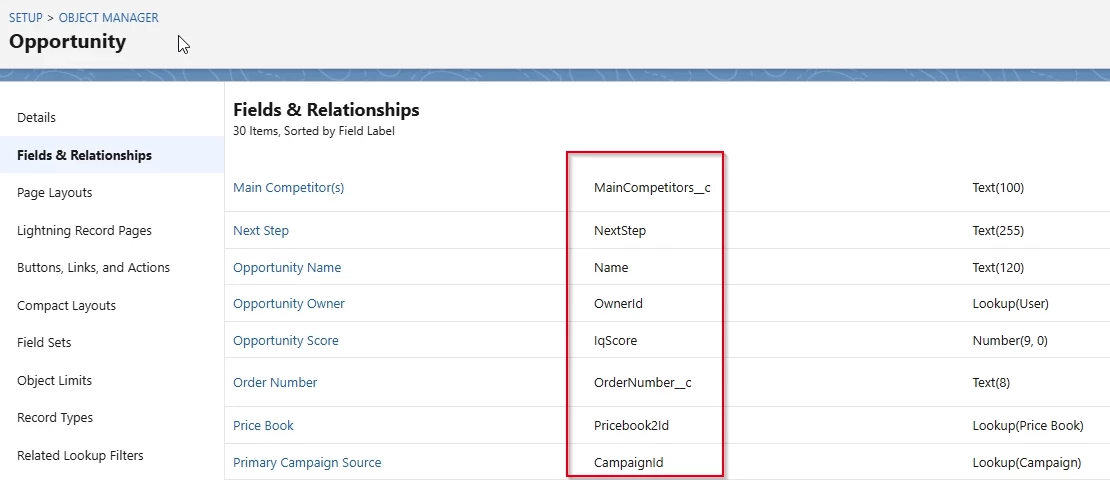
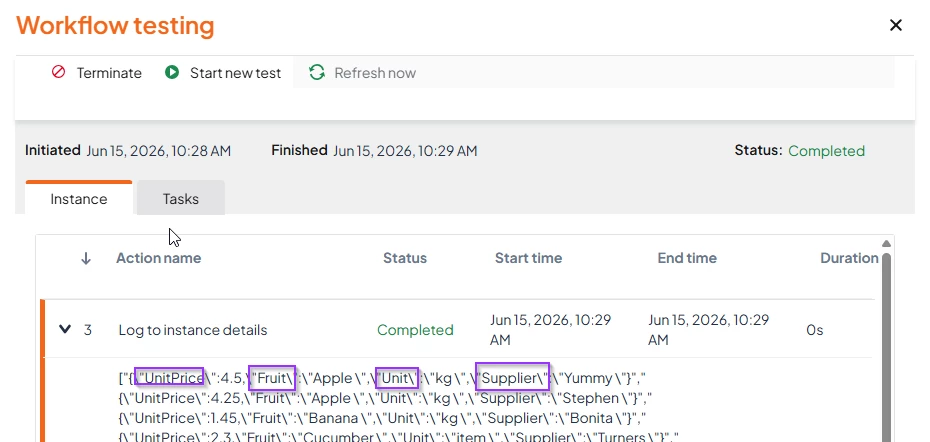
Alternatively you can just display the form variable in a label and you’ll be able to figure out the names from there as per this example where I’m displaying the “Opportunities as text” variable in the label:
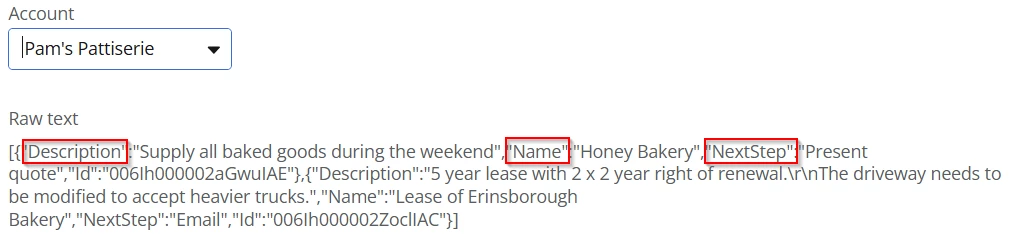
Here’s an example of the finished output:

Enjoy working those repeating sections! For further reading, check out the help documentation for specific instructions including a useful video.
https://help.nintex.com/en-US/nwc/Content/Designer/FormControls/Repeatingsection.htm#DefaultValue