




Scenario
This article explains how to upgrade Nintex for Office 365 workflows that have actions using Current item context. In Nintex for Office 365, the Current item context provides access to current data from your SharePoint list or library; however, this is handled differently in Nintex Automation Cloud.
After Upgrade
- The Nintex Automation Cloud start event variable will load data in from the source item one time when the workflow instance begins. If any updates are made to the list item during the execution of the workflow, you will need to query the list to get current data for that list item and store it in a variable. It will not automatically refresh the start event variable's data as the workflow progresses.
- Nintex for Office 365 actions that used Current item like, Update List Item, will upgrade, but they will be configured with a condition where the ID column equals the start event variable's ID value. You may want to use an output variable to store the updated item's data after the action executes. You can reuse that variable throughout the workflow in later actions, but it must be refreshed whenever the list item is changed.
Differences
- Current item context variables do not exist in Nintex Automation Cloud.
- The Update items action must have a condition that filters the update based on a list item ID value or else you will update all items in the list.
- The Delete items action must have a condition that filters the delete based on a list item ID value or else you will delete all items in the list.
- If the Assign a Task action's Related Item property is configured to use Current Item in Nintex for Office 365, the email messages that reference variables from that will need to be reconfigured in Nintex Automation Cloud as those variables will be deleted.
Configuration
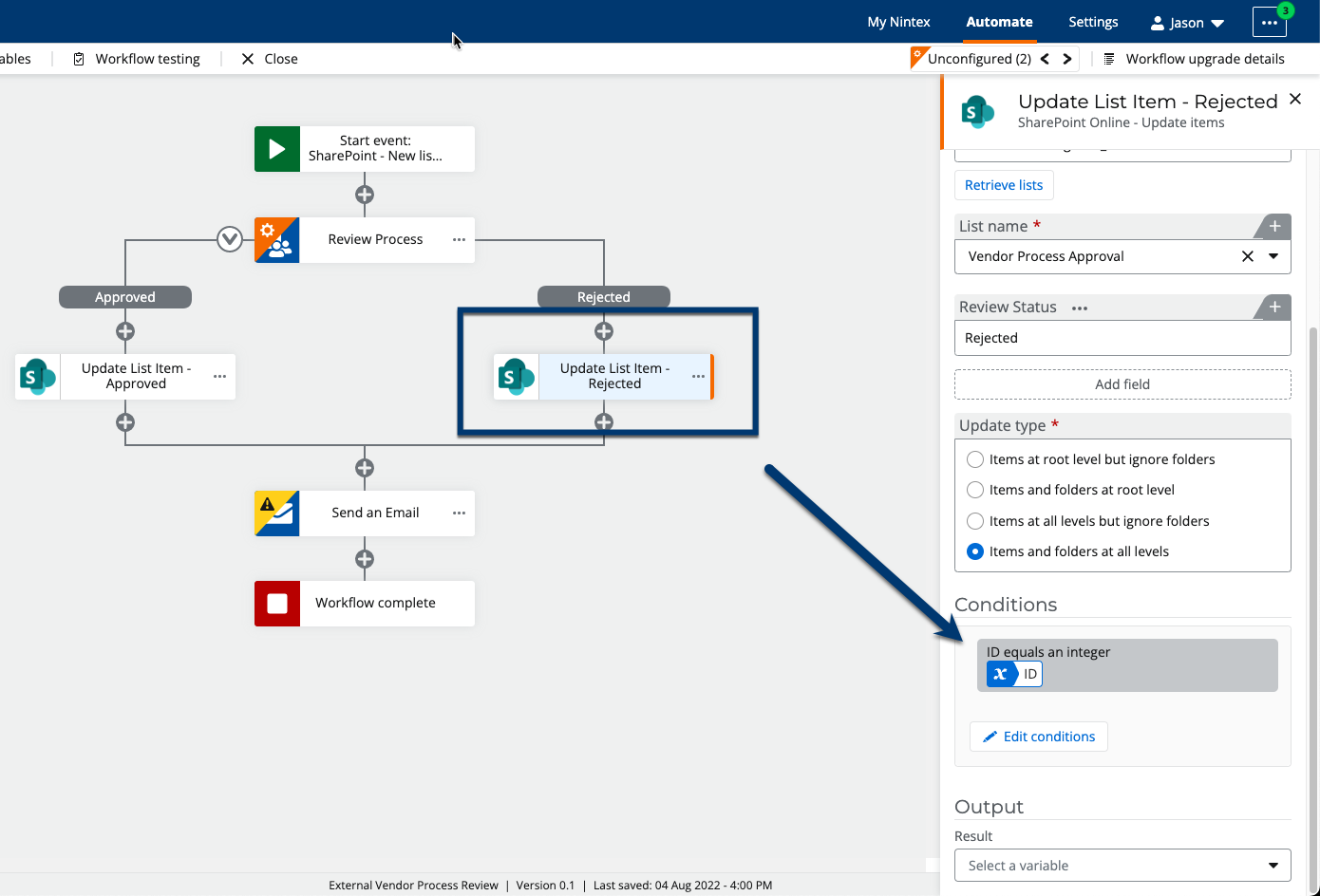
Update items action using a condition
When an Update List Item action is upgraded to the Nintex Automation Cloud Update items action, a condition will automatically be added where the Item ID will equal the Start event's Item ID. This will ensure that only that list item is updated when executed. If left empty, all list items will be updated by the action.
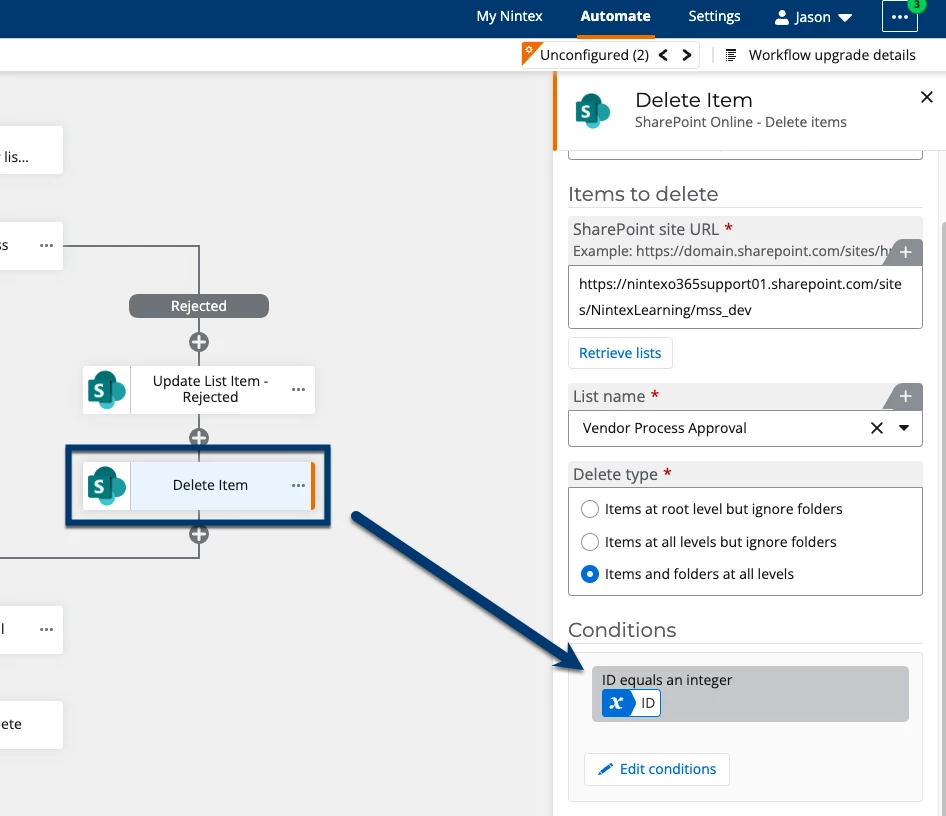
Delete items action using a condition
When a Delete List Item action is upgraded to the Nintex Automation Cloud Update items action, a condition will automatically be added where the Item ID will be equal to the Start event's Item ID. This will ensure that only that list item is deleted when executed. If left empty, all list items will be deleted by the action.
Use the Query a List action to get current data
Use the Query a list action to get the current data for a list item, whenever the list item's data has the possibility of changing either inside or outside of the workflow. The start event variable will not reflect these changes after the workflow instance starts.
- Configure the Query a list action with a condition that gets the list item where the ID column equals the Start event variable's ID value. This example gets the current data for the list item in case anything was changed during the Review Process step.
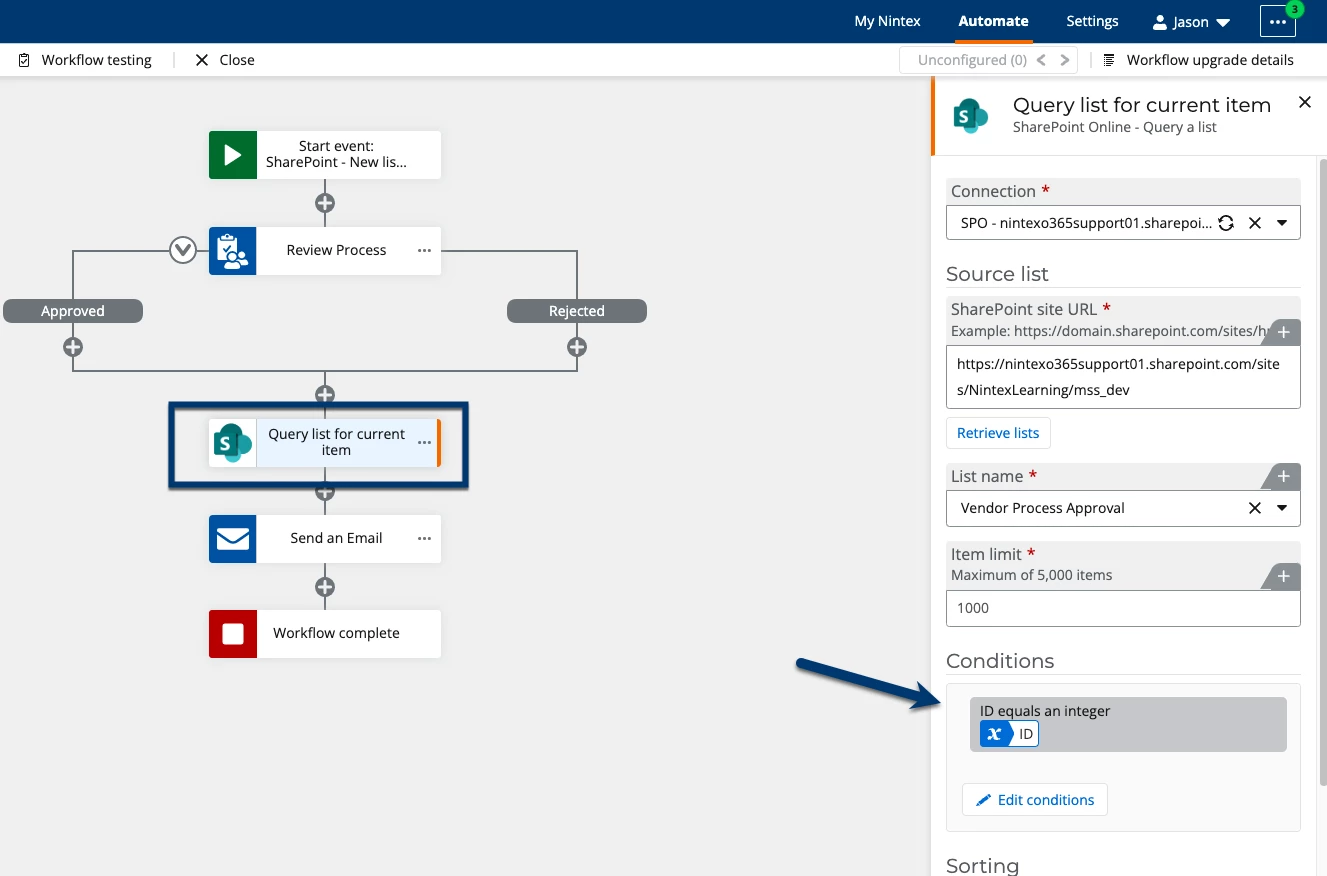
- Store the output for the action in a variable for use later in the workflow. This variable will be used in an email message on the next step.
Email messages and current item
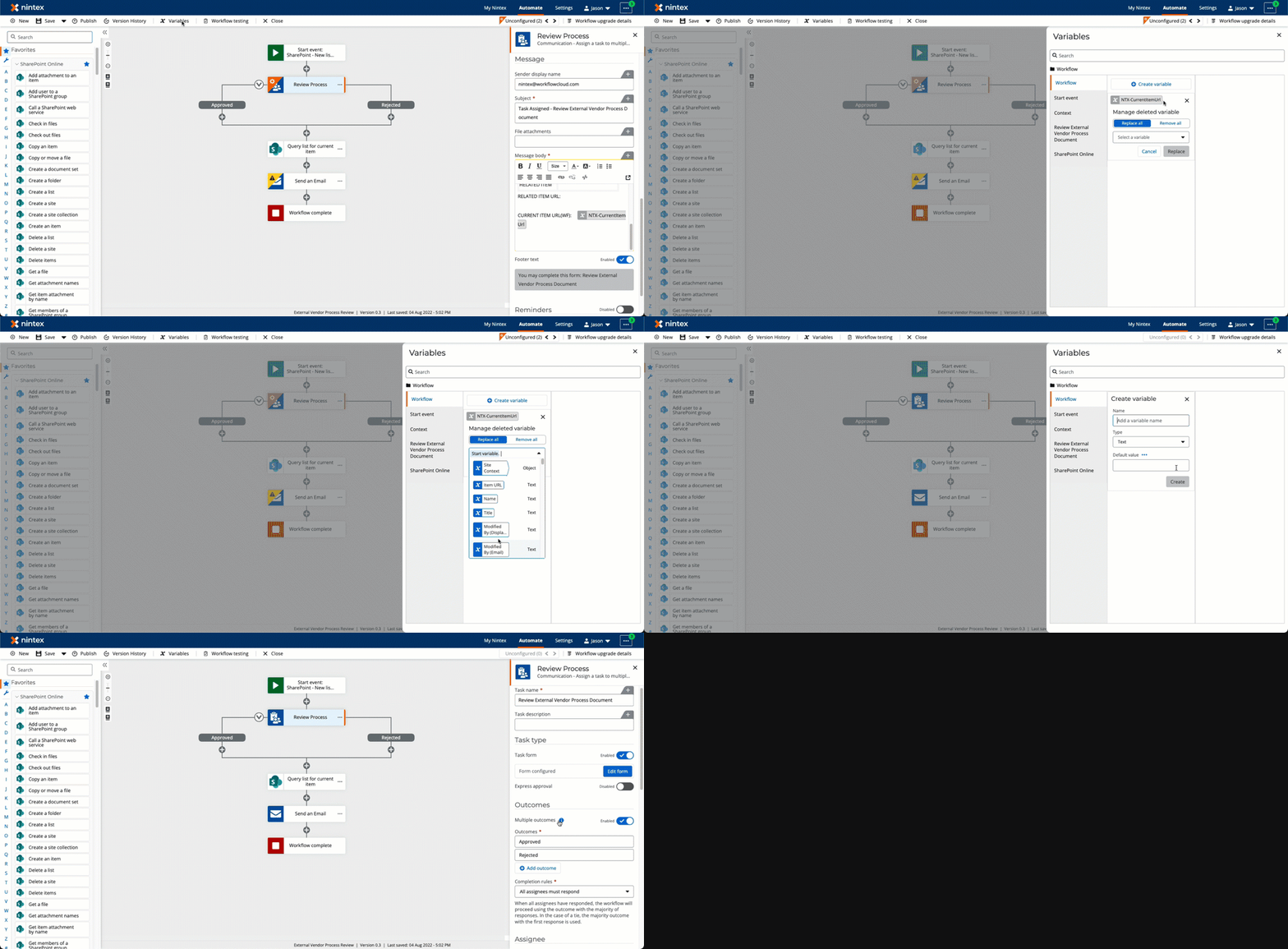
If you used the Current Item URL variable in Nintex for Office 365 for an action like Assign a task e-mail notifications, a placeholder variable will be created and will need to be resolved by either deleting it, or replacing it with a variable that stores the desired list item's URL value.
- In this example, the variable, NTX-CurrentItemURL, is a placeholder variable created by the upgrade tool. It is used in the Assign a task to multiple users email action's message body, but needs to be resolved.
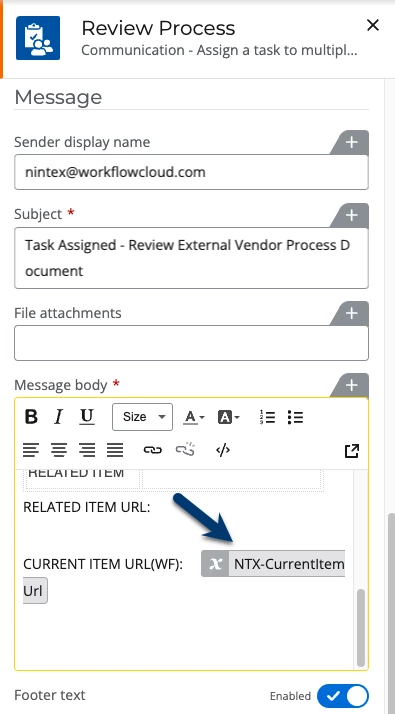
- This animation shows how to resolve the variable with the Start event's Item URL value. This will replace the placeholder variable with the Start event's Item URL variable everywhere it is used.
References
- Nintex for Office 365 Help - Upgrade workflows
- Nintex Automation Cloud Help - Condition Builder
- Nintex Automation Cloud Help - SharePoint Online start events
- Nintex Automation Cloud Help - SharePoint Online Query a list
- Nintex Automation Cloud Help - SharePoint Online Update items
- Nintex Automation Cloud Help - SharePoint Online Delete items
- Nintex Automation Cloud Help - Assign a task to multiple users