



This document will show various ways in which repeating section data from a form in Nintex Workflow can be saved into a SharePoint list using a workflow.
The repeating section data can be saved:
-
As a single list item entry in the SharePoint list containing all data fields from the repeating section.
-
As separate SharePoint list item entries for each row of the repeating section.
-
As a JSON collection stored in the SharePoint list item in a list column.
We will first create a new workflow in Nintex Workflow and select the start event as a Nintex form:
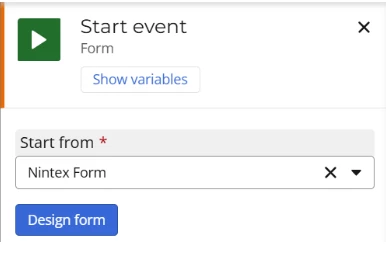
Then we select to design the form using the button above. When the form designer loads, a repeating section control can be dragged on and configured with various other controls that can be dragged within it:
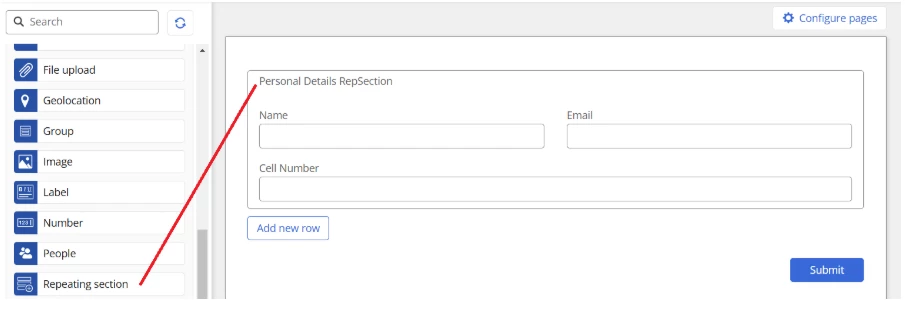
Once done adding various controls like name, email or any other information you wish to capture in the form, we can apply changes. We are now ready to use the form in the workflow actions to store them into SharePoint.
As a single list item entry in SharePoint
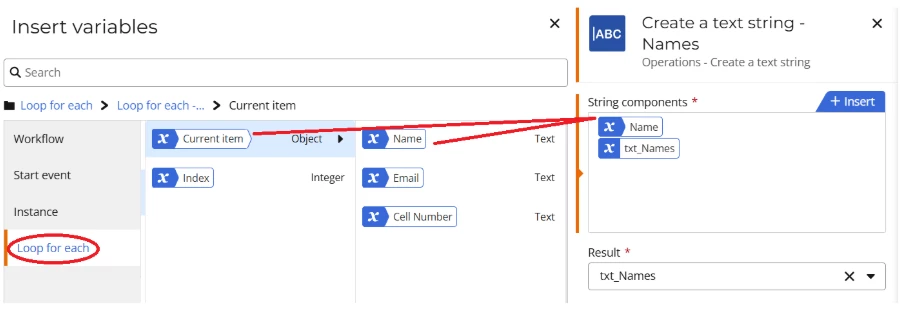
- First, we will add a Loop for each action to get each item in the repeating section which can be found under the Start event variables.
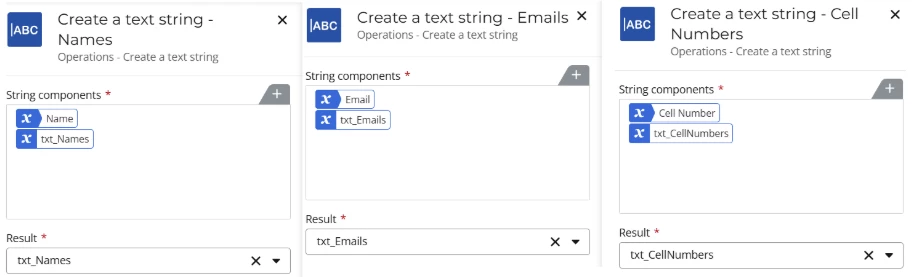
- We then add Create a text string actions for each separate piece of data we want – Name, Email etc. This will combine all the Names into a single variable (txt_Names for this example) and the same with txt_Emails and txt_CellNumbers.
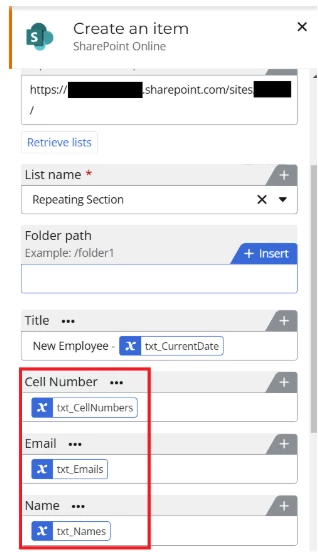
- These variables will be used in a Create an item action to add a single entry into the SharePoint list that will contain all the Names, Emails and Cell Numbers in separate columns. The Create an item action will be placed outside of the loop in this case.
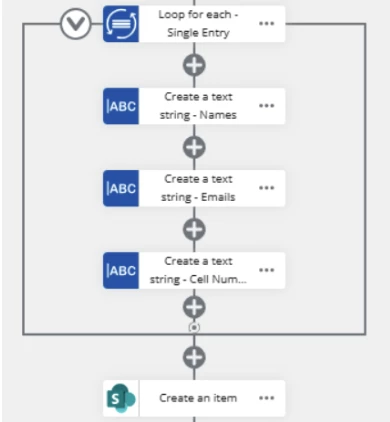
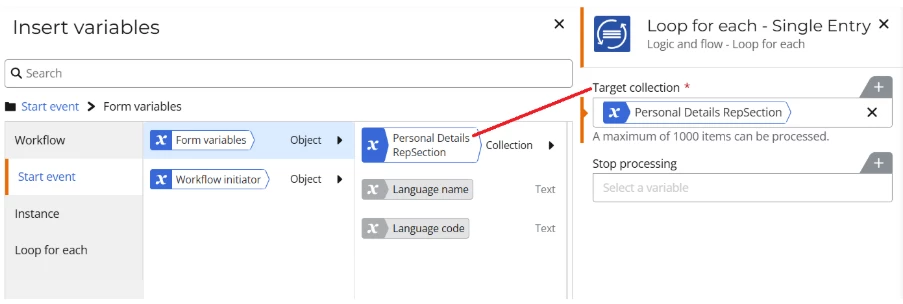
The Create a text string actions will be configured separately for each data field as below, using the loop’s current item value of each data field:
We then create the list item using the txt_Names and other variables in the Create an item action:
The result will be a single-entry list item containing all the information entered into the repeating section of the form in the SharePoint list:
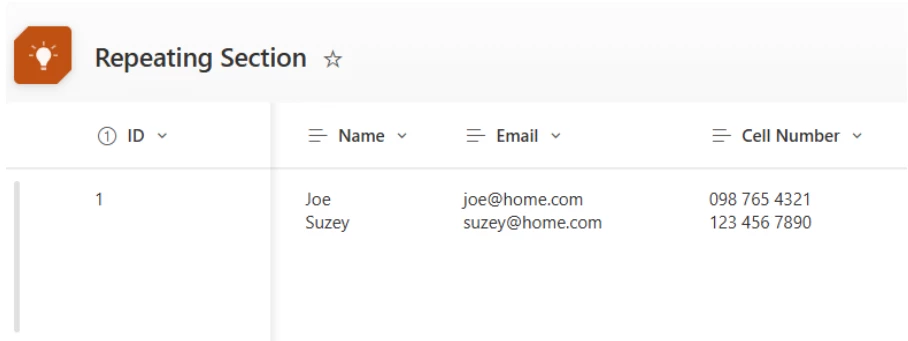
**Note that Name, Email and Cell Number are all multiple lines of text columns in the list to be displayed on separate lines, neatly.
As separate SharePoint list item entries
- First, we will add a Loop for each action to get each item in the repeating section which can be found under the Start event variables, as in the example above.
-
We then add a Create an item action into the loop this time, instead of outside of it. This will ensure that each entry for the repeating section of the form will be created as a new, separate item in the SharePoint list. This time, however, we will be using the Loop for each action’s values to create the item instead of our own variables as above.
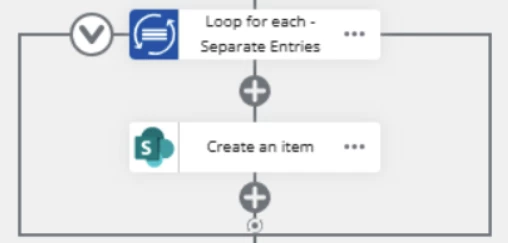
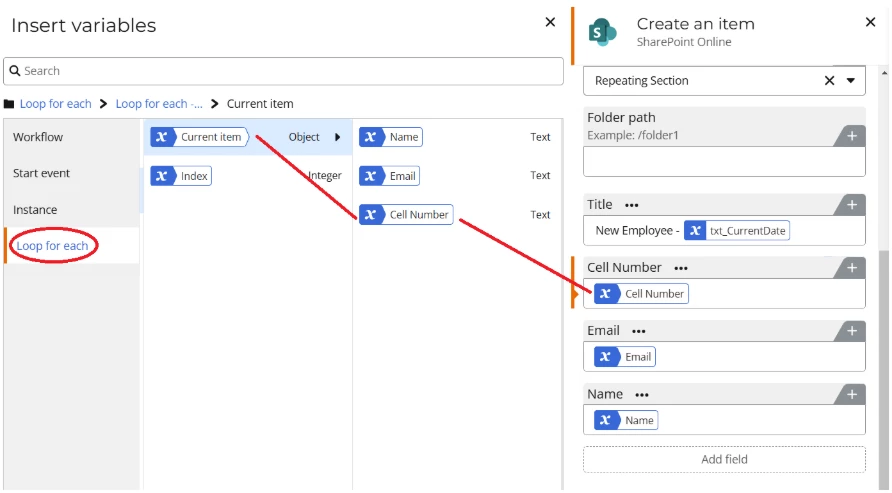
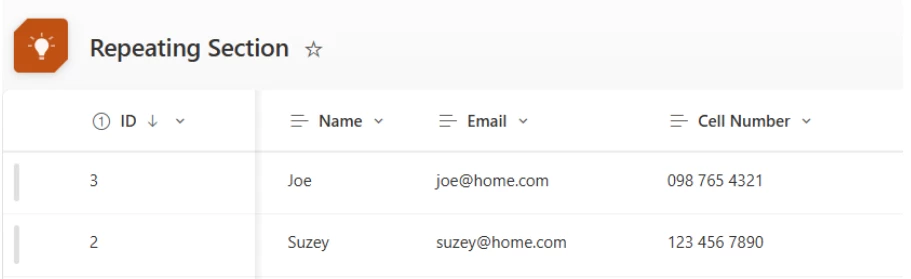
The result for this method will be a separate entry for each item entered into the repeating section of the form into the SharePoint list:
As a JSON collection in the SharePoint list column
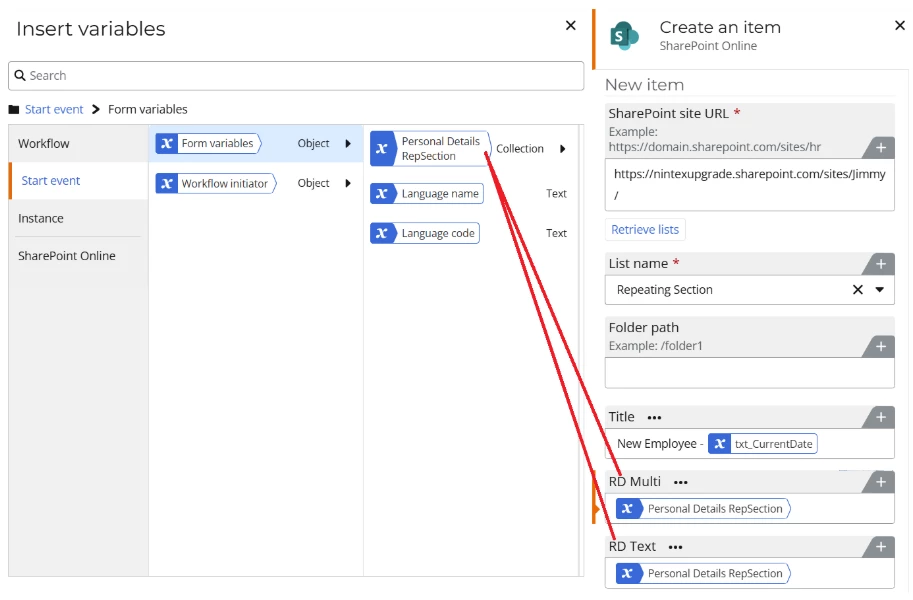
- For this last method, we only need to add a Create an item action to the designer.
- For the SharePoint list column, we can create text column (RD Text) or a multiple lines of text column (RD Multi) as below, to store the entire collection of the repeating section of the form (which will be in JSON format).
- This can then be retrieved at a later stage using a Query JSON action, but this will be covered in retrieving repeating data from a SharePoint list.
The result in the SharePoint list will be as below:
