



To replicate the below scenario you’ll need to configure the start event as follows:
SharePoint - New list item OR
SharePoint - Update list item
You will also need a least one row with data and a column that contains metadata.
When trying to retrieve Metadata Labels out as text you can use the Workflow testing result as a starting point.
Step 1:
Click on “Workflow testing” at the top of the page.

Click on Start new test.
Enter the Item ID you want to test with and Click on Retrieve Item.

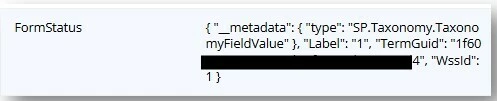
In the Item Preview pane below you will see your retrieved results:

Copy the name (Form_x0020_Status) in the left column.
For our sample data we used Form Status, depending how the field was created, SharePoint encoding may change the internal name. See best practices at the end of the article.
We created this with a space to Illustrate what would happen if the internal name was created with a space.
If no spaces are used it would look as follows:
Step 2:
Add a Call a SharePoint web service to the canvas.
Configure the action as follows:
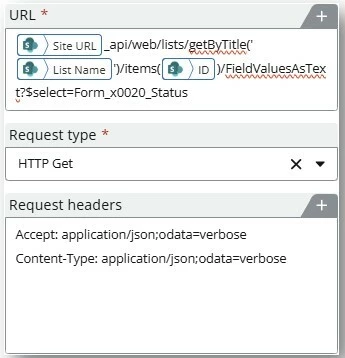
URL:
https://<site-url>/_api/web/lists/getbytitle('ListName') /items(1) )/FieldValuesAsText?$select=Form_x0020_Status
Step 3:
Add a Query JSON action to the canvas.

Configure the action as follows:
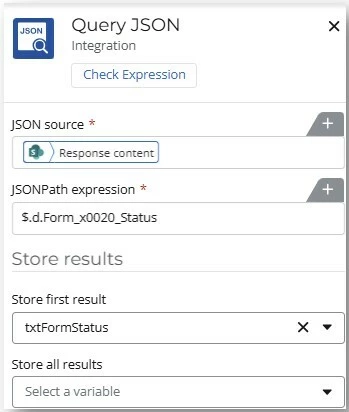
JSON Path:
$.d.Form_x0020_Status
Step 4:
You can now use the variable (txtFormStatus) in your Workflow and/or Task Forms.
Notes:
If your result is empty, it could be because SharePoint sometimes reencodes the internal name, the name would display “Form_x0020_Status” but the JSON output would display something else e.g. “Form_x005f_x0020_x005f_Status".
You can add a Log to instance details after the Call a SharePoint web service and set the message as the Response content from the Call a SharePoint web service to get the reencoded name from the log.
Best practices:
When creating a column in the GUI:
-
Choose a name without spaces or special characters (e.g., FormStatus)
-
Create the column
-
Once created, you can change the display name to something user-friendly like "Form Status".