


When configuring actions in Nintex Workflow start events, we do not have access to the same start variables that we usually have with a SharePoint online start event.
Nintex start events are Component workflows, Form Workflows, and Scheduled workflows.
-
While component workflows utilize variables passed from the main workflow, the Retrieve an item action allows access to most SharePoint variables within the component workflow itself.
-
Form Workflows use form variables but can also make use of the Retrieve an item action.
-
Scheduled workflows have no start variables but can make use of the Retrieve an item action.
The Retrieve an item action retrieves a SharePoint item with the same object output except for the Site Context variables such as the Site URL and List Name as well as the Item URL. It is best practice to set these as variables at the start of the workflow and use them as such.
Component workflow example

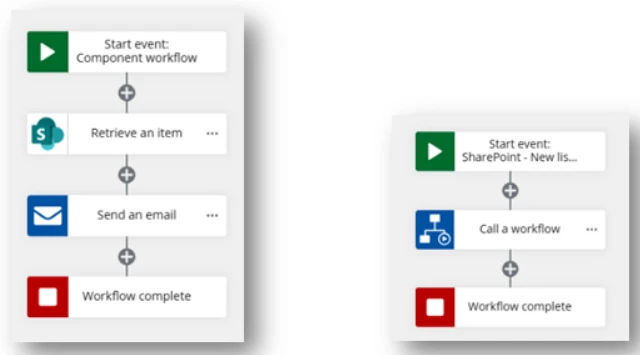
Component workflows are usually paired with a main workflow that calls or starts the component workflow.
-
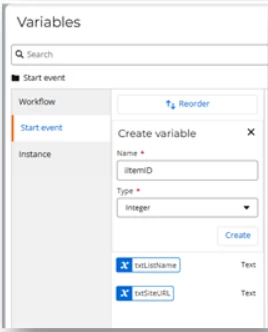
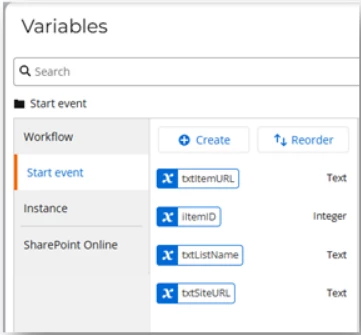
First, we work on the component workflow because a workflow, is only available to the call a workflow action once it is published. We start by creating four start variables that will need to be passed from the main workflow.
-
txtSiteURL – Text – This is going to be the site URL from the site context of the main SharePoint online workflow.
-
txtListName – Text - This is going to be the list name from the site context of the main SharePoint online workflow.
-
iItemID – Integer – This is going to be the current item ID.
-
txtItemURL – Text – This is going to be the Item URL passed from the main workflow as it will not be available in the Retrieve an item object.
-
-
Use the Retrieve an item action
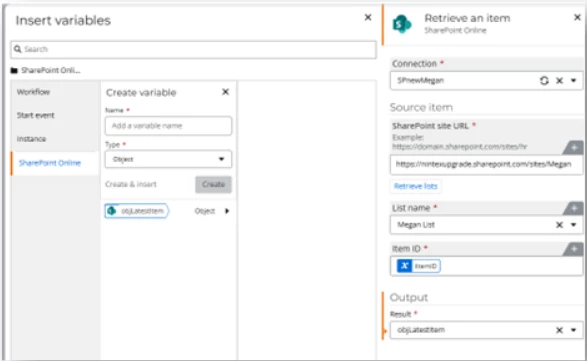
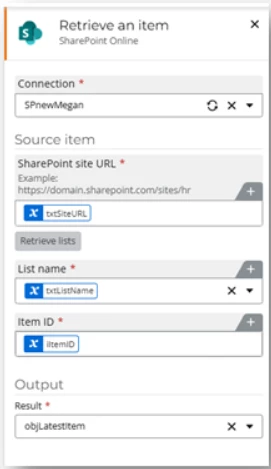
Select the connection and fill in the SharePoint site URL. Click Retrieve lists and select the list name you would like to retrieve from. Insert iItemID (the variable we created) into the Item ID field. Create an object variable for the Retrieve an item output. Remember to make use of the hard-coded values for the site URL and list name first so that the object can gain context of the list columns.
-
It is best practice to use variables for SharePoint site URL and List name in case one of them changes so that they do not need to be updated everywhere. Replace the SharePoint site URL and List name with the start event variables we created earlier.
-
Assign Task Form Action
Complete the form with details such as Title, Days Requested, and the specific days the user needs leave. The manager can then log in to approve or decline the request

-
Use a Send an email action
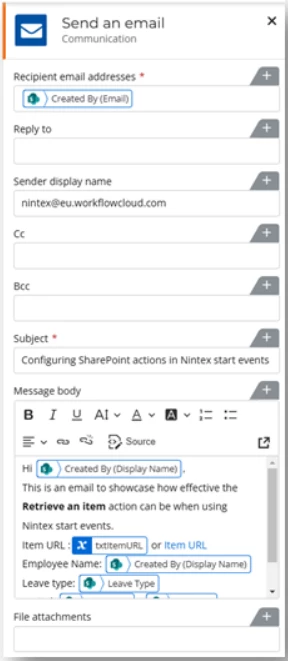
Populate the Recipients, Subject, and Body fields. This example demonstrates the power of the "Retrieve an item" action by using SharePoint variables from its output alongside the txtItemURL start variable, both directly and as a link.
-
Publish the component workflow. Importantly, saving even once allows you to test it using workflow testing prior to publishing.