



Issue
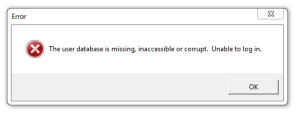
Username: admin
Password: FOXTROT
Reasons for receiving this error message can include:
- The license path previously defined in the Foxtrot Administrator has changed, is misspelled, or does not exist.
- The user does not have the appropriate permissions to the license path previously defined in the Foxtrot Administrator.
- The user does not have the appropriate permissions to the Foxtrot Suite folder.
- The user has the proper permissions to the Foxtrot Suite folder, but may not have the required permissions to the FTConfiguration.mdb file (located in the Foxtrot Suite directory).
Most commonly this will occur after reconfiguring the "Security Path", which is the location of the FTConfiguration.mdb file, containing login information. If the FTConfiguration.mdb file needs to be recreated, the customer will need to add their users back in afterwards.
Resolution
First, you need to verify permissions in directories and files created by Foxtrot. The user should have read, write, and modify permissions to the paths and files below:
- Locate the FTSessionControl.cfg file, which in standard installations will be in "C:\ProgramData\Foxtrot Suite." (please note that ProgramData may be a hidden file)
- Open the "FTSessionControl.cfg" file using Notepad, and locate the entries below and inspect for possible spelling errors:
- "UsersPath" = user directory
- "MessageLogPath" = message directory
- "MachinePath" = machine directory
- "Server = server directory"
- Verify that you have read, write, and modify permissions to the paths above by:
- Copying the paths and pasting them into the Windows File Explorer, one by one.
- If any warnings or error messages are displayed, make adjustments as necessary.
- Verify your permissions in each path. An easy way to do this is to right click in the folder and create a new "Text Document". If you can create, rename, and delete the file your permissions are set correctly.
- Locate the FTConfiguration.mdb file and view the file properties, by right clicking and selecting properties. select the Security tab, and verify that the file has read, write, and modify permissions.
To set the folder permissions:
- Navigate out to the correct path (above) and right click on the folder
- Select Properties
- Select the Security Tab
- Set the users group permissions to read, write and modify
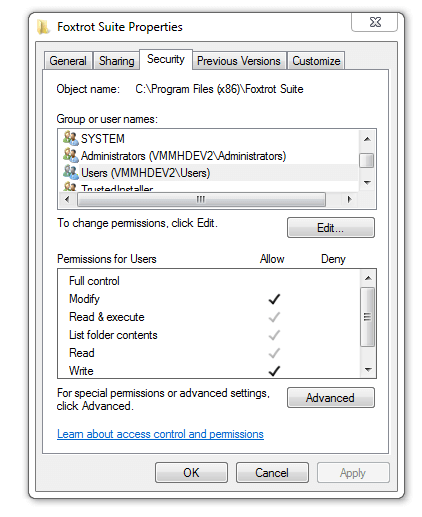
If the permissions are correct, it is possible one or more of these files are corrupt. To determine which one, you will need to rename the following file FTSessionControl.cfg to FTSessionControl_old, which sets Security Path, Global Defaults Path, and Activity Log Path back to default. You can then use the default credentials to log in to Foxtrot Administrator.
You can find FTSessionControl.cfg at the default path below or the shared location “UNC Path” if this is how it was originally set up:
C:\ProgramData\Foxtrot Suite
Once Foxtrot Admin is open, you can set your license path back to the correct path. To see which file is corrupt you will then need to set the paths for Security Path, Global Defaults Path and Activity Log Path back to the same as the license path.
**Only set one path at a time and save Foxtrot Admin, then close Foxtrot Admin and try logging back into it. If you can, you know the file you just changed is not corrupt.
In your license path you will find the following files:
- Security Path: FTConfiguration.mdb
- Global Defaults Path: FTGlobals.mdb
- Activity Log Path: FTSystem.mdb
Once you find the path that prevents you from accessing Foxtrot Admin, replace the corrupt file from a backup, or if you do not have a backup file, you can rename the file like you did earlier with _old at the end and Foxtrot will recreate the file.
**Please be aware that if you have Foxtrot recreate the FTConfiguration.mdb file, you will need to add your users back in afterward.