



Topic
This information is to set up Microsoft Exchange Email in an Azure environment.
**Note: changes to email settings can take up to 3 days to actually change and reflect, it is not instant.
Instructions
The following steps are for the customer's IT team to review and verify. There is documentation linked to each step:
We use SMTP and IMAP to connect to the Microsoft Exchange email. However, we do not use it for Authentication. OAuth2 uses a token to authenticate.
Because we use SMTP and IMAP to connect, we require the following:
- SMTP needs to be enabled on the tenant.
**This must be turned on Globally. As mentioned above, this could take up to 3 days.
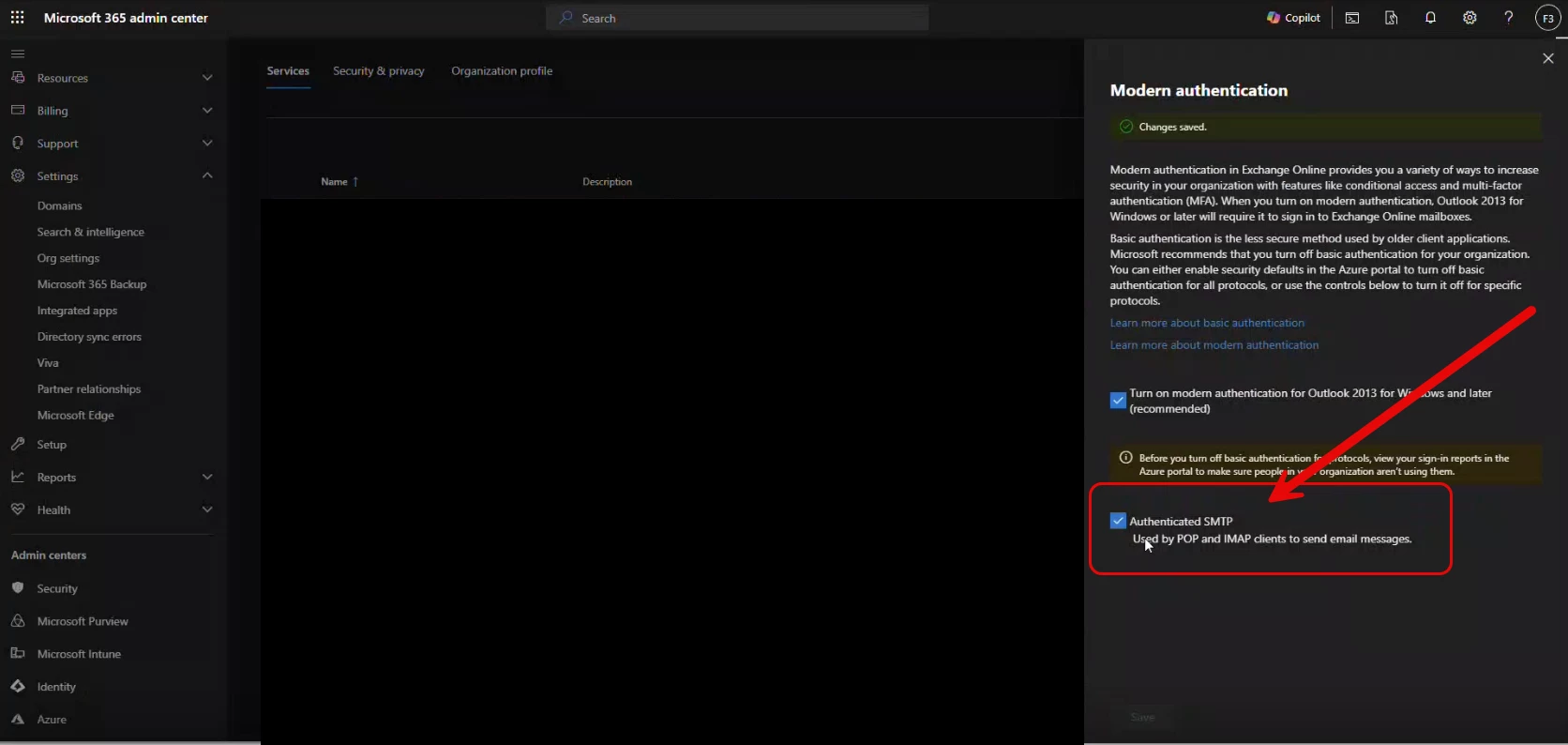
- SMTP needs to be turned on for the mailbox.
- Port 587 needs to be open for communication for the send. Check this by running this command in PowerShell :
Test-NetConnection outlook.office365.com -Port 587
**We must get the SMTP to connect first to Send email before we attempt to connect IMAP for Receiving email. The Bot will check the Send first and if it fails, it will not even attempt the receive.
IMAP Connectivity Checklist for Microsoft 365
1. Ensure IMAP is enabled for the mailbox
*In Microsoft 365 Admin Center: Go to Active Users → select the affected user.
*Under Mail → Manage Email Apps, make sure IMAP is turned ON.
Microsoft docs: https://learn.microsoft.com/en-us/exchange/recipients-in-exchange-online/manage-resource-mailboxes
2. Confirm IMAP service is enabled organization-wide
In Exchange Admin Center:
*Go to Settings → Mail flow (or in older UI, Organization → Settings).
*Ensure the IMAP4 service is not disabled globally.
Microsoft docs: https://learn.microsoft.com/exchange/clients-and-mobile-in-exchange-online/pop3-and-imap4/pop3-and-imap4
The document above will address how to find the setting.
3. Correct server settings
*Host: outlook.office365.com
Port: 993
Encryption: SSL/TLS (SecureSocketOptions.SslOnConnect in MailKit)
Using OAuth2, these are the settings we use in BOT. Ensure that these settings match the required connection to their exchange server.
4. OAuth2 App Registration includes IMAP scope
*The Azure AD App must have:
IMAP.AccessAsUser.All
SMTP.Send
offline_access
email
profile
openid
After adding IMAP.AccessAsUser.All, the admin must grant admin consent and the user must re-authenticate.
Microsoft docs: https://learn.microsoft.com/en-us/exchange/client-developer/legacy-protocols/how-to-authenticate-an-imap-pop-smtp-application-by-using-oauth
5. Modern Authentication is required
*Microsoft has disabled basic authentication for IMAP. Ensure the client uses AUTHENTICATE XOAUTH2, not username/password.
Microsoft docs: https://learn.microsoft.com/en-us/exchange/clients-and-mobile-in-exchange-online/deprecation-of-basic-authentication-exchange-online
This is done on the server side, the article explains why this is required.
6. Check firewall/proxy connectivity
*Test IMAP port access from the network:
*Test-NetConnection outlook.office365.com -Port 993
Ensure no firewall or outbound proxy blocks TCP port 993.
Microsoft docs: https://learn.microsoft.com/en-us/microsoft-365/enterprise/urls-and-ip-address-ranges
7. Test IMAP login directly
*Use Microsoft’s IMAP test tool in the Microsoft Remote Connectivity Analyzer:
*Test IMAP service
This will confirm whether the account and configuration work outside your RPA product.
Microsoft Connectivity Analyzer: Microsoft Remote Connectivity Analyzer: Test Input
This is the link to check IMAP connectivity. You will need your username, password, and server hostname to check the connection.
If you are still having issues, please open a case by emailing Support@Nintex.com and let us know that you tried the above.