



Topic
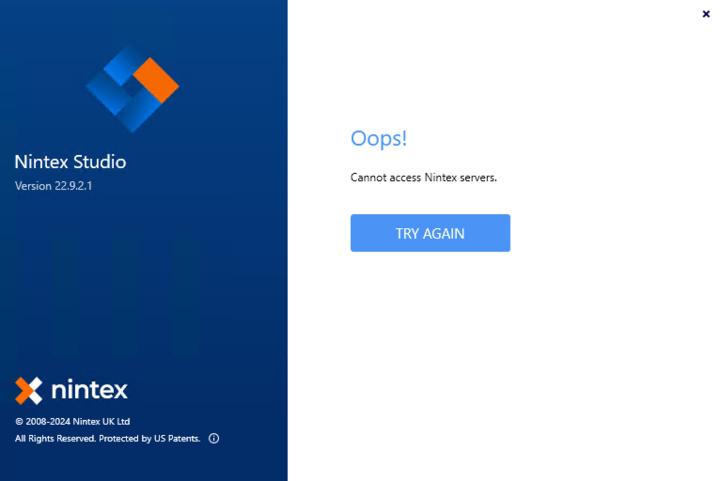
Receiving the message: "Cannot access Nintex servers." after the new installation, upgrade to a new client version.
Instructions
In most cases, this is related to the FQDN not being picked up by the installation application. Another cause is an upgrade from one version to another, but the customer did not backup the appsettings.config file pointing to the server.
Solution
The config file is located in C:\Program Files\Nintex Studio\*your version*\Config\appSettings.config

The key <add key=MainServerNames” value= should be pointing to either:
-
FQDN (recommended)
-
IP Address (Older versions)
If this does not resolve the issue, please check the logs in SEQ to see if any error messages point to potential issues.
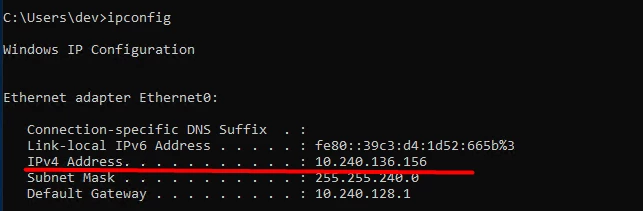
On the SERVER machine, open CMD and run ipconfig, you will notice the IPv4 Address:
Then go head back to the CLIENT machine, open CMD, and enter 'ping IPv4 Address', similar to below:
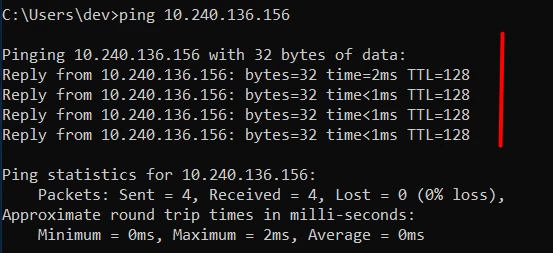
If the connection is successful, there should be a response from the IP like the one shown above.
If you can't fix the issue, contact Nintex Support, and our Technical Support Engineers will help you navigate to the root cause.