
Topic
During troubleshooting, a manual service start or restart may be needed.
Instructions
.net service
Check the type of service
- Open Services Console (services.msc).
- Find the service you want to start manually and double-click on it.
- The word NSSM in “Path to executable” indicates the service is NSSM hosted; otherwise, it is self-hosted.
Self-hosted Windows Services:
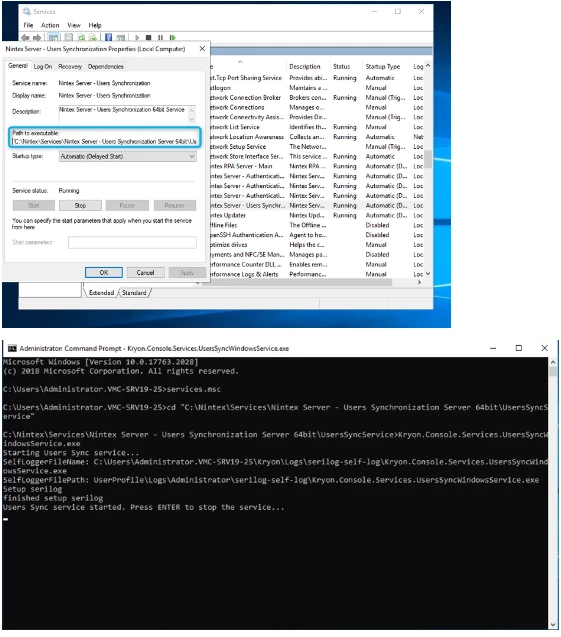
- Open Services Console (services.msc).
- Find the service you want to start manually and double-click on it.
- Open command prompt as administrator (cmd).
- Navigate to the folder defined in “Path to executable” (see illustration below).
- Run the executable.
- See the output.
NSSM hosted services:
- Open Services Console (services.msc).
- Find the service you want to start manually and double-click on it.
- Open command prompt as administrator (cmd).
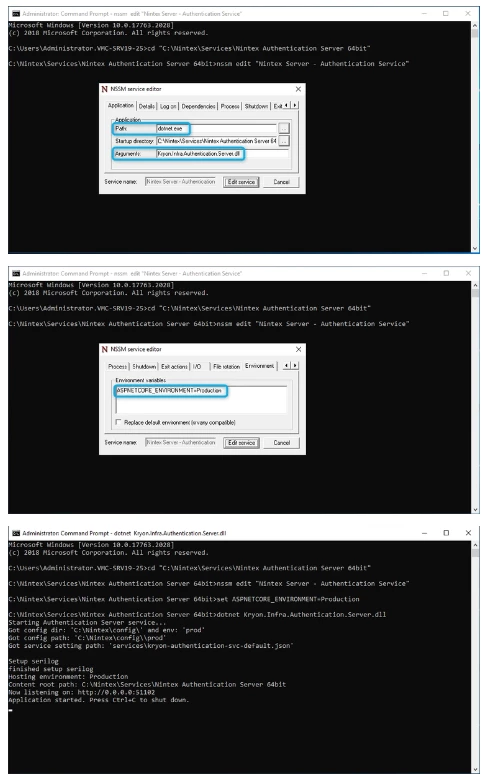
- Navigate to the folder defined in “Path to executable” (see illustration above).
- Run command nssm edit “<service_name>” (Service name can be found in the service properties window).
- From the “NSSM service editor” Application tab find the “Path” and “Argument”.
- Move to the “Environment” tab in the same window (use ◀ and ▶ buttons to navigate).
- Copy the content of the “Environment variables” field (if there is more than one variable it’s recommended to copy the content to a text editor).
- Close the “NSSN service editor”.
- For each environment variable run the command set <variable>=<value>.
- Run the service using the “Path” and “Argument” from step 6: <path> <argument>.
- See the output.
For services that are not listed in the Services Console:
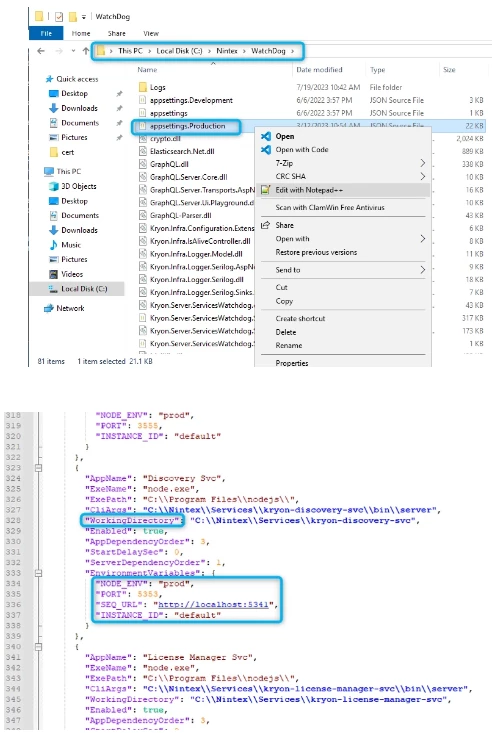
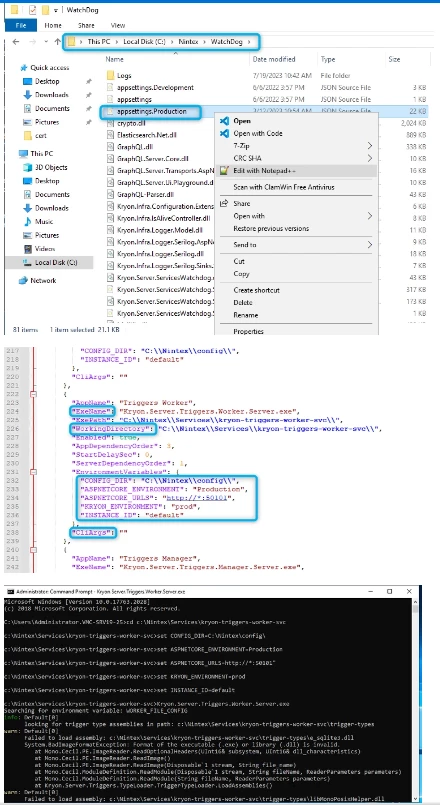
- Open the WatchDog configuration file.
- Find the service you want to start manually.
- Open the command prompt as administrator (cmd).
- Navigate to the folder defined in “WorkingDirectory” (see illustration below).
- For each environment variable run the command set <variable>=<value> (do not use double-quotes; if the value is a path — replace “\\” with “\”).
- Run the service using the “ExeName” and “CliArgs” (if defined): <ExeName> <CliArgs>.
- See the output.
Node service
- Open the WatchDog configuration file.
- Find the service you want to start manually.
- Open the command prompt as administrator (cmd).
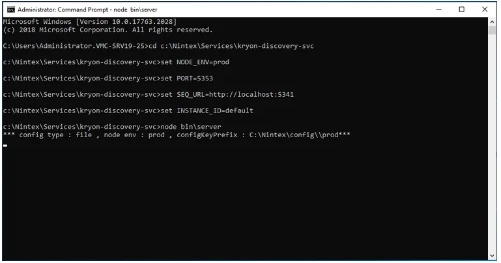
- Navigate to the folder defined in “WorkingDirectory” (see illustration below).
- For each environment variable run the command set <variable>=<value> (do not use double-quotes; if the value is a path — replace “\\” with “\”).
- Run the service using the command node bin\server.
- See the output.