

Description
In this article we will be covering some of the best practices when working with wizards that implement Visual steps and object detection. The first part will cover the Performance optimization of a given wizard and key areas where you can invest time to ensure the wizard is running at maximum stability. The second part will give an example of the most common behavior and troubleshooting steps to resolve the issues.
Resolution and Scaling
When it comes to Visual steps in wizard regardless if entirely visual-based workflows or recordings related to HTML-related commands there are two very important factors to consider: Resolution and Scaling of the recorded display. The default resolution and scaling settings are 1920x1080 and 100% respectively. Why would this matter and what issues you might run into in the long run? To put things simple, the higher the resolution the bigger the canvas the Wizard will be able to recognize objects on. The higher the scaling, the bigger PPI (pixel per inch) there will be to recognize objects.
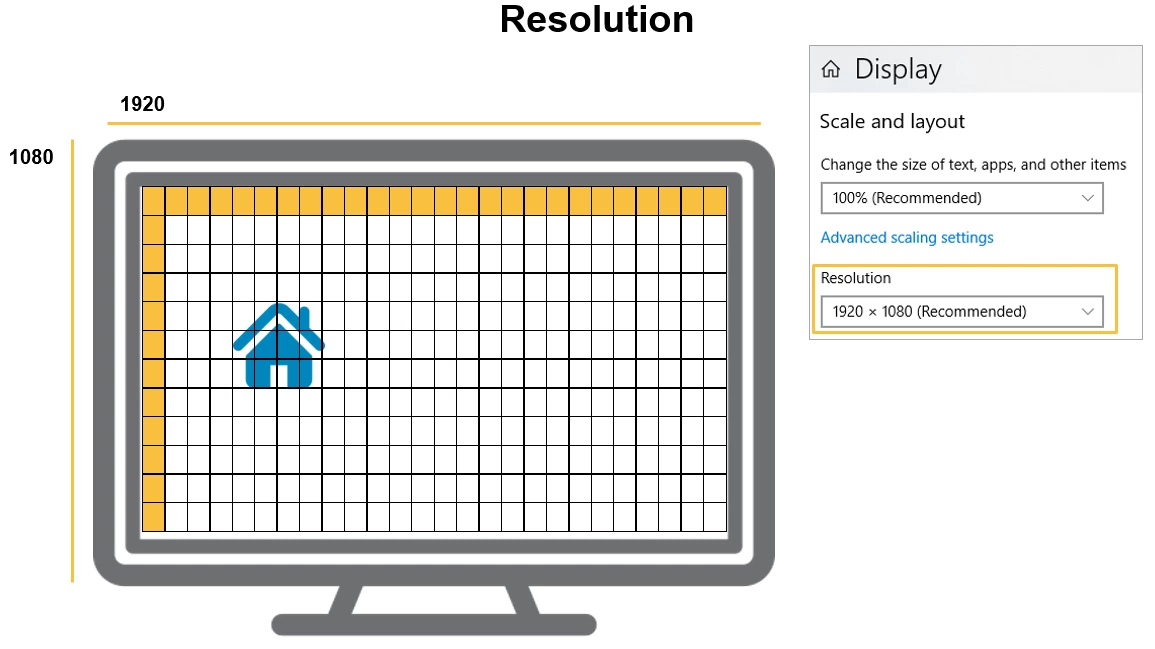

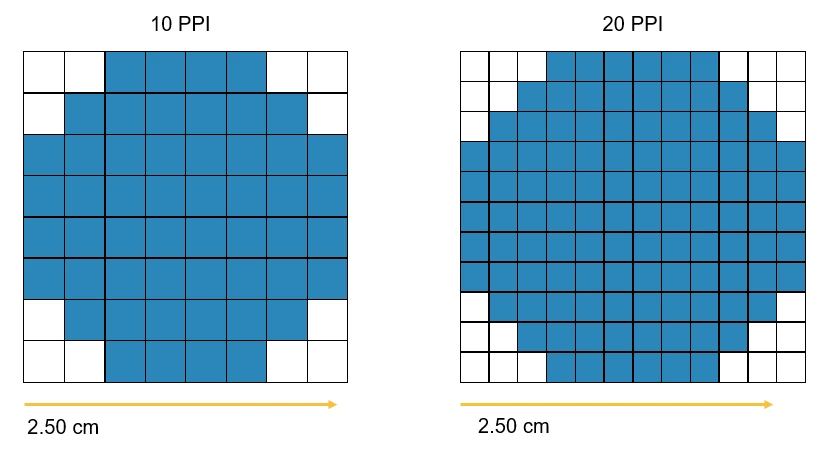
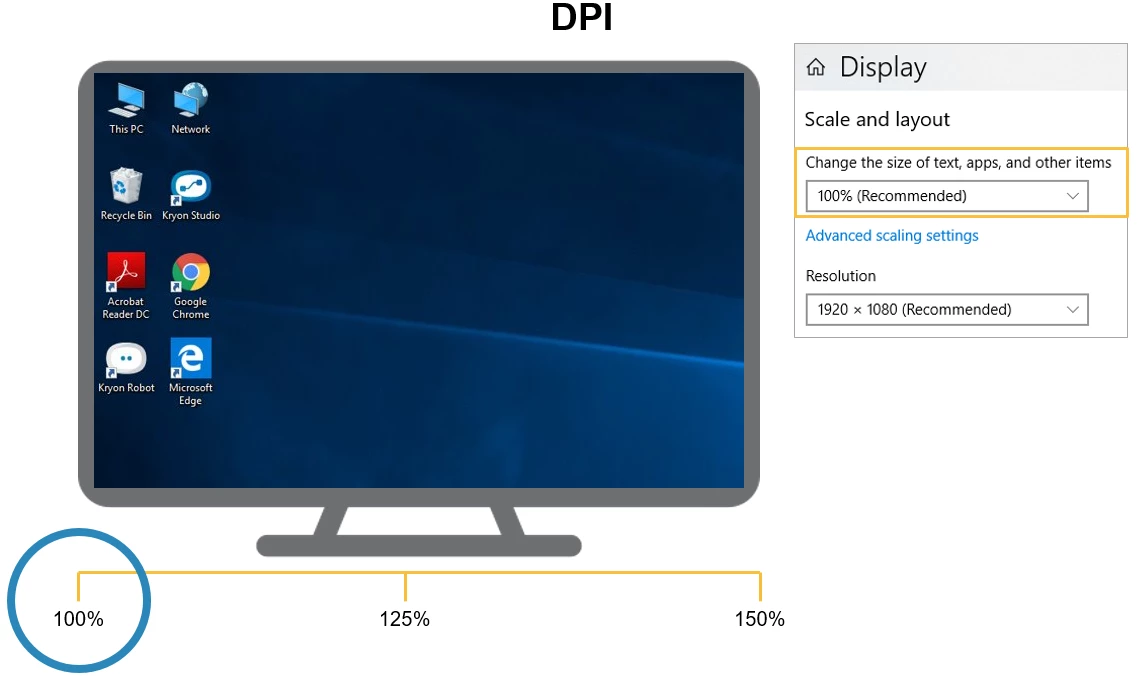
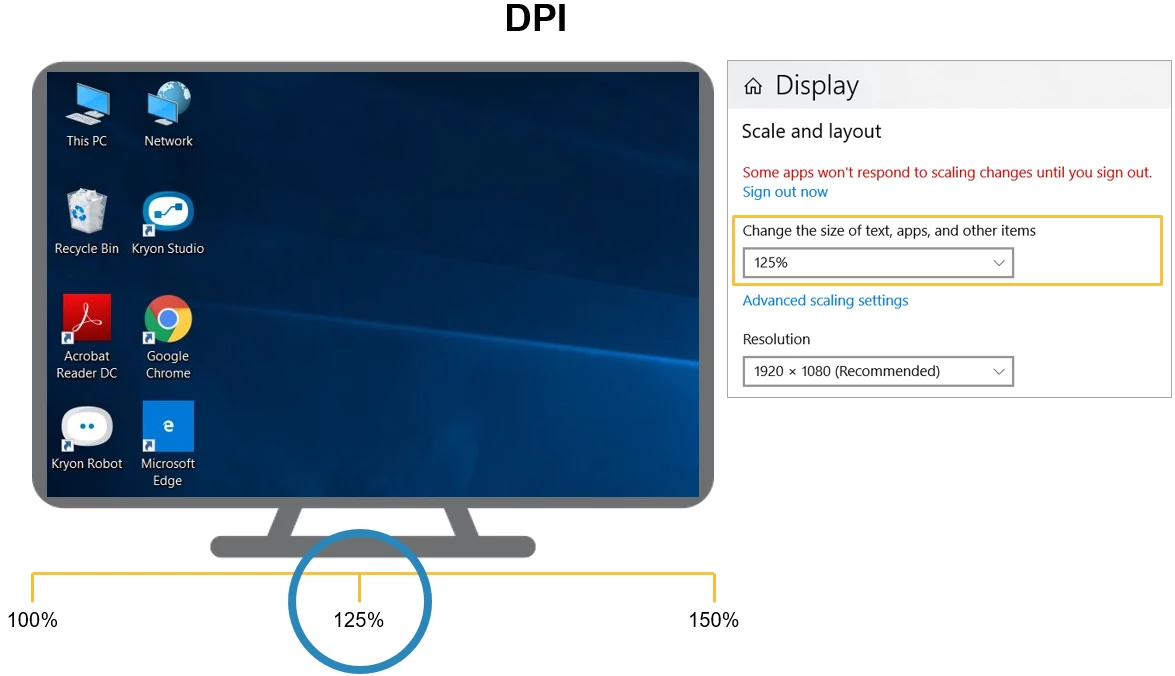
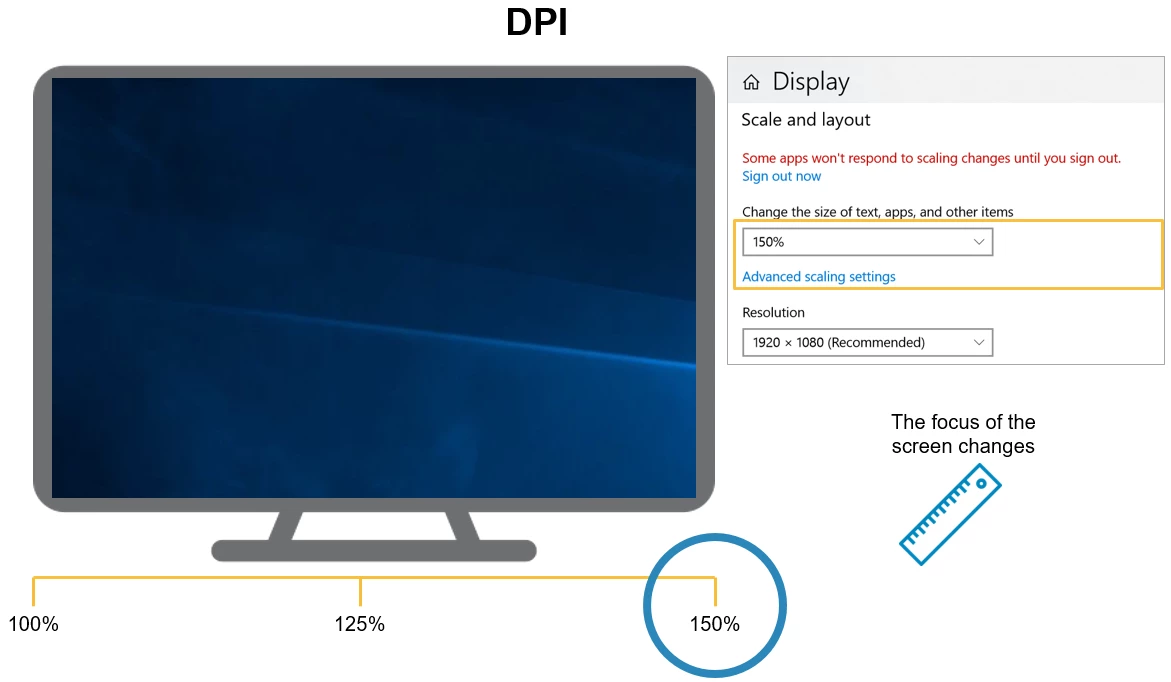
The main point of understanding this particular part of the object detection is to get an understanding of how the recognition works and what it depends on. In short, if the Wizard in the Nintex RPA Studio has been recorded on a machine with a resolution of 1920x1080 with a DPI setting of 100% (default values) but the Nintex RPA Robot is running on a resolution of 800x600 the DPI settings will not be relevant in this case as the canvas will not be same and the Robot will only "see" only a small part if it.
Types of objects
Window Detection Optimization
| Cause | Description | How to optimize |
| Incorrect window caption | The window caption for the step is user-specific. It contains information relevant to a specific window | Remove any user-specific information from the window caption, and make sure it is set to Contains |
| Closed window | The user closes a window before Nintex Robot can detect it | Add fallbacks to the step’s Window Detection before Step phase, to enable Nintex Robot to either reopen or skip the closed window and continue the Wizard |
Object Detection Optimization
| Cause | Description | How to optimize |
| Customizable object | The object Nintex Robot is trying to detect is a customizable GUI element, whose appearance or location changes | Add a fallback to the Window Detection before Action phase in the step |
| Wrong core action | The wizard flow is incorrect because an unneeded action or step is played | Edit the step’s core action to fix the wizard flow and disable unnecessary clicks or keystrokes |
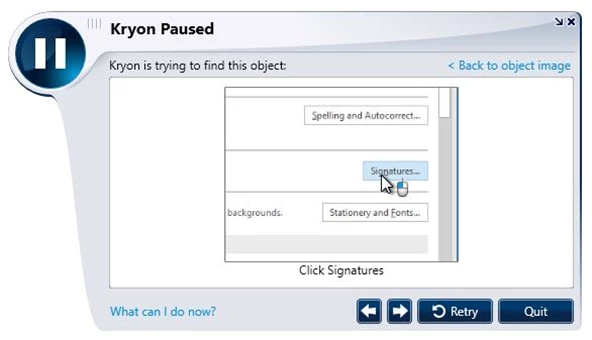
| Incorrect object detected | The visual detection settings are incorrect, or the image that was selected in the Position tab's Object Image area does not match the image that appears on the user's screen | Choose a different image from the Object Image area, and/or change the settings in the Position dropdown list |
| Incorrect object detected | Nintex Robot does not detect the object and selecting a different image variation image did not solve the issue | Check the visual detection match percentages and decrease them |
Additional Object Optimization
| Cause | Description | How to optimize |
| Incorrect detection settings | Too many objects match the detection criteria, and Nintex robot clicks the wrong image because the visual detection match percentages are too low. | Check the visual detection match percentages and increase them |
| Similar objects in the click position area | There is a similar object in the area surrounding the click position, and Kryon Robot clicks an incorrect object. | Customize the detected object image so that it is unique, or use click offset as needed |