




Product: Kryon RPA
Product Version: All
Components: Kryon Studio
Article Contributors: Darren Cheng
This article will help improve compatibility with SAP by using code generated by the SAP script recorder.
Prerequisites: Any SAP deployment with the script recorder feature in the SAP client.
Steps: The built in native SAP advanced commands should work for most SAP deployments as long as the steps to enable scripting have been followed. However, there may be some cases where perhaps certain versions (particularly older ones) may not work well, or there are some types of UI control which may behave unexpectedly. In these cases, you can still automate natively by using the Run Script advanced command.
Enabling Scripting
You'll still need to have scripting enabled for SAP both on the server and client side. You can ask you administrator to do this for you; steps are also provided in the Kryon 20.3 installation guide in Appendix R, p.142 or inside the article here. Once you have done this, perform a quick test to make sure the SAP script recorder is working. The script recorder can usually be found by opening the settings menu.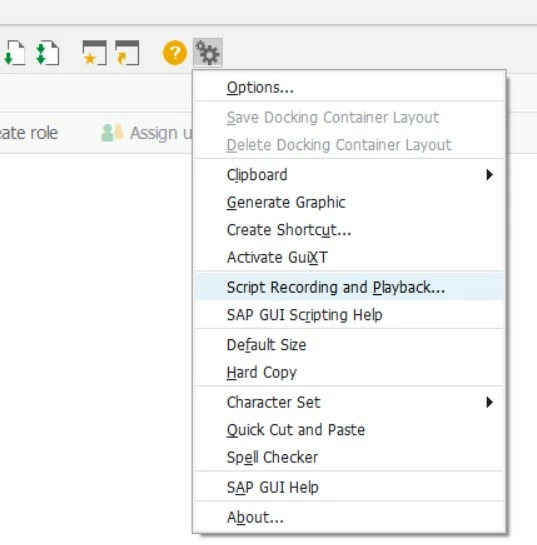
Automating with Kryon
For this, you'll want to use the in built script recorder to record one interaction at a time (i.e. one click, one field entry).When you finish recording this interaction you'll see the script record dialog box as below. Open the VBS file the recorder saved under the filename shown below.
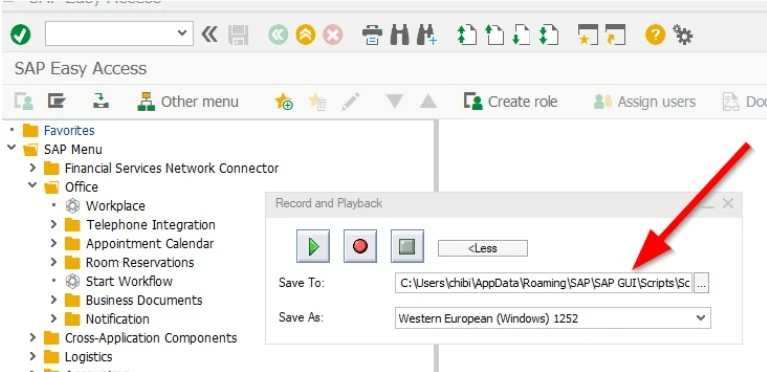
Copy all the code inside and paste it into the code section of a Run Script advanced command and set the language to "VbScript". At this point, running the wizard will perform the same interaction as recorded by the SAP script recorder. This is sufficient for interactions like clicking; if you are entering or extracting text read on.
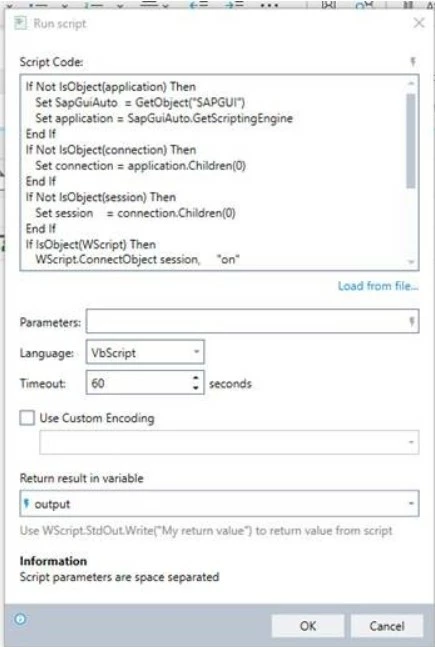
If you are extracting text or values from text boxes, checkboxes, radio buttons, etc. you can use this code to send the value of the element to the return variable (in the example above this is called output). You must replace the ID with the ID of your specific SAP element which can be found in the VBS file.
WScript.StdOut.Write(session.findById("wnd[0]/tbar[0]/okcd").text)If you are entering text or values you can use the following, where $mytext$ is a Kryon variable which you have set somewhere else in your wizard.session.findById("wnd[0]/tbar[0]/okcd").text = "$mytext$"If you have any questions on the above guide, please let us know via the community!