




Product: Kryon RPA
Product Version: All
Components: Kryon Studio
By default, Kryon Studio will automatically connect to the environment (Kryon Application Server) defined in the appSettings.config file located in the Studio installation directory. However, there are scenarios where you may need to work on multiple environments such as development, test and production. Rather than install multiple versions of Kryon Studio, a single installation can be configured to accommodate all environments, including those that have been installed with redundancy (dual application servers). This article will explain how to enable this feature in Studio.
Prerequisites: Installation of Kryon Studio
Steps:
Configure Environments.xml
To enable this feature, follow these steps:
- Download the sample environments.xml file attached to this article.
- Edit the file as follows:
- Ensure the number of <Environment> elements in the file matches the number of Kryon environments you have. Delete as necessary from the sample XML file.
- For each environment, update the Name and Server values accordingly.
- Save the file.
- Move the file to <Kryon Studio Installation path>Config (e.g. C:Program FilesKryon StudioConfig).
- Restart Kryon Studio, if it is open.
<Environment Name="Prod"> <Server>prodserver01</Server> <Server>prodserver02</Server></Environment>
Note: The application server in the appSettings.config file will be ignored once the environments.xml file is in use.
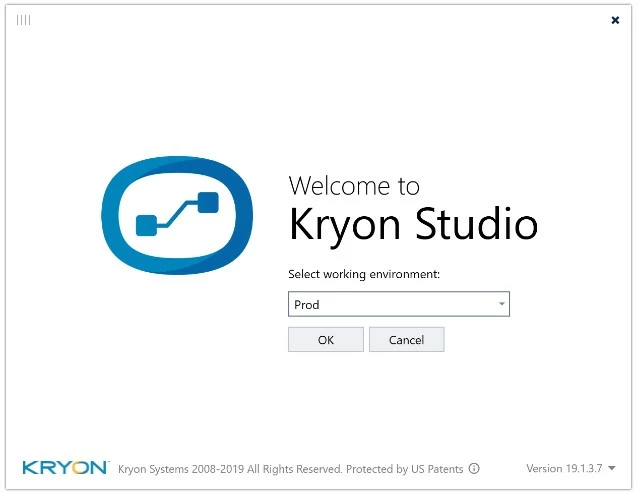
Once enabled, Kryon Studio will give you the option to choose which environment you wish to use before the login prompt appears:
More Information: None