




Ahhh Nintex Tables. You've made life so simple for us. It has certainly been a welcome addition to our capability that lots of customers have leveraged and so we continue to enhance its capabilities.
Hot off the press is row history. This new capability will help interested parties track changes made to data stored in a Nintex table. This is particularly relevant for those who have governance and/or auditing requirements where you need to track who made changes and what those changes were.
Of course we've always been able to do this by using logging actions in a workflow or writing to an audit table/database but now this functionality is baked into the product saving workflow designers more time as they don't have to record the before and after values any more.
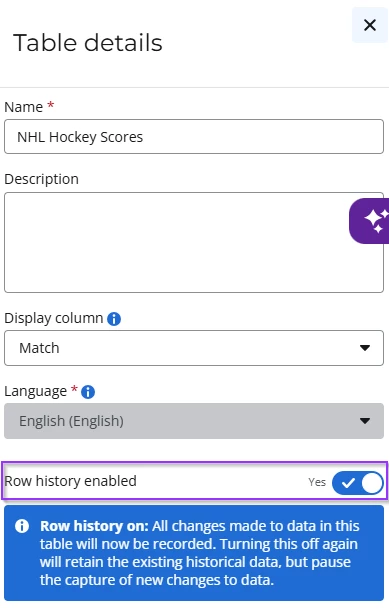
To get started, a table designer must enable row history tracking.
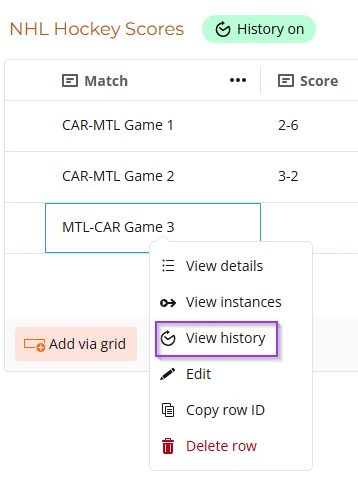
Then to view changes within a row, simply right click anywhere on the row and select View history.
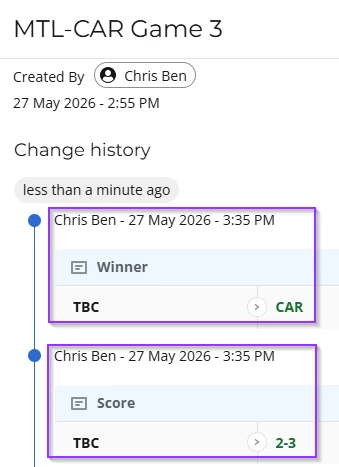
You will be able to see who made the change, the date and time of the change and the before and after values.
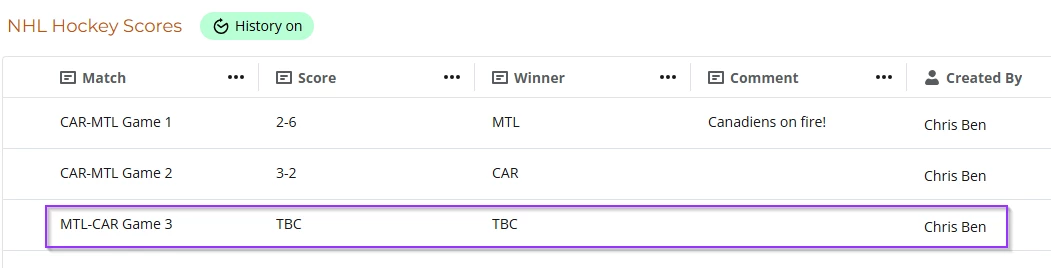
There are essentially three ways that you can edit data in a table so we'll go through each one and describe the differences. I will use an example table that is tracking the NHL Stanley Cup playoffs. For all of the examples, my base data looks like this:
1. Editing a table directly
If you edit a table directly, every "cell" that you change is recorded as a separate change. Keep this in mind when you are editing multiple items in a single row.
Here’s an example where I've modified both the score and then the winner in quick succession.
2. Editing via a table form
If you edit via a table form, your changes are recorded after you hit the submit button. They are recorded as a single transaction.
Here's the same example of editing score and winner.
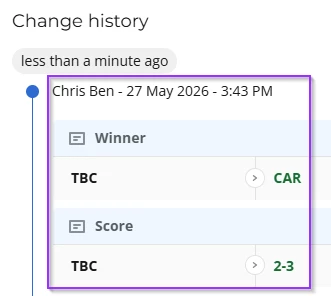
3. Editing via workflow
If the workflow makes a change, edits to a table row are recorded as a separate transaction just like the table forms method. Please note the example picture as the system records "Workflow" as the entity that made the change.
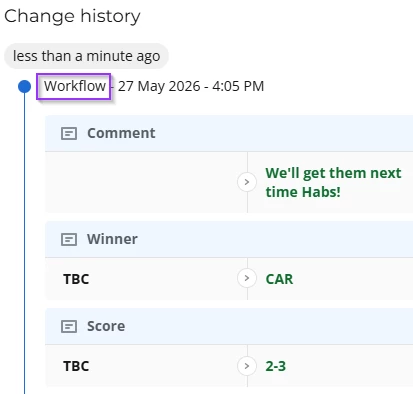
One further point to note - we track all changes except changes made to long text fields and files.
For further information, have a look at the help documentation.
Enjoy using this small but mighty feature and Allez les Habs - we’ll get the next game!