



Exciting news in the Nintex camp today as we release the public beta of the MCP connector for Nintex Workflow. If you're not familiar with the term Model Context Protocol (MCP), it's a standard that lets AI assistants connect to systems such as Nintex.
It is a beautiful thing. AI tools such as ChatGPT provide reasoning and thinking but to actually do things, they need access to tools. Nintex is one of those tools and you already know how powerful Nintex is so we're providing these AI assistants with a lot of power!
This blog shows you how to set up your MCP connector and then takes you through some examples of how you can interact with Nintex. It's only the tip of the ice berg though so I'd love to see in the comments what you achieve with it.
I've used Claude desktop as my example AI companion for all screenshots. At time or writing we also support Copilot via VS code and we are actively releasing support for other companions.
Setup
This is super simple. All you need to do is to login to Nintex workflow, go to the My Nintex page and you'll see a link to Nintex MCP.
- Download the skills.md file
- Copy the Server URL
The skills.md file contains detailed instructions written for the AI assistant so it can understand how to work with Nintex. I expect over time you'll modify this file as you enhance your instructions.
Once you've got those two things, pop over to Claude. I'm running the free version so my screen might look a bit different to some of yours but hopefully they'll be similar enough.
The first thing to do is to create a connection to Nintex. In my version of Claude, I do this by going to Customize | Connectors and then adding a custom connector.
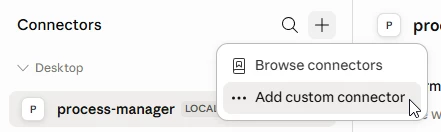
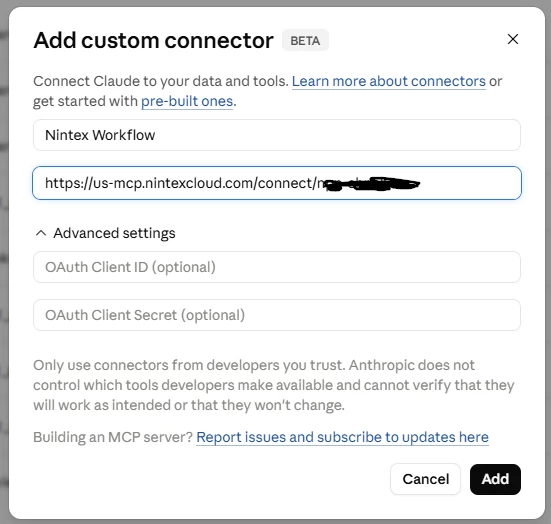
Give your custom connector a name (e.g. Nintex Workflow) and paste the server URL There’s no need to fill out any of the advanced settings:
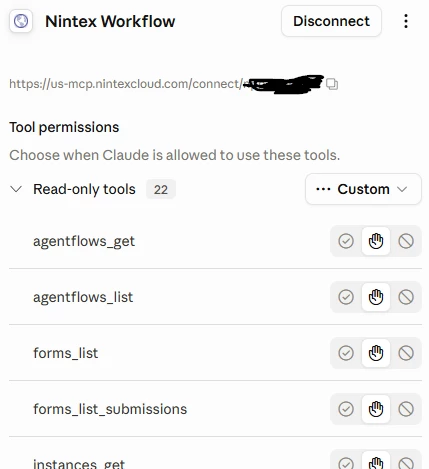
It will ask you to authenticate with Nintex so login as you normally do. You'll then see all the cool functions we've made available to the AI assistant. You'll also see where it's going to ask you for permissions during the chats.
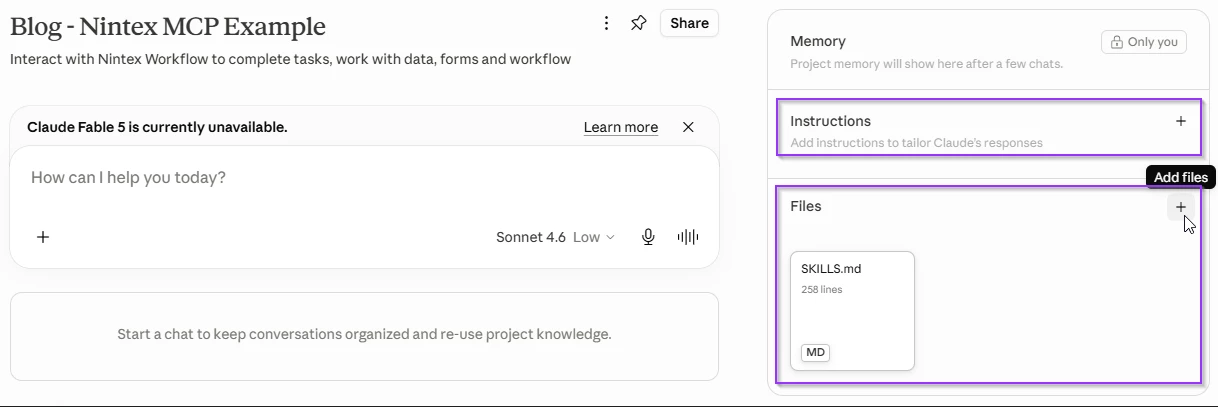
Then my next tip is to create a new Project for your interactions with Nintex workflow. Creating the project enables us to work under different contexts (with different instructions). These projects make your conversations much more specific rather than general and helps focus the AI.
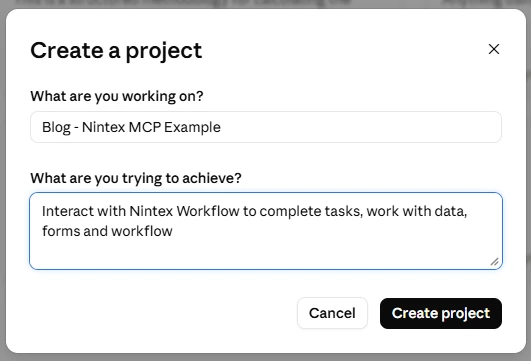
Inside the project you have the ability to provide written instructions on how you want the assistant to behave each time you interact with it. These can be typed into the instructions box and/or you can also add files for it to reference. In my example, I’m using the skills.md file only.
That’s it - you’re good to go!
What can you do with it?
In this beta release, we've concentrated our efforts on the participant experience which you may have gathered when you looked at all the functions available to the AI assistant.
We have also included some workflow tools in this release - they are not for participants at this stage but to support agent-to-agent scenarios. If you're configuring an AI agent, that AI agent can discover, start and monitor the Nintex workflows as part of the broader automated orchestration. That's a topic for a separate blog however.
Let's go through some examples. Remember, these are only a fraction of what you can do but I'll attempt to cover the main uses.
Tasks
Participants have a multitude of options to view and interact with tasks - emails, the My Nintex page, Nintex Apps pages and Nintex mobile. Now they can also use AI. Here's a simple query as an example: Show pending tasks. Give that a try or skip ahead and ask for a little more such as Show pending tasks and provide links to action them. You'll get something like this:
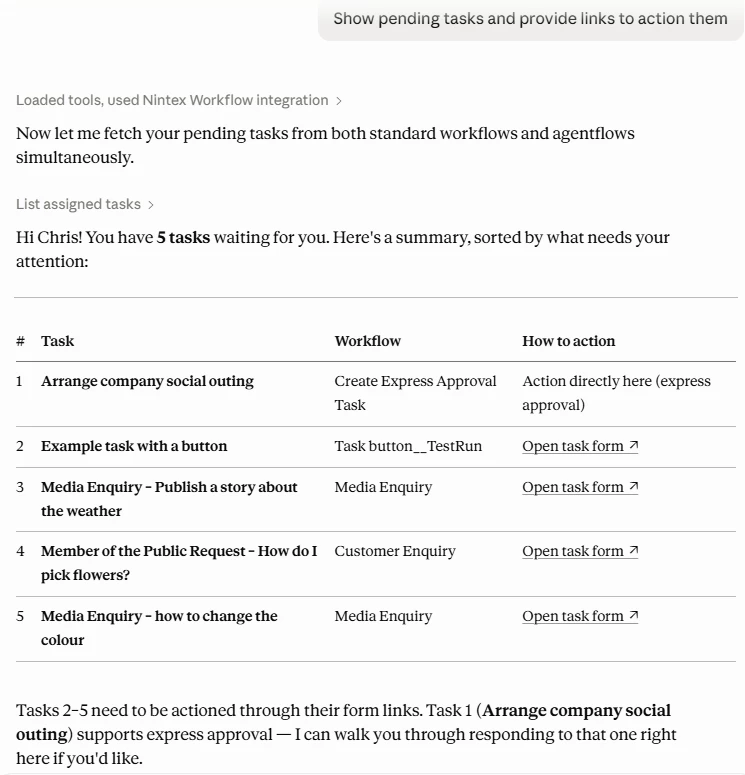
You can see how you will be able to have a conversation with your assistant on how to respond to those tasks. Use any prompt such as Tell me more about task #1
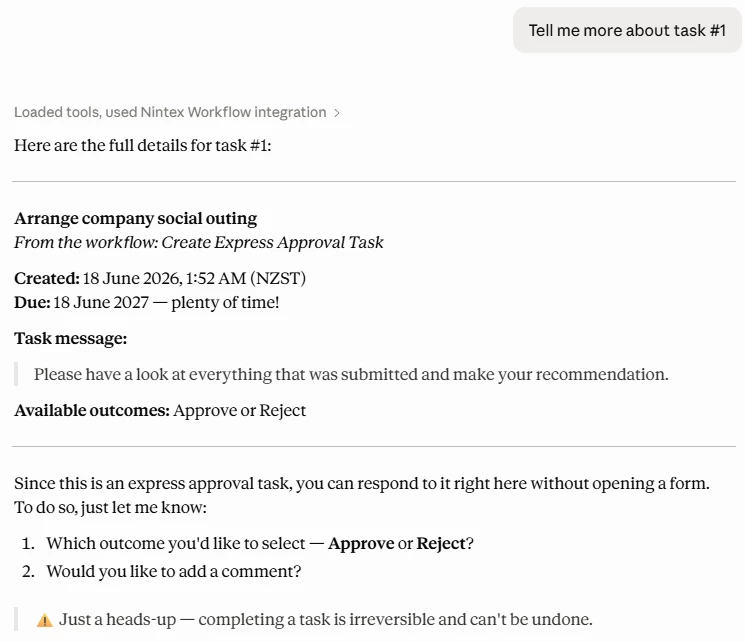
You can see the assistant is smart enough to ask you for confirmation too because once you've actioned a task, it cannot be reversed.
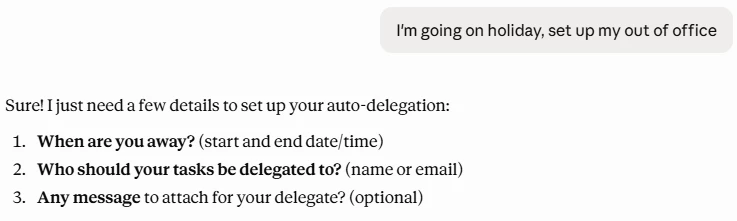
Remember how Nintex workflow has an automatic task delegation function if you are going to be out of the office? You can even set that using your assistant.
Your processes
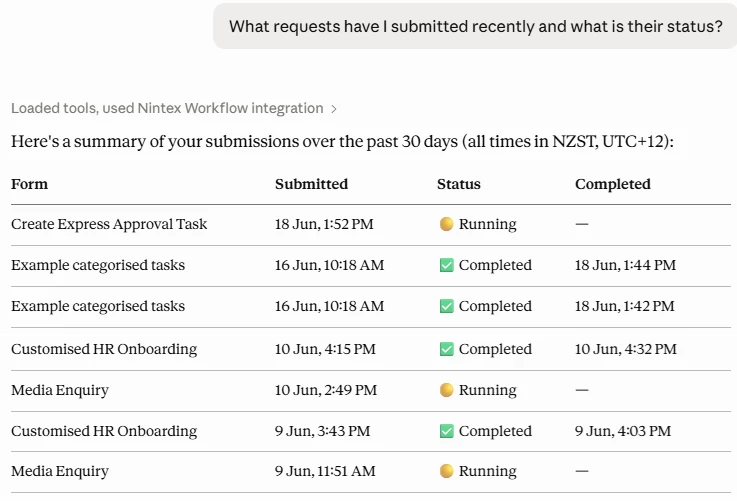
Changing tack, how about the requests that you've made? We can use a simple prompt such as What requests have I submitted recently and what is their status?
Your data
You may also want to interact with Nintex data. My sample HR Onboarding List table contains the name of the new employee, status, salary, department, start date and manager. Let's see what we can find out with the prompt Give me a breakdown of the HR Onboarding List table and summarise the key findings.
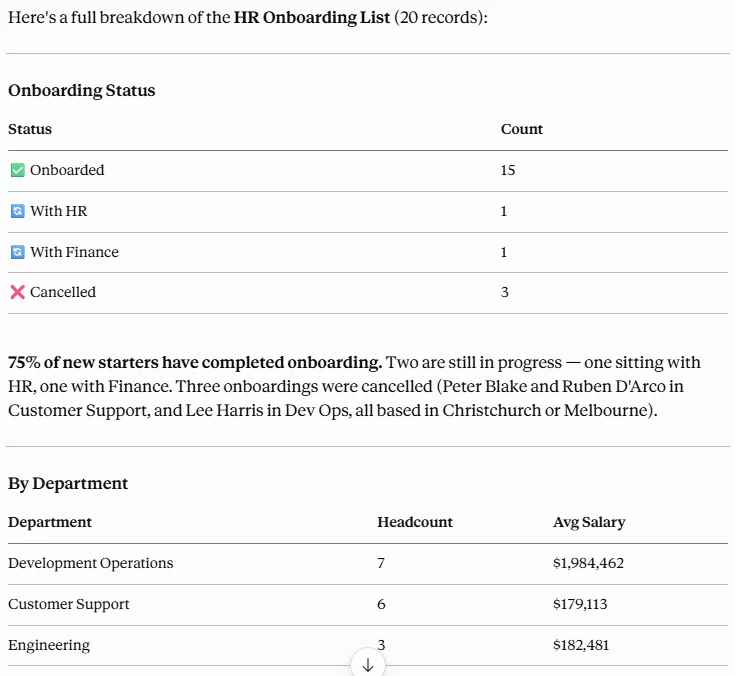
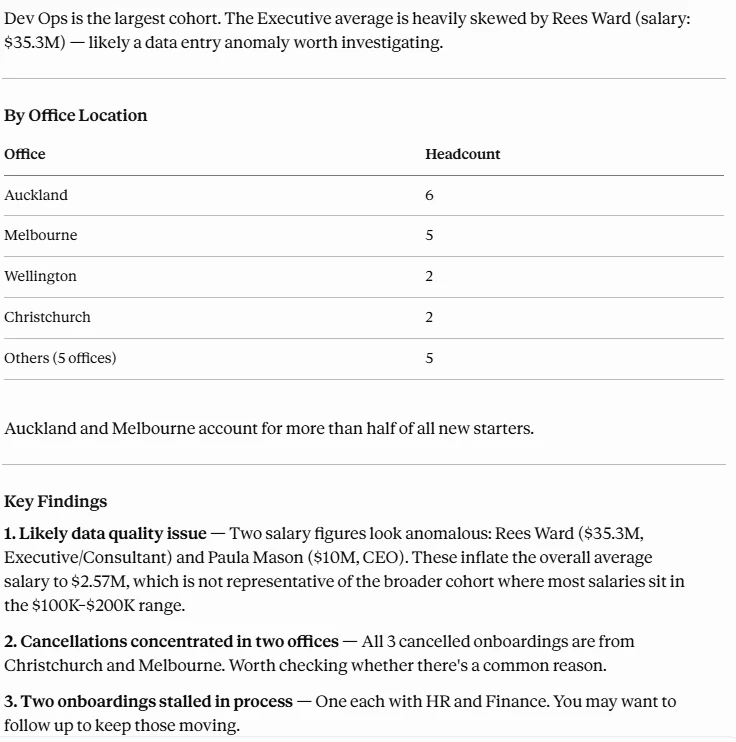
It's quite incredible that it's found those insights and no BI tools were harmed in the making of them!
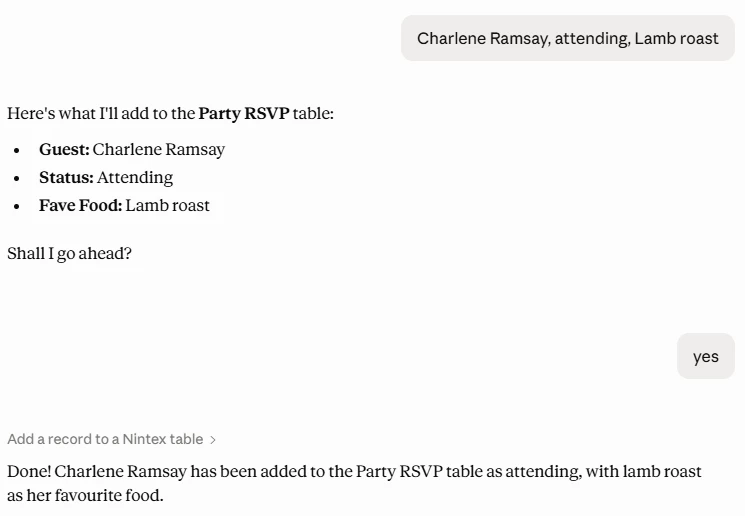
We can do more than just retrieving data though. How about something like I have a party RSVP table, please add a row to it.
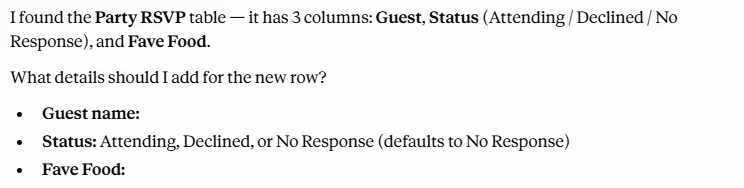
You can tell in the background, the Nintex MCP server has told the assistant what columns were in the table and also their data type e.g. the Status column is a pick list. Now all we have to do is respond and the row will be added:
Forms
To be fair, most of the time we wouldn't add data to tables directly like that. We'd probably leverage a Nintex form. Not sure what forms you can use? Easy: List all available forms that I can submit.
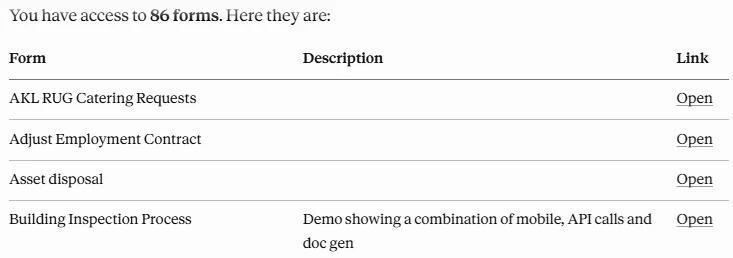
It will even tell you if you created a draft submission but forgot to send it.
Once again, this is just the tip of the iceberg - have a look through the MCP tools page and you'll there are so many other functions at your disposal. Also check out the MCP help page for additional context.
Why did we build this?
People are already working with AI assistants every day. We wanted Nintex to work the same way — no menus to navigate, no portals to log into. Just a conversation. And as AI agents become more capable, having Nintex as a first-class citizen in that ecosystem matters.
All of this through simple, natural language. All running under your existing Nintex permissions.
Give it a shot - while this is in beta it is available to all workflow customers. Do post in the comments some of the cool prompts you've used and what you achieved.