



Issue
Error Code
ERROR: Unable to connect to [ServerName] on port 5252. A connection attempt failed because the connected party did not properly respond after a period of time, or established connection failed because connected host has failed to respond.
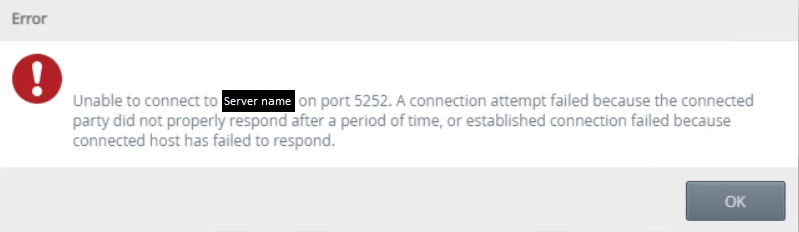
You should see the error in the HostServer logs, and Event Viewer Application logs.
Resolution
1. Contact Nintex Support to obtain the Decrypt HostServer Config tool that is used to decrypt the connection strings in the K2HostServer.exe.config file.
2. Run the Decrypt HostServer Config.exe on the enviroment where you seeing the issue.
3. For K2 Location, replace the string "c:Program Files (x86)K2 blackpearl" with your K2 installation location.
4. Create a Temp folder on the C Drive (e.g. C:Temp).
5. Click the Decrypt button which will run the process.
6. In the Temp folder location, edit the web.config file in a text editor like notepad++.
7. Search for name="WorkflowServer" and find the connectionstring which should look something like:
<add name="WorkflowServer" connectionString="Integrated=True;IsPrimaryLogin=True;Authenticate=True;EncryptedPassword=False;Host=SA-LABSDLX;Port=5252;" providerName="K2FIVE" />
8. Add timeout=300 to the connectionstring like below:
<add name="WorkflowServer" connectionString="Integrated=True;IsPrimaryLogin=True;Authenticate=True;EncryptedPassword=False;Host=SA-LABSDLX;Port=5252;timeout=300;" providerName="K2FIVE" />
The timeout value is in seconds.
9. Navigate to [INSTALLDIR]K2Host ServerBin, make a backup of the K2HostServer.exe.config file.
10. In the Temp folder location, rename "web.config" to "K2HostServer.exe.config".
11. Replace the K2HostServer.exe.config in [INSTALLDIR]K2Host ServerBin with the file from the Temp folder location.
12. Restart the K2 service.