



Chromium XSLT deprecation
KB003718
PRODUCT
Nintex Automation K2, Nintex K2 Cloud
BASED ON
Nintex Automation K2, Nintex K2 Cloud
Google Chrome intends to deprecate and remove XSLT support from the browser for security reasons. As a result, you may need to migrate your code before support is removed in late 2026.
Chromium has officially deprecated XSLT, including the XSLTProcessor JavaScript API and the XSLT processing instruction. Chrome plans to remove support starting with version 158, scheduled for release on 17 November 2026.
Fix packs for Nintex Automation K2 will be released for versions (5.7), (5.8), (5.9), (5.9.1) and later, and Nintex K2 Cloud to address the XSLT deprecation.
We recommend that you install the latest fix pack. However, if you cannot, you may use the following workarounds before 17 November 2026:
Short term (0 – 1 month)
- Enterprise policy to override deprecation.
To keep XSLT functional in your organization during the grace period (between M158 and M176), use the following administrative controls:-
Enable XSLT via Policy: Continue XSLT execution by configuring the enterprise policy dedicated to XSLT preservation. The exact policy name and registry key will be available once Chromium releases the feature. Configure the policy through your Google Admin Console or Group Policy.
-
Extensions for legacy environments: Google also provides an official XSLT Polyfill Extension. Administrators can force-install this extension using the Chrome Apps & Extensions Management policy to preserve functionality while migrating legacy web applications.
-
-
Open Chrome and go to chrome://flags/. Search for “XSLT” and select “Enabled” in the dropdown to enable XSLT after deprecation.
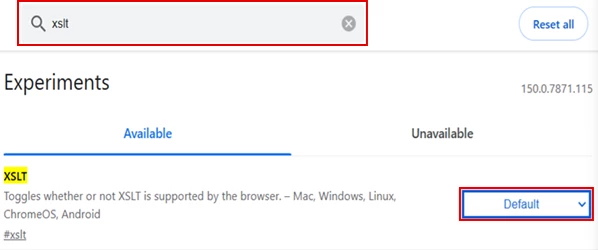
Note: We do not know how long this option will be available. Set it to Enabled as soon as possible.
Medium-Term (3–6 months)
Freeze browser versions (recommended mitigation)
Prevent automatic browser updates by locking the browser to the last compatible version before the XSLT deprecation.
-
Google Chrome: Configure the UpdatePolicies registry key and set Update {AppGuid} to 0 to disable updates.
-
Microsoft Edge: Use the Update policy overrides to disable updates for specific browser versions.
-
Reference: See the Google Chrome Enterprise Policy List or the Microsoft Edge Enterprise Policy Documentation for the appropriate Group Policy Object (GPO) templates.
Caution: This approach carries security risks, as users running older browser versions may be exposed to vulnerabilities that have been addressed in later releases.
Long-Term
-
Upgrade to the latest Nintex Automation K2 fix pack on the version you are running, so you have a supported version that is not affected by the deprecation.
-
Upgrade to the latest version of Nintex Automation K2.