




Why We Wrote This
We've been through enough K2 on-prem installations to know the pattern. A new customer gets their license, downloads the installer, and figures they'll have it up and running by Friday. By the following Wednesday, they're deep in a permissions rabbit hole, their SharePoint admin is asking questions they don't have answers to, and the K2 for SharePoint App is throwing errors that don't seem to match anything on search sites.
Sound familiar? Or maybe you're reading this before you start, in which case, we’re glad you’re here! You're already ahead of the curve.
This isn't a step-by-step guide. That’s what the Installation and Configuration Guide (ICG) is for, and you should absolutely have it open alongside this article. What we're going to do here is walk you through the process at a high level, flag the spots where people consistently get stuck, and give you enough context to have productive conversations with your SQL, SharePoint, network, and Active Directory teams before installation day.
Think of this as the "I wish someone had told me this" companion to the official docs.
TL;DR: This is the TL;DR of the Installation Guide. Go read it. Click through the links below for the details, but if you follow this plan, you’re going to have a better time installing K2.
The Big Picture: Four Phases, One Golden Rule
The ICG breaks the installation into four phases: Plan, Prepare, Install, and Configure. That structure isn't arbitrary; it exists because the teams who skip ahead to "Install" are the ones who typically end up starting over.
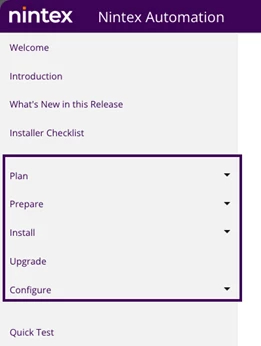
Plan is where you figure out your topology (single server or distributed farm?), identify which systems K2 needs to talk to (SQL, SharePoint, Exchange, Active Directory, etc.), and start building your list of service accounts. Don't gloss over this. The person installing K2 needs to understand networking fundamentals, Kerberos concepts, IIS configuration, SSL certificates, and how their organization's domain is set up. If that sounds like a lot, it's because K2 touches a lot of systems, and that's exactly why planning matters. K2 is an enterprise-grade platform that operates on dedicated servers, supporting both single-server and distributed load-balanced deployments.
Prepare is the phase everyone underestimates, and it's the one that determines whether your installation day goes smoothly or turns into a multi-day troubleshooting session. This is where you create service accounts, assign permissions, open firewall ports, configure SQL, set up DNS records, and get SharePoint into a state that's ready for provider-hosted add-ins. We cannot overstate this: the more thorough you are here, the fewer problems you'll have later.
Install is actually the easiest part if your preparation is solid. The K2 Setup Manager is wizard-driven and walks you through each component. You'll configure the K2 Server, point it at your SQL instance, set up the K2 web sites in IIS, and optionally deploy the K2 for SharePoint App. When the prep work is done right, this phase is almost anticlimactic.
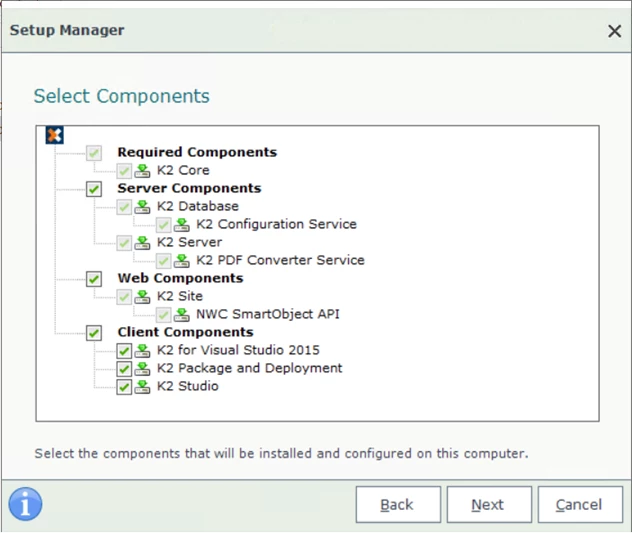
Configure is the post-install phase where you verify everything works, authorization is setup for user access, services are running, SmartObjects are accessible, the K2 Management and Designer sites load, and the SharePoint app is registered and activated. This is also where you'll catch any underlying permissions issues that slipped through.
The golden rule? Don't touch the installer until Prepare is truly done. Every shortcut you take in preparation becomes a problem you troubleshoot in production.
Let's Talk About the Elephant in the Room: Service Accounts and Permissions
Ask anyone who's installed K2 what gave them the most trouble, and nine out of ten will say service accounts and permissions. It's not that the requirements are unreasonable, it's that there are several accounts involved, each with different permission needs, and mixing them up or cutting corners creates problems that are genuinely hard to diagnose after the fact. You will want to think about this when hardening your environment for security.
Note: this is not all encompassing so be sure to review the Accounts and Permissions section of the Prepare area in the ICG. Below is the cast of characters you need to know.
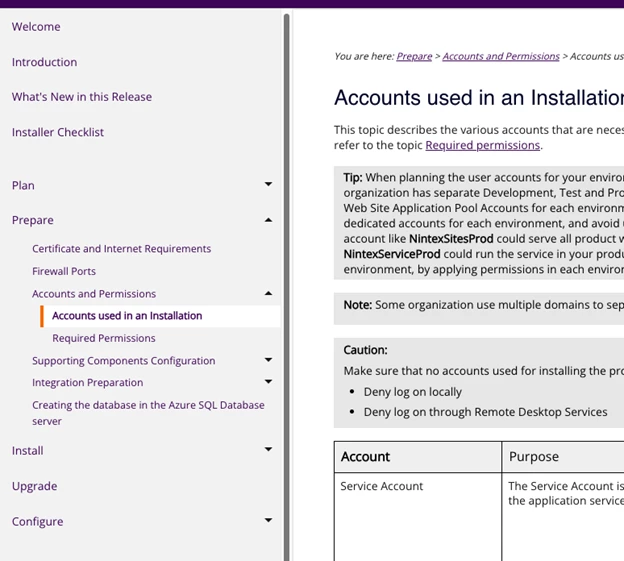
The Installation Account is whoever is logged in when you run the K2 Setup Manager. This person needs local admin on the K2 server, dbcreator and securityadmin on SQL Server so the installer can create databases, and, if you're doing the SharePoint integration, Farm Administrator rights on the SharePoint farm plus SPShellAdmin access. This is a one-time installation role, not the account that runs K2 day-to-day. Confusing this with the service account is one of the most common early mistakes.
The K2 Service Account is the runtime identity, the account that runs the K2 Host Server Windows service after installation. It needs "Log on as a service" rights, SQL database permissions for the K2 database (the Setup Manager usually configures these automatically), and in Kerberos environments, properly registered SPNs (requires domain admin). Think of it as the identity K2 uses to do its work behind the scenes.
The K2 Web Site Application Pool Account runs the IIS application pools for the K2 sites (Management, Designer, SmartForms, etc.). In development you might use the same account as the K2 Service Account, but in production, Nintex recommends separating them (it’s not required but is recommended). That separation gives you more granular security control and makes troubleshooting easier when something goes sideways.
SharePoint Service Account(s) are the accounts that run SharePoint's own application pools and Timer Service. You probably already have these, but you need to know what they are because they interact with K2 during app deployment, specifically in a multi web front-end farm configuration.
Nintex recommends following the STRIDE security model and creating dedicated accounts per environment. So, in practice, you might have K2ServiceDev, K2ServiceProd, K2SitesDev, K2SitesProd, and so on. It feels like a lot of accounts, but the alternative, using one account for everything, creates security headaches and makes it nearly impossible to isolate issues between environments.
One more thing that trips people up constantly: when you're using the K2 for SharePoint App, don't use the K2 Service Account to design workflows or interact with the app. The documentation calls this out explicitly, but it's easy to miss in the rush to get things working. If you use the service account, SharePoint will use that account's identity for all actions instead of the actual user's identity, which breaks the delegation model and causes confusing permission errors downstream.
As mentioned earlier, the ICG has a detailed permissions matrix in the Configure section that maps every account to every component and target system. Print it out, tape it to the wall, share it with your team. It's the single most important reference document for your installation.
Infrastructure: Getting Your House in Order
SQL Server: The Foundation
The K2 database is where everything K2 lives: workflow definitions, SmartObject configurations, process data, audit logs. Getting SQL right is non-negotiable. Note: Your line-of-business system’s data does not live in the K2 database. It is governed by the system of reference and K2 will adhere to whatever the integration has access to when working with your external data providers.
The one thing that catches people off guard most often is collation. The SQL Server instance hosting your K2 database must use Latin1_General_CI_AS or Latin1_General_CP1_CI_AS collation. This is a hard requirement, not a suggestion. If you discover after installation that your instance is using a different collation, you're looking at recreating the database on a correctly collated instance. Check this first. Seriously, before anything else, verify your SQL collation. Note: The K2 installer will create the correct database for you if you let it.
Beyond collation, make sure TCP/IP is enabled in SQL Server Configuration Manager (it's not always on by default), that port 1433 is open through the firewall (or whatever port your instance uses), and that the SQL Browser service is running if you're using named instances. If your SQL Server is on a separate machine from K2 — which it should be in production — test connectivity with a quick Test-NetConnection -ComputerName yourSQLserver -Port 1433 from the K2 server before you start the installer.
One piece of real-world advice from the trenches: give K2 its own dedicated SQL instance (i.e. not on the K2 server itself) if you can. We've seen organizations spend weeks troubleshooting K2 performance issues that turned out to be caused by another application on the same SQL instance running heavy I/O operations. A shared instance might seem like a cost-saver, but the troubleshooting cost when things slow down isn't worth it. This also makes scaling the environment much easier as demand increases.
Windows Server and IIS
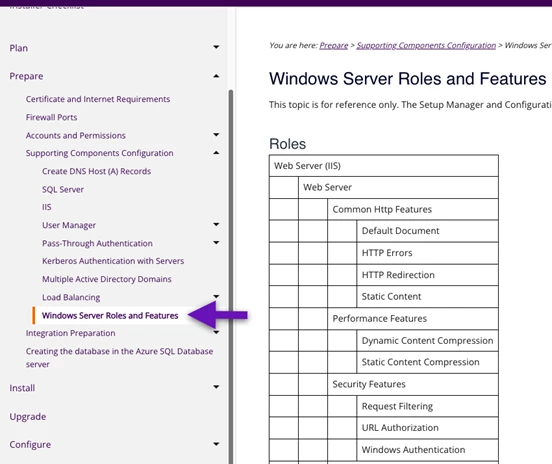
The K2 Setup Manager handles most of the IIS configuration, but it can't install Windows features for you. Before installation day, make sure the required IIS roles and features are enabled for all your K2 servers, the ICG's Prepare section has the exact list. At a minimum, you'll need ASP.NET, Windows Authentication, and the correct .NET Framework versions. Missing a feature won't crash the installer, but it will cause components to fail in ways that aren't always obvious.
Exchange
If you plan to use Exchange for email notifications, task routing via SmartActions, or any email-driven workflow scenarios, you'll need Exchange Web Services (EWS) connectivity from the K2 server. That means the K2 Service Account needs appropriate mailbox or impersonation rights in Exchange, port 443 needs to be open between K2 and Exchange, and EWS needs to be accessible. Your Exchange admin will know how to set this up, just make sure they're in the loop during the Prepare phase. Note: Exchange is not a requirement as any SMTP system can be used for email. You will lose the ability to complete tasks through email using SmartActions(lazy approval) if you don’t use Exchange.
Firewall Ports: The Conversation to Have with Your Network Team
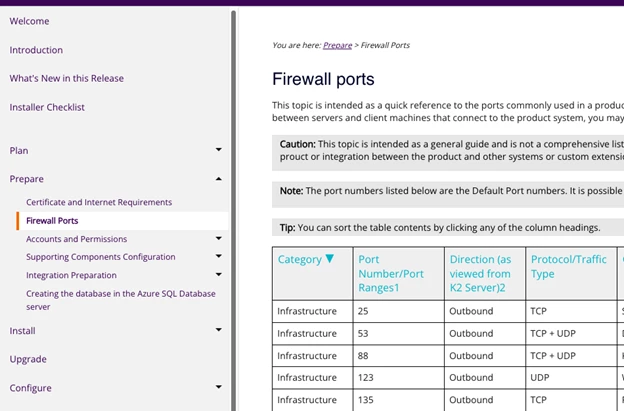
Here's a reality of K2 installations in enterprise environments: things will fail silently because a port is blocked, and you'll spend hours checking configurations before realizing it's a firewall issue. Save yourself the trouble and open everything up front.
The ports you'll commonly need:
-
K2 Host Server: TCP 5555
-
K2 Workflow Service: TCP 5252
-
SQL Server: TCP 1433 (default instance), UDP 1434 (SQL Browser for named instances)
-
K2 Web Sites (IIS): TCP 80 and 443
-
SharePoint to K2 communication: HTTP/HTTPS between the SharePoint WFEs and the K2 server
-
Exchange Web Services: TCP 443
-
Active Directory / Kerberos: TCP/UDP 88, TCP/UDP 389, TCP 636, TCP/UDP 53
In a distributed environment where each of these systems lives on a different server, you need bidirectional communication on the relevant ports between all of them. The best approach is to sit down with your network team, share the ICG's firewall ports section, and walk through your specific topology together. Give them a diagram showing which servers need to talk to which, on what ports, and in which direction. They'll appreciate the specificity, and you'll appreciate not having to troubleshoot mysterious connection timeouts at 6 PM on a Friday.
SharePoint Integration: The Part Everyone Struggles With
Let's be real, the K2 for SharePoint App installation is where most new customers hit a wall. It's not because the documentation is bad (it's actually quite detailed), but because the underlying architecture involves concepts that many SharePoint administrators haven't had to deal with before: provider-hosted add-ins, high-trust model, OAuth tokens, server-to-server trust via certificates.
Note: SharePoint is not required to run K2, but many organizations integrate with it. We also assume that you understand your Microsoft SharePoint environment, how it’s configured, if customizations exist (e.g. custom web applications and features), and that it has the add-in app framework running in a healthy state to install high-trust provider hosted apps.
Let's break down why this is tricky and what you need to know going in.
What "Provider-Hosted, High-Trust" Actually Means
K2 for SharePoint is not a traditional SharePoint solution package (WSP) that you deploy to the farm. It's a provider-hosted add-in, meaning the app's actual web application runs on the K2 server, not inside SharePoint. SharePoint essentially "reaches out" to K2 over HTTP/HTTPS when users interact with the app. K2 communicates back to SharePoint through its REST API.
In an on-premises environment, this communication is secured using the high-trust model. Unlike SharePoint Online (which uses Azure Access Control Service), on-prem uses digital certificates and PowerShell commands to establish a trust relationship between your SharePoint farm and the K2 server. SharePoint trusts K2 to create access tokens on behalf of users, which is powerful, but it also means the trust configuration must be exactly right.
If the certificate isn't properly registered as a trusted security token issuer in SharePoint, or if the App Management and Subscription Settings services aren't running, or if the app domain DNS is misconfigured, the app won't work. And frustratingly, the errors you'll see often point you in the wrong direction.
What SharePoint Needs Before K2 Shows Up
This is the part where you need to have a frank conversation with your SharePoint administrator, because several SharePoint farm-level configurations must be in place before the K2 app can be deployed. These aren't K2-specific requirements, they're prerequisites for any provider-hosted add-in, but many SharePoint farms don't have them configured because they've never needed them before.
Here's the checklist to work through together:
-
The App Management Service Application needs to be created and running in Central Administration. It's not provisioned by default.
-
The Subscription Settings Service Application also needs to be created and running, also not provisioned by default, and it can only be created via PowerShell.
-
You need an App Domain configured for your farm with appropriate DNS (typically a wildcard CNAME or A record like *.apps.yourdomain.com).
-
An App Catalog needs to exist for the target web application.
-
Claims-based authentication must be enabled on the web application.
-
And obviously, HTTP/HTTPS connectivity between SharePoint and the K2 server needs to work, including through any load balancers or reverse proxies.
If your SharePoint admin looks at this list and says, "we've never set up apps for SharePoint before," that's okay, but it means the SharePoint preparation is its own mini project that should happen before you attempt the K2 app deployment. The ICG has SharePoint-specific preparation steps, and Microsoft's documentation on configuring environments for SharePoint Add-ins is also a helpful reference.
The App Deployment Flow
Once SharePoint is ready, the K2 for SharePoint App deployment follows a specific sequence:
You start by running AppDeployment.exe from the K2 setup folder, which pushes the app package to your SharePoint App Catalog. The account running this needs to be a local administrator with Site Collection Admin rights on the App Catalog. Then you go into the App Catalog's Site Contents, add the K2 for SharePoint app, and click "Trust It."
Next comes the Registration Wizard, you'll find it inside the K2 for SharePoint app in the App Catalog. This is where the magic happens: the wizard sets up the OAuth trust, creates the service broker connections, and registers K2 with the SharePoint farm. You provide your K2 server URL, and it handles the rest.
After registration, you deploy the app to site collections. The recommended approach is using the "All Paths" option under Managed Paths, which deploys to all site collections at once rather than having to specify them individually. Finally, you activate the app through the Manage App Activations page, where you set the default K2 server and choose which site collections get K2.
Where Things Typically Go Wrong
A few patterns we see over and over:
Custom built features, masterpages, and applications. Custom features, masterpages, or applications you have built in your SharePoint environment may interfere with the operation of the K2 for SharePoint app. We can’t account for every possible customization here, so if there are security, javascript, or other custom bits that interfere with the K2 for SharePoint app, you will need to troubleshoot your environment or remove the custom features in order to get K2 to integrate correctly with site collections.
Apps are disabled on this site. This almost always means the App Management Service Application or the Subscription Settings Service Application isn't running. Check Central Administration.
App pages load as blank or throw 404 errors. Usually a DNS issue, the app domain wildcard record isn't configured, or it's pointing to the wrong server. Test by navigating directly to your app domain in a browser and seeing if it resolves.
Authentication errors after deployment. Check the certificate trust chain. In the high-trust model, the certificate used to establish trust must be registered in SharePoint via New-SPTrustedSecurityTokenIssuer in PowerShell. If this step was missed or done with the wrong certificate, nothing will authenticate. The AppDeployment.exe will do this for you.
The K2 Service Account identity problem. We mentioned this earlier, but it's worth repeating here because it's so common in the SharePoint context specifically. If you log into a SharePoint site and use the K2 app while logged in as the K2 Service Account, all SharePoint operations will execute as that service account rather than delegating to the actual user. Use a different account.
Things worked yesterday but broke today. After an IIS app pool recycle (which happens on a schedule by default), the initial request to the K2 app can be slow or fail. A quick recycle of the relevant app pools on both the K2 and SharePoint servers, followed by a fresh browser session, often clears these transient issues.
A Quick Word on Kerberos
In a single-server environment where everything runs on one box, you can often get away with K2 Pass-Through Authentication (K2PTA) and skip Kerberos entirely. But the moment you move to a distributed topology, K2 on one server, SQL on another, SharePoint on a third, Kerberos becomes important because Windows authentication doesn't natively support the "double hop" (user → web server → backend server).
Setting up Kerberos means registering Service Principal Names (SPNs) for the K2 Service Account and the K2 Web Site Application Pool Account, and configuring delegation in Active Directory. The K2 Setup Manager can do the SPN registration for you automatically, but only if the installation account has domain administrator rights. In many organizations, that's not something you'll get, so plan to work with your AD team to register SPNs manually after installation.
If Kerberos sounds intimidating, you're not alone. But in a distributed K2 environment, getting it right is the difference between "everything works" and "users can authenticate to the K2 site but workflows fail when they try to talk to SharePoint or SQL." The ICG covers the SPN requirements in detail, share that section with your AD team.
Our Honest Advice for a Smooth Installation
Read the entire Plan section of the ICG before you do anything. Not skim, read. It's not that long, and the hour you spend will save you a full day or more of backtracking.
Build a prep checklist and share it across teams. K2 installations aren't a one-person job. You need your SQL admin to verify collation and account permissions, your network team to open ports, your SharePoint admin to configure app infrastructure, and your AD team to create service accounts (and potentially register SPNs). Give each team their specific requirements early, don't surprise them on installation day.
Test connectivity before you install. From the K2 server, run Test-NetConnection to your SQL server on port 1433, to your SharePoint server on 80/443, to your Exchange server on 443. From SharePoint, test connectivity back to the K2 server on 5555 and 80/443. Five minutes of testing saves hours of guessing.
Don't treat the SharePoint integration as an afterthought. If your farm hasn't been configured for provider-hosted add-ins before, that's a prerequisite project. Treat it as one.
When something breaks, check permissions first. We know that sounds obvious, but after years of supporting K2 installations, the answer is permissions-related more often than not. Check the service account, check SQL rights, check SharePoint farm admin membership, check SPShellAdmin access. Then check them again.
Key Reference Links
| Resource | Where to Find It |
| Nintex Automation ICG (Start Here) | |
| Plan Your Installation | ICG → Plan |
| Accounts Used in a K2 Installation | ICG → Plan → Accounts |
| Required Permissions Matrix | ICG → Plan → Required Permissions |
| Firewall Ports and K2 | ICG → Prepare → Firewall Settings |
| SharePoint Integration Planning | ICG → Plan → Integration → Microsoft SharePoint |
| SharePoint Permissions for On-Prem | ICG → Prepare → SharePoint → Permissions |
| K2 for SharePoint App Deployment | ICG → Install → App Deployment |
| Nintex Community | |
| Microsoft: High-Trust Add-ins |
Heads up: The ICG is versioned, use the version dropdown at the top to make sure you're reading the docs that match your K2 Five version (5.6, 5.7, 5.8, 5.9, etc.). The navigation paths above are consistent across versions, but details can vary.
Wrapping Up
We're not going to sugarcoat it, installing K2 Five on-prem can be a big project. It touches Active Directory, SQL Server, IIS, Windows Server, and potentially SharePoint and Exchange. It requires coordination across multiple teams. And the permissions model has enough nuance to keep you busy for a while.
But here's the thing: the organizations that have smooth installations aren't the ones with the most experienced K2 admins. They're the ones that took the Plan and Prepare phases seriously, got all their teams on the same page early, and didn't treat the ICG as something to consult only when things go wrong.
When you do hit a wall, the Nintex Community is genuinely helpful. Post your K2 version, SharePoint version, topology, and the specific error, and chances are someone's been in the same spot and can point you in the right direction.
You've got this. The ramp-up is real, but once K2 is running, it earns its keep.