
Nintex Community Menu Bar
Question

Some normal users cannot access K2 Workspace after upgrading Nintex Automation K2 to 5.9

  • January 13, 2026
  • 5 replies
  • 35 views

Forum|alt.badge.img+2

I have upgraded Nintex Automation K2 from version 5.6 → 5.8 → 5.9.

The upgrade completed successfully without any errors.
The web site is running normally, and users can:

  • Create SmartForms

  • Run workflows successfully

However, I found an issue after the upgrade:

When I try to log in with some test users (for example: k2test1), they cannot access the Workspace page
(e.g. https://k2test.xxxxx.com/workspace).

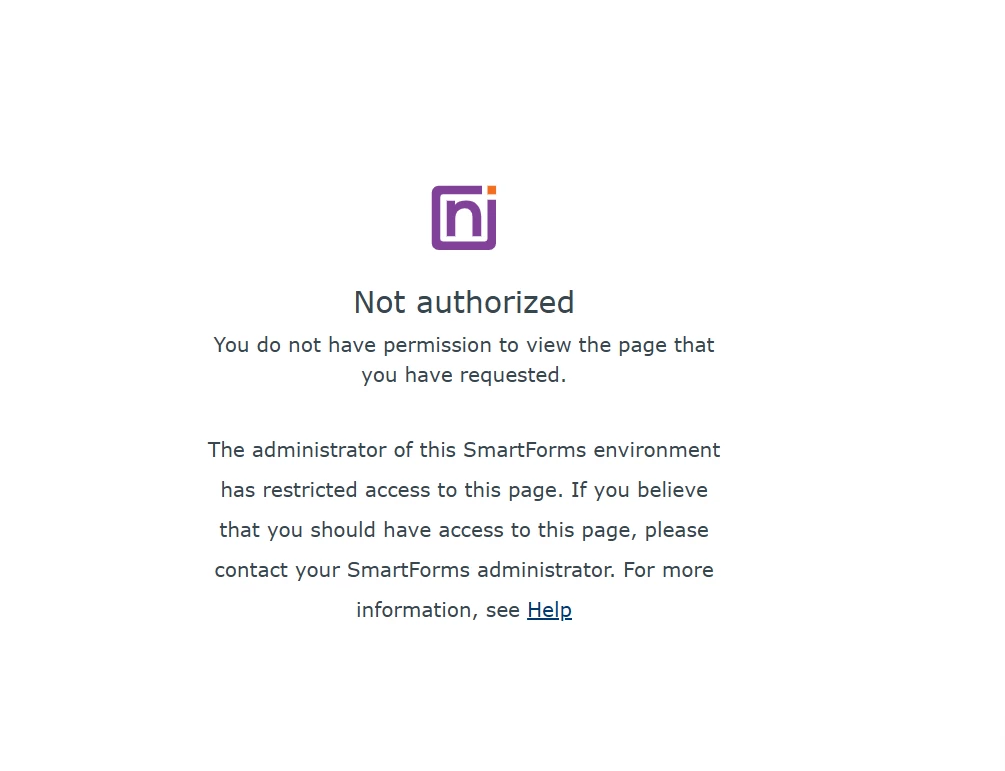
The following error message is displayed:


Not authorized
You do not have permission to view the page that you have requested.
The administrator of this SmartForms environment has restricted access to this page.
If you believe that you should have access to this page, please contact your SmartForms administrator.


Important details:

  • k2test1 is a normal user (no special permissions)

  • Before upgrading to K2 5.9, this user could access Workspace normally

  • After testing multiple users, I found that:

    • Some users get "Not authorized"

    • Some users can access Workspace without any issue

  • No configuration was intentionally changed regarding user permissions

Question:

What could be the cause of this issue after upgrading to K2 5.9?
Are there any permission changes, SmartForms security settings, or post-upgrade steps that I should check or reconfigure to resolve this problem?


 

5 replies

Anelle
Nintex Employee
Forum|alt.badge.img+11
  • Nintex Employee
  • January 13, 2026

Good day,

Do you use Active Directory or Azure Active Directory?


Anelle
Nintex Employee
Forum|alt.badge.img+11
  • Nintex Employee
  • January 13, 2026

Good day ​@VTNIT ,

Thank you for reaching out. Can you please do a network trace in the browser with preserve logs on  (see detail below on how to do this). When you get these, please create a Nintex Support Case on https://customer.nintex.com/ and let them know that the case must be sent up to Anelle van Zyl

Open an InPrivate Window

  • Press Ctrl + Shift + N or click ⋮ (Settings)New InPrivate window.
  1. Open Developer Tools
    • Press F12 (or Ctrl + Shift + I) to open Developer Tools.
  2. Switch to the Network Tab
    • Click Network in the Developer Tools panel.
  3. Enable “Preserve log”
    • Check the box Preserve log at the top of the Network tab.
  4. Reload the Page or Perform the Action
    • Navigate to the form that results in access denied.
    • All network requests will appear in the panel.
  5. Export the Network Trace
    • Right-click anywhere in the list of requests.
    • Select Save all as HAR with content.
    • Choose a location and save the .har file.

Regards,

Anelle


Forum|alt.badge.img+2
  • Author
  • Rookie
  • January 14, 2026

Good day,

Do you use Active Directory or Azure Active Directory?


We are using Active Directory.
User k2test1 can access Production (v5.6), but cannot log in to the Test environment after upgrading to v5.9.
This issue does not affect all users.


Anelle
Nintex Employee
Forum|alt.badge.img+11
  • Nintex Employee
  • January 14, 2026

Good day ​@VTNIT ,

Thank you for the confirmation. Please look at my second reply and complete that. Reposting here:

Can you please do a network trace in the browser with preserve logs on  (see detail below on how to do this). When you get these, please create a Nintex Support Case on https://customer.nintex.com/ and let them know that the case must be sent up to Anelle van Zyl

Open an InPrivate Window

  • Press Ctrl + Shift + N or click ⋮ (Settings) → New InPrivate window.
  1. Open Developer Tools
    • Press F12 (or Ctrl + Shift + I) to open Developer Tools.
  2. Switch to the Network Tab
    • Click Network in the Developer Tools panel.
  3. Enable “Preserve log”
    • Check the box Preserve log at the top of the Network tab.
  4. Reload the Page or Perform the Action
    • Navigate to the form that results in access denied.
    • All network requests will appear in the panel.
  5. Export the Network Trace
    • Right-click anywhere in the list of requests.
    • Select Save all as HAR with content.
    • Choose a location and save the .har file.

Regards,

Anelle


Forum|alt.badge.img+2
  • Author
  • Rookie
  • January 14, 2026

Good day ​@VTNIT ,

Thank you for the confirmation. Please look at my second reply and complete that. Reposting here:

Can you please do a network trace in the browser with preserve logs on  (see detail below on how to do this). When you get these, please create a Nintex Support Case on https://customer.nintex.com/ and let them know that the case must be sent up to Anelle van Zyl

Open an InPrivate Window

  • Press Ctrl + Shift + N or click ⋮ (Settings) → New InPrivate window.
  1. Open Developer Tools
    • Press F12 (or Ctrl + Shift + I) to open Developer Tools.
  2. Switch to the Network Tab
    • Click Network in the Developer Tools panel.
  3. Enable “Preserve log”
    • Check the box Preserve log at the top of the Network tab.
  4. Reload the Page or Perform the Action
    • Navigate to the form that results in access denied.
    • All network requests will appear in the panel.
  5. Export the Network Trace
    • Right-click anywhere in the list of requests.
    • Select Save all as HAR with content.
    • Choose a location and save the .har file.

Regards,

Anelle


Thank you. I have created a Nintex Support case (Case No. 00741399).
The support team is currently reviewing it.

Kind regards,
Angkrit