



Overview
This article describes how to highlight a text box control in red when a user clicks a button and the text box is empty. The highlight should not appear when the form first loads; it should only appear after the user clicks the button.
To achieve this behavior, you will:
- Create an expression to check whether the text box is blank.
- Transfer the expression result to the Data Label when the button is clicked.
- Apply conditional formatting so the text box highlights red only when the Data Label is True.
Use Case
This pattern is ideal for validating required fields only after user interaction. It prevents unnecessary validation flashes on load and creates clearer user guidance during form completion.
Initial View Setup
Before configuring expressions or rules, start by preparing the View layout.
- Open the View in Design Mode.
- On the design canvas, add the following controls:
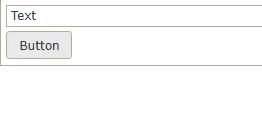
- A Text Box (this is the field that will be validated).
- A Button (this will trigger the validation).
- A Data Label (this will store the expression output).

- Optionally set the Data Label to Visible = False if you do not want users to see it during runtime.
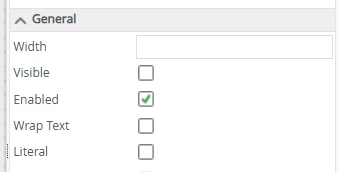
Once these elements are in place, you can proceed with building the validation logic.
Step 1: Create an Expression to Detect if the Text Box Is Blank
-
Open the View’s Expressions area.
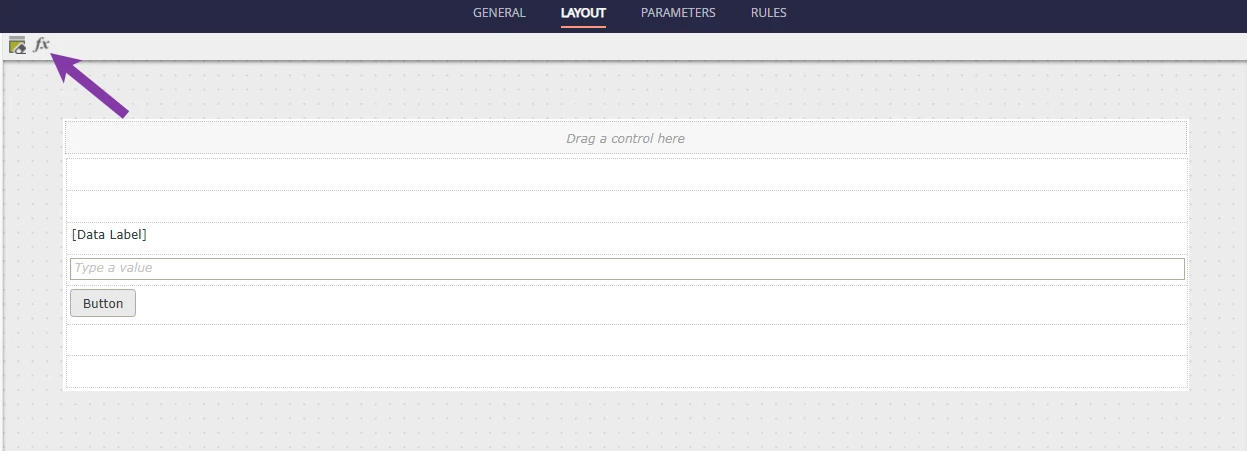
-
Create a new Expression.

-
Use the Is Blank text operator.
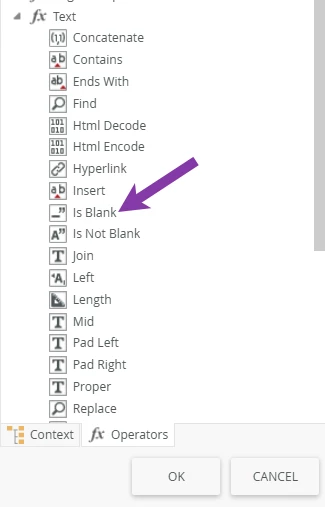
Example:
IsBlank(Text Box)
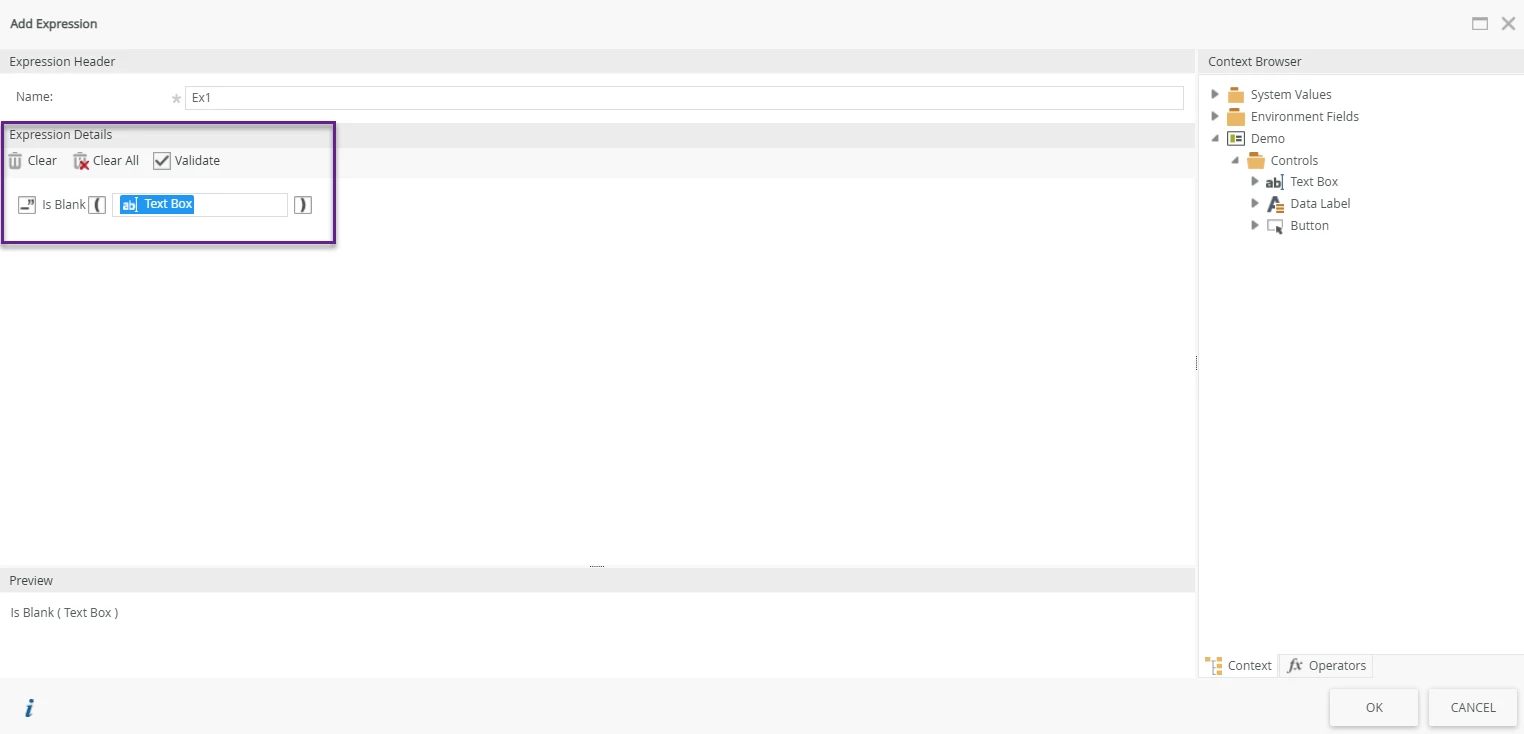
This expression returns:
-
True → when the text box is empty
-
False → when the text box contains any value
Step 2: Configure the Rule to Evaluate the Expression on Button Click
-
Go to the Rules for the View.
-
Edit the rule for When Button is Clicked (or create one if it doesn’t exist).
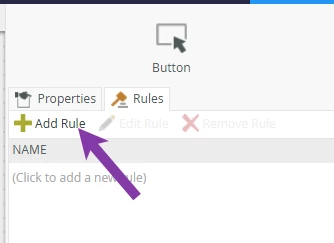
-
Add an Action → Transfer Data.
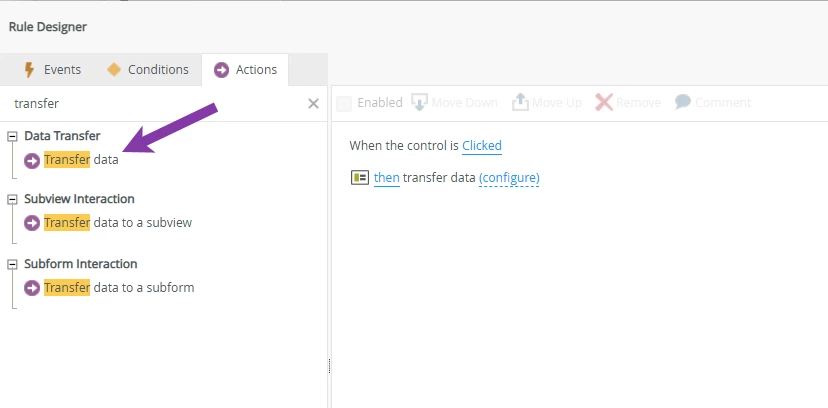
-
Configure the Transfer Data mapping:
-
Source: the “IsBlank(Text Box)” expression
-
Target: the Data Label
-
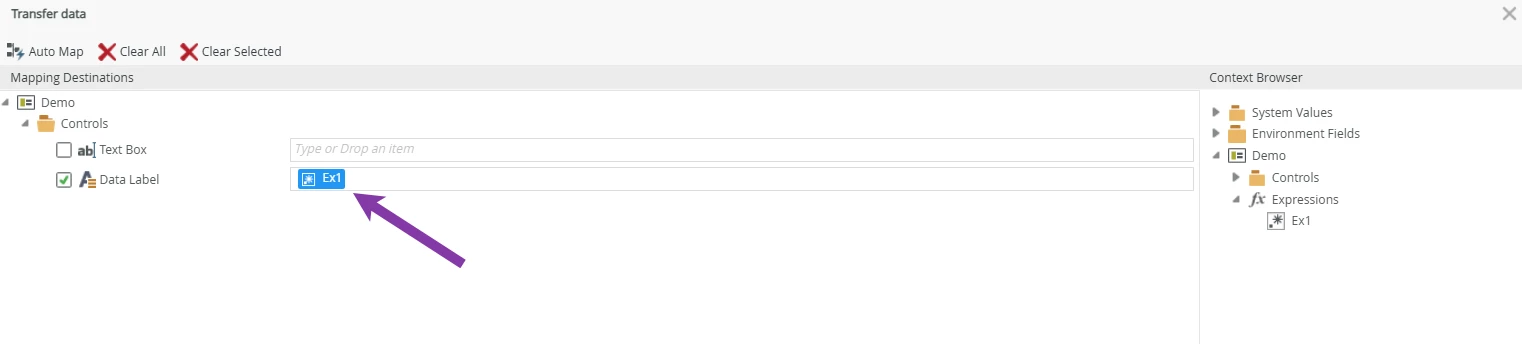
This ensures the expression runs only when the button is clicked, not during initial load.
Step 3: Apply Conditional Formatting to the Text Box
-
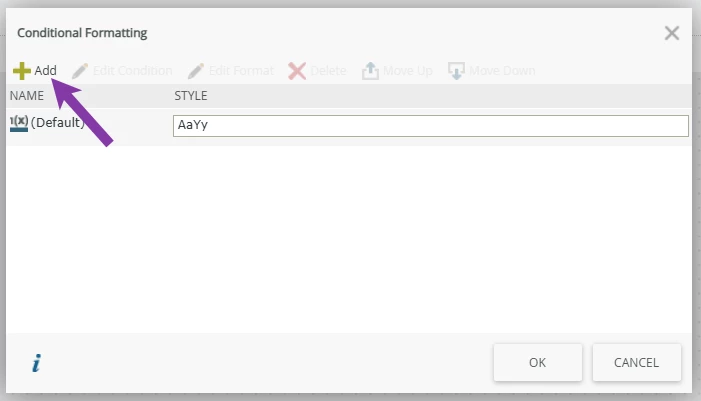
Select the Text Box and open its Conditional Formatting settings.
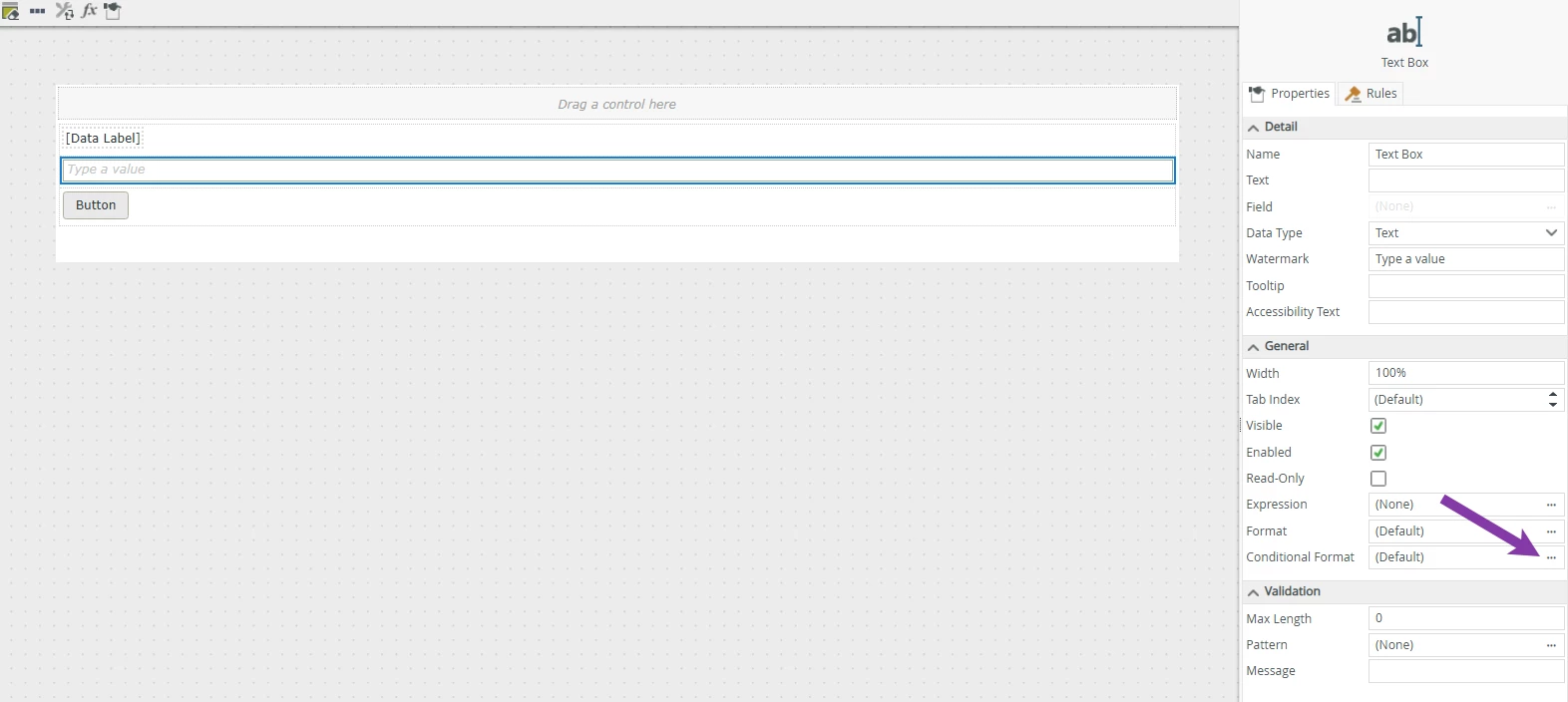
-
Add a new condition:
-
-
Condition: Data Label equals True
-

-
Apply formatting such as:
-
Border color: Red
-
Any visual styling you prefer for highlighting
-
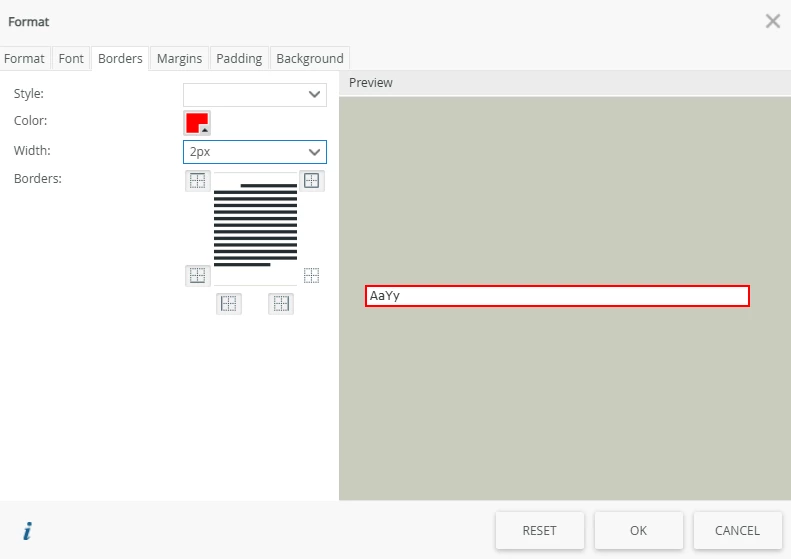
When the Data Label becomes True, the formatting activates.
How It Works
-
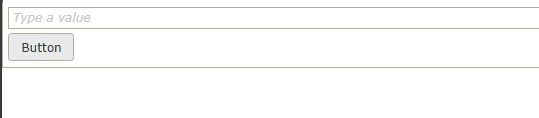
On form load, the expression has not run yet, so:
-
The Data Label has no value.
-
The Text Box displays normally with no highlight.
-
-
When the user clicks the button:
-
The expression checks if the text box is empty.
-
The result is transferred to the Data Label.
-
-
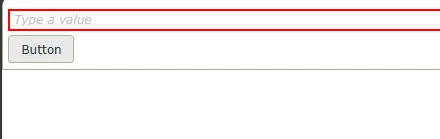
Conditional formatting immediately responds:
-
If the Data Label is True, the text box is highlighted red.
-
-
-
If the Text Box contains text, the expression returns False and no highlight is applied.
-
Benefits
-
The highlight appears only when relevant—after user interaction.
-
Prevents unnecessary validation messages on form load.
-
Provides a clear, visual indication that a field needs attention.
-
Reusable for multiple controls with minimal configuration changes.