

I wanted to make a quick post today to highlight a new feature that was released in Nintex Workflow Cloud. The new feature is called Auto Task Delegation, this will be used for when task assignees are going on PTO, Paternity Leave, Medical Leave, etc where they will be out for a period of time and want to delegate their tasks during that time automatically.
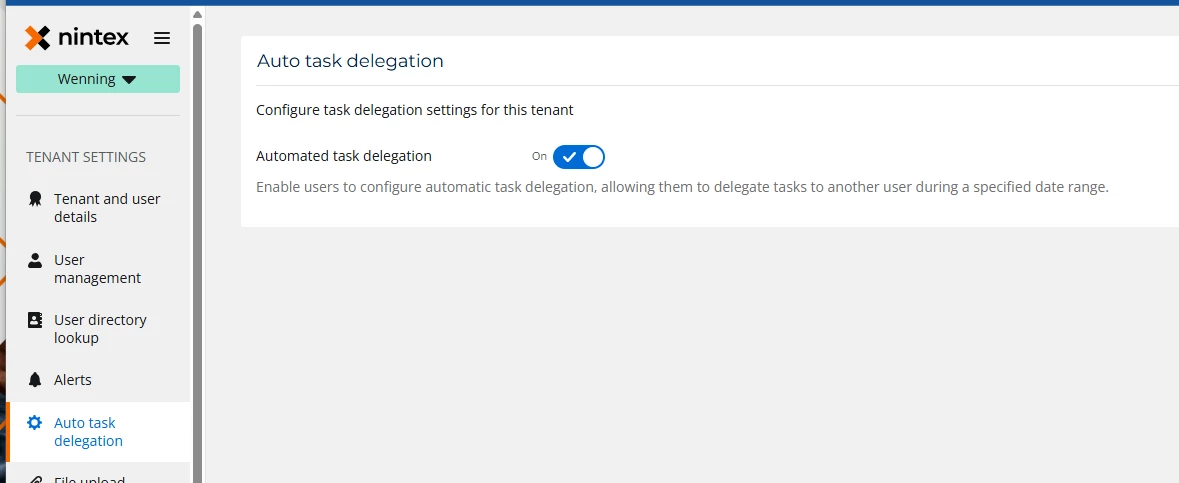
The first thing you will need to do is make sure the feature is enabled, to do this go to your tenant settings and select Auto Task Delegation from the left-hand navigation and then make sure the feature is toggled on.
There is nothing that needs changed in the Assign a task action in the workflow, it will be setup like a normal task.
In order for the task assignees to setup their auto task delegation, they will sign into Nintex Workflow and click on the tasks section in My Nintex, and select the Auto Task Delegation Tab.
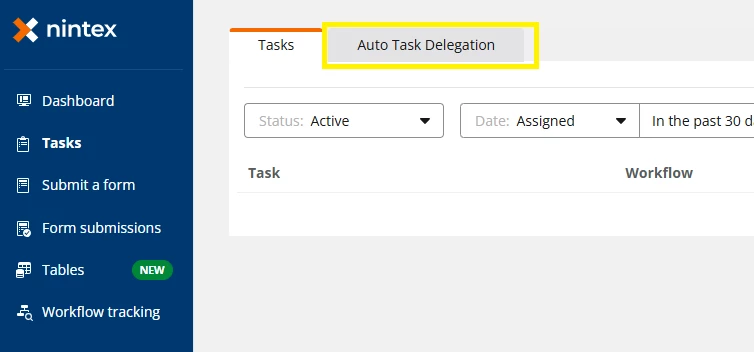
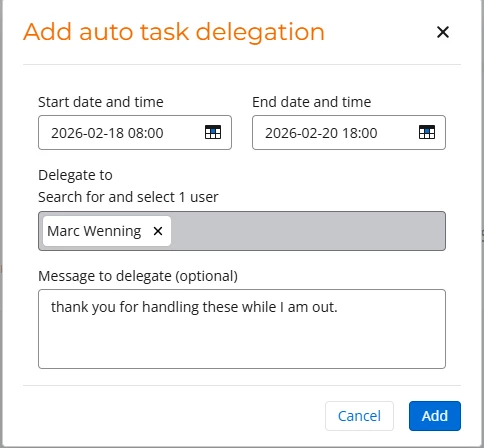
On the Auto Task Delegation Tab click the Add Auto Task Delegation button in the top right-hand corner of the page to create the new delegation. Enter the time frame you will be out, the person you would like to delegate your tasks to during that time and a message if you wish.
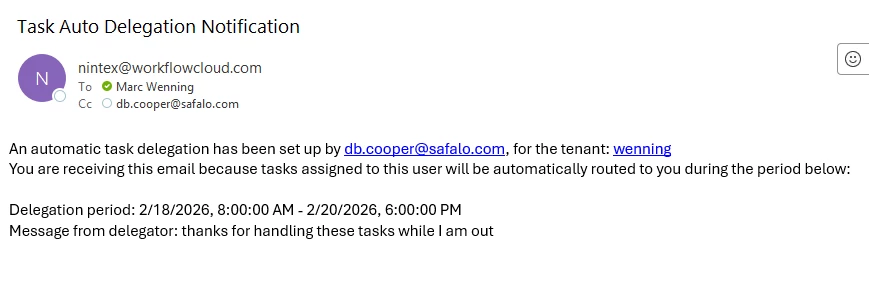
Note: The user you are delegating tasks to will receive an email letting them know you have delegated your tasks to them during that time frame. So you might want to give them a heads up before you setup the delegation.
And that’s all you need to do; all your tasks will be delegated to the selected user during the time frame you configured. The settings for the delegation can be edited if you need to adjust the dates or user delegated to, as well. Once the time frame has ended the tasks will once again be assigned to the user in the assign a task action in the workflow.