


Topic
Adding Template Permissions
Instructions
Permissions may be added to a template if a user has the rights to do so.
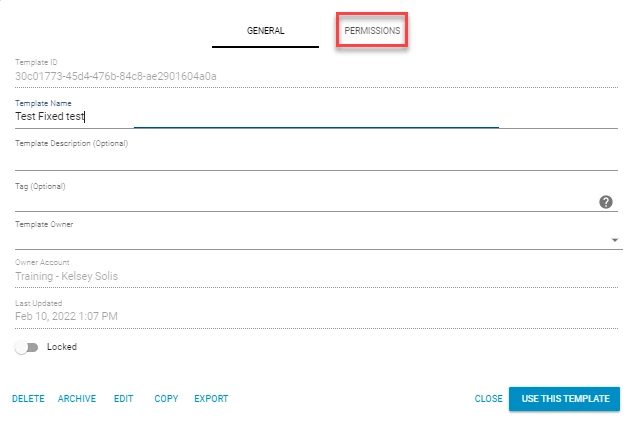
When the list of templates are showing, the advanced settings may be viewed by left clicking on the desired template. There are two tabs at the top of the pop-up window. Select the “Permissions” tab.
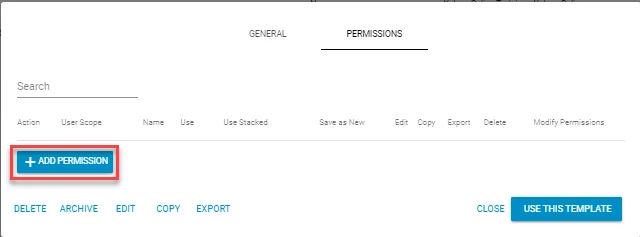
Select “Add Permission”.
The following are the levels that permissions can be added to:
- Account - A single account or all subaccounts beneath the present account can be chosen.
- User – Specific users within the organization can be selected.
- Role – Specific roles can be chosen.
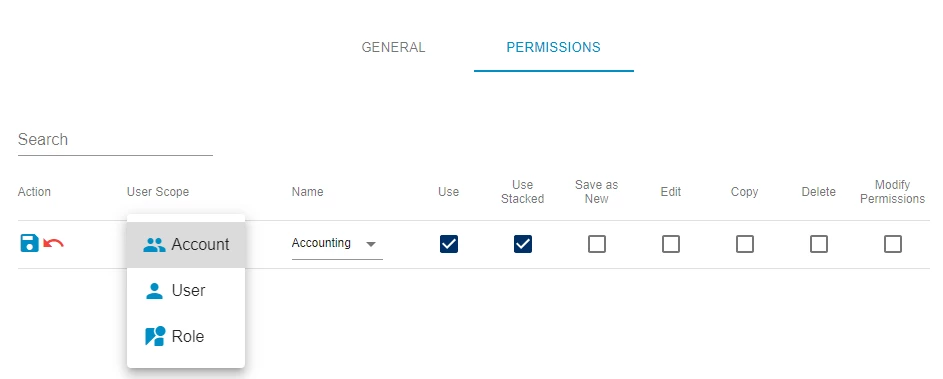
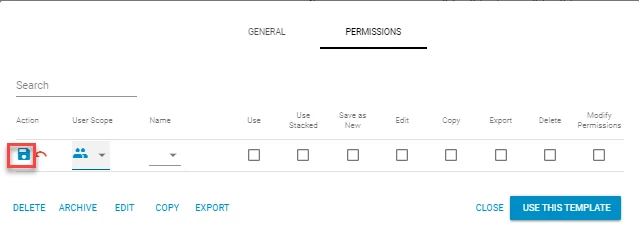
The following rights may be shared:
- Use - the user may use the template.
- Use Stacked - the user may use the template stacked in multi-template envelopes (a user must first be granted "Use" permissions in order to be granted "Use Stacked" permissions).
- Save as New - the user will be shown the option to save the template as a new instance after using it.
- Edit - the user may edit the template.
- Copy - the user may copy the template.
- Delete - the user may delete the template.
- Modify permissions - the user may administrate permissions of the template.
Once permissions have been set, be sure to click the save button to the left of the field:
Notes:
-Permissions are additive, so that if permission is granted through a role to a user, and a different right to the user specifically, the user will be granted both rights.
-The owner of the template always has the right to use the template that they’ve created.
-It is important to remember that any permissions granted to users will still be subject to limitations imposed through their Simple Setup related user permissions, which are set at the role and user level
Additional Information
Related Links