




Topic
Users may notice that an image within a process displays correctly when viewed in a browser but becomes rotated when printed or saved as a PDF. The root cause of this problem lies in the image's metadata, which indicates a different orientation from what is visually displayed.
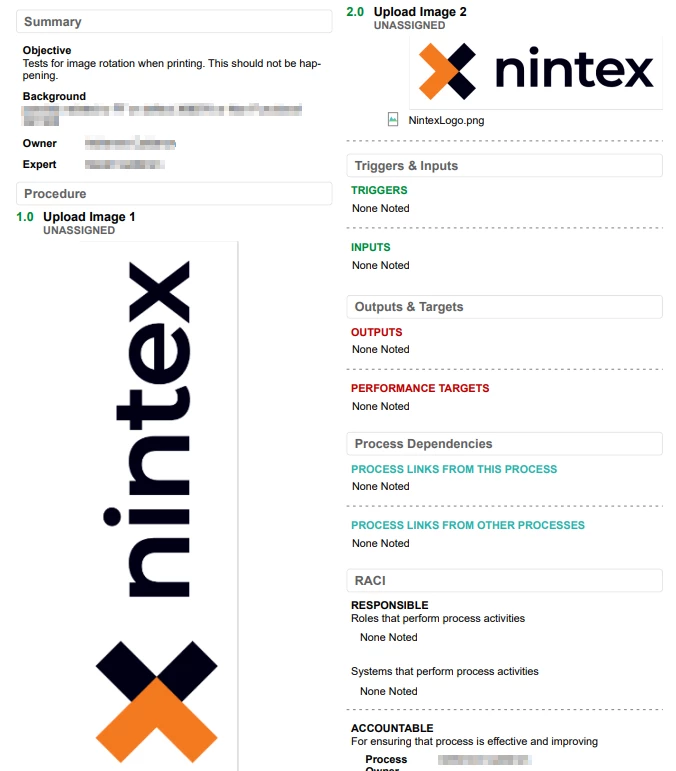
Instructions
To address the image rotation issue, users can follow these steps:
1. Inspect metadata
- Obtain the original or downloaded image from Process Manager.
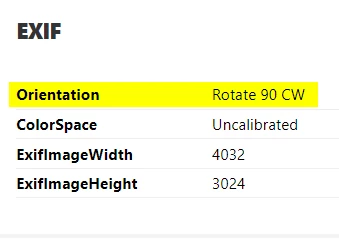
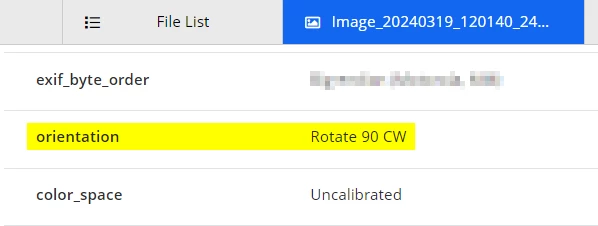
- Utilize online metadata inspectors to examine the image's orientation information.
- It is likely that the inspection will reveal that the image's metadata indicates a rotation.
2. Rotate and save image
- Employ an image editor of choice to rotate the image to the desired orientation manually.
- Save the rotated image as a new file, ensuring that the changes are applied permanently.